

The newest game from the Tomb Raider franchise – the 10th in the franchise – is a reboot telling how Lara Croft became Tomb Raider and doesn’t carry any of the storylines from the previous games. This is the fourth Tomb Raider game developed by Crystal Dynamics, and they used a heavily modified and updated Crystal engine, the engine they used in Tomb Raider Underworld and Guardian of Light. As a result, the game now supports DX11 features like hardware tessellation, super-sample anti-aliasing, and the new TressFX developed by AMD – a hair physics effect rendering a realistic hair animation.
We're gonna take a look at how this game will perform on low-end systems and find possible ways to improve its performance.
Test System and Requirements
| Test System | Minimum Requirements | |
|---|---|---|
| Processor | Intel Celeron G550 2.6 GHz Dual-core | Dual core CPU: AMD Athlon64 X2 2.1 Ghz (4050+), Intel Core2 Duo 1.86 Ghz (E6300) |
| Memory | 2GB, 4GB DDR3 1600MHz | 2 GB |
| Video Card | AMD Radeon HD 7750 1GB DDR5, nVidia GeForce 9600GT 512MB DDR3 |
DirectX 9 graphics card with 512Mb Video RAM, AMD Radeon HD 2600 XT, nVidia 8600 |
| Driver / Patch version | AMD Catalyst 13.2 Beta 7, nVidia Forceware 314.07 |
1.0.722.3 Survival Edition |
| Operating System / DirectX | Windows 8 64-bit, Windows 7 SP1 64-bit, DX 11 |
Windows XP Service Pack 3, Windows Vista, Windows 7, Windows 8 (32bit/64bit) |
The requirements are not that high and probably older systems can still manage to play the game with good performance, but we have to assume that it will only be on “Low” settings.
All tests were done with the following components and settings
- Intel Celeron G550 2.6 GHz Dual-core
- 4GB DDR3 1600MHz
- AMD Radeon HD 7750 1GB DDR5
- Windows 7 SP1 64-bit
- Normal preset, 1920x1080 (1600x900 for individual settings tests)
- Fraps 3.5.9 for recording average and minimum frames per second; 60 seconds and twice for each test.
Built-in Benchmarking Tool vs Actual Gameplay
I was curious if the built-in benchmarking tool really represents the performance of the game, so I picked “actual” gameplay to compare with. The level is from Helicopter Hill to Windmill Campsite.
httpv://www.youtube.com/watch?v=XBOd8KrHLb0
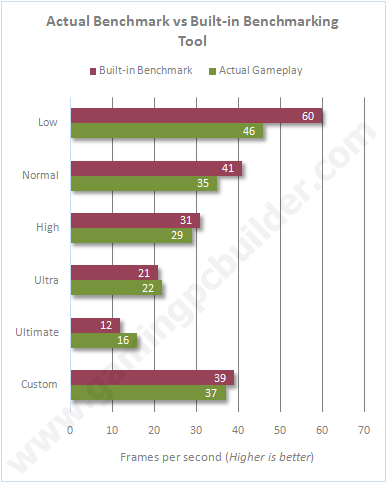
On Low, Normal, and Ultimate presets, the two benchmarking processes displayed different results, most especially at Low preset with 14fps difference. Only at Ultra preset where the two processes displayed almost identical results with 21 and 22 frames per second. I also noticed that at Ultra and Ultimate presets, the actual gameplay exhibited faster performance than using the Built-in benchmarking tool.
With these uneven results, I decided to use the actual gameplay for the rest of the tests. I am not saying that the built-in benchmarking tool is unreliable, it’s just I’m more comfortable using the gameplay for benchmarking. And besides, It’s the “actual gameplay”.
You can read a more detailed article here from our partner site comparing benchmarking using built-in tools against actual gameplay.
Image Comparison and Performance
Texture Quality
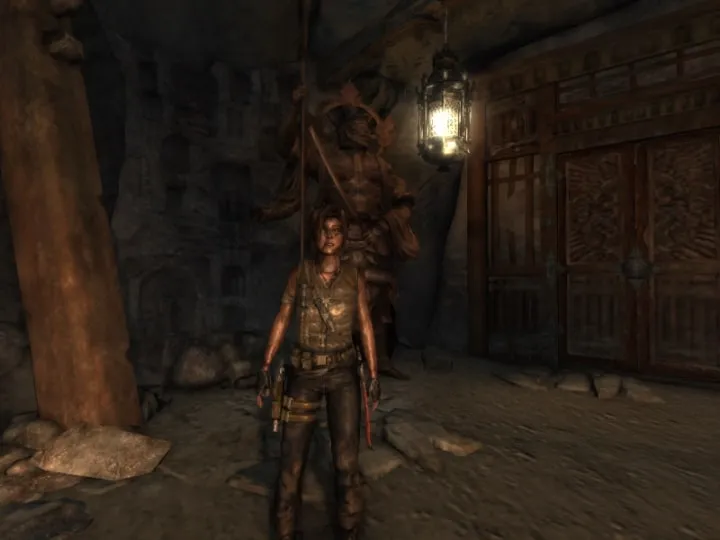
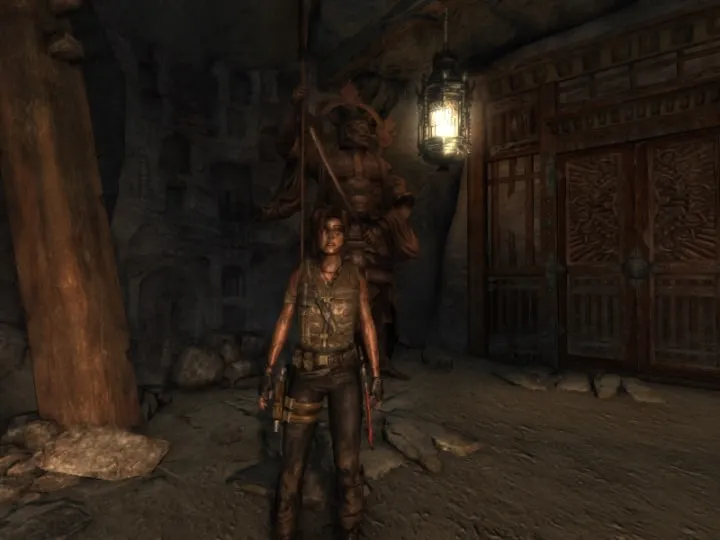
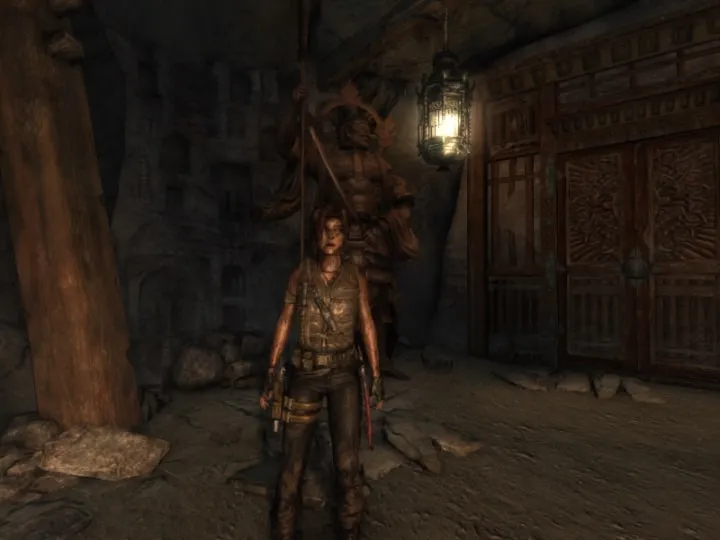
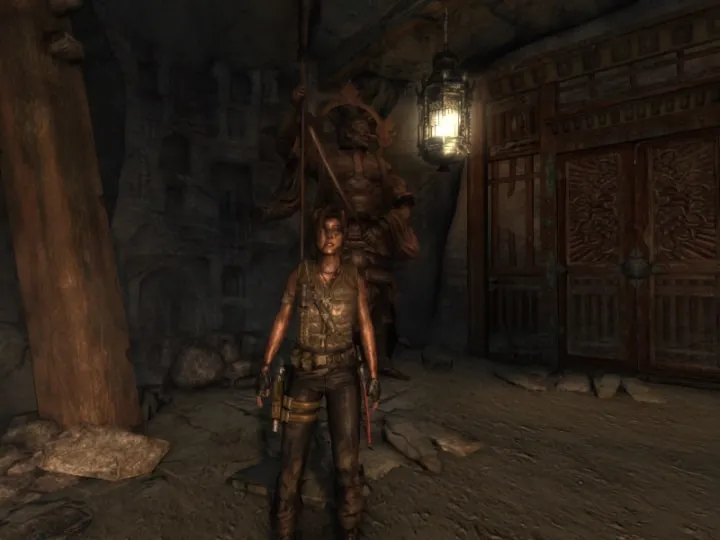
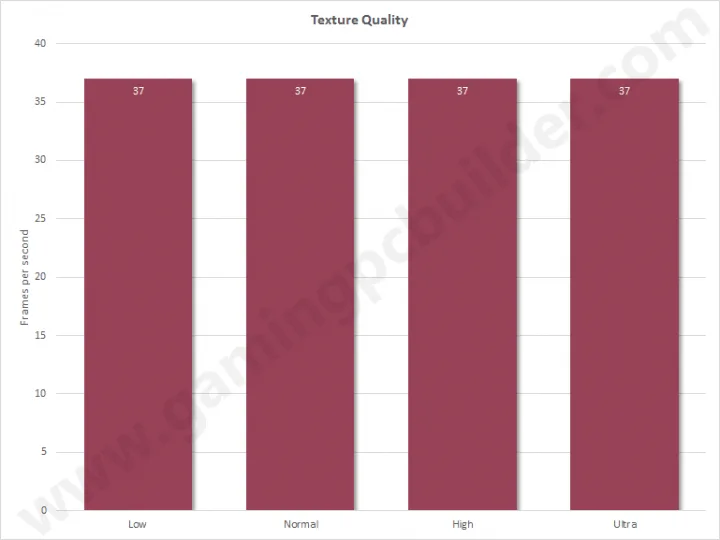
Texture quality affects the sharpness and crispiness of texture on wood, stones, soil, and clothes. The differences between each setting is noticeable and I recommend texture quality to be set on ultra since there is no performance hit when changing between settings.
Texture Filter
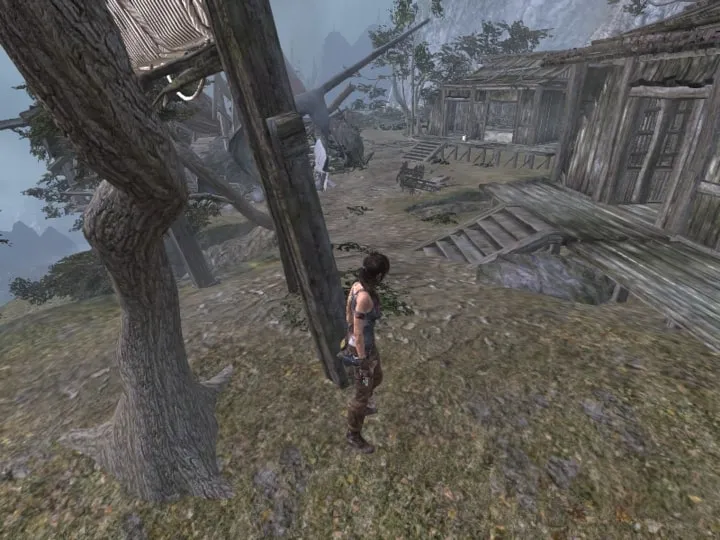
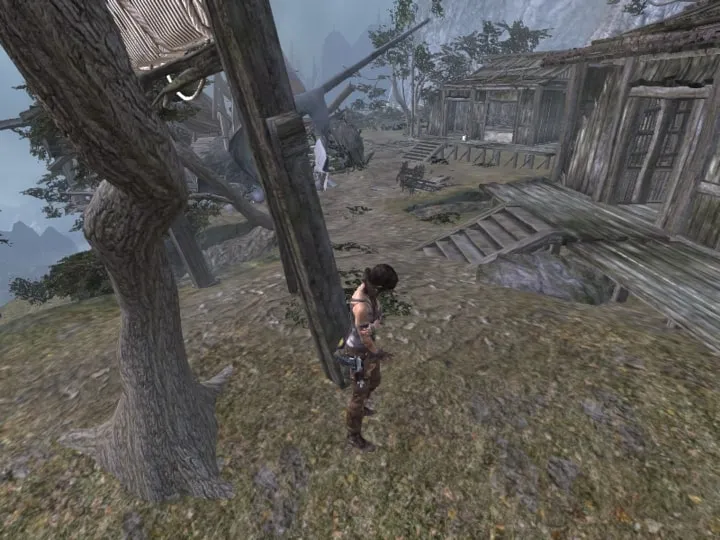
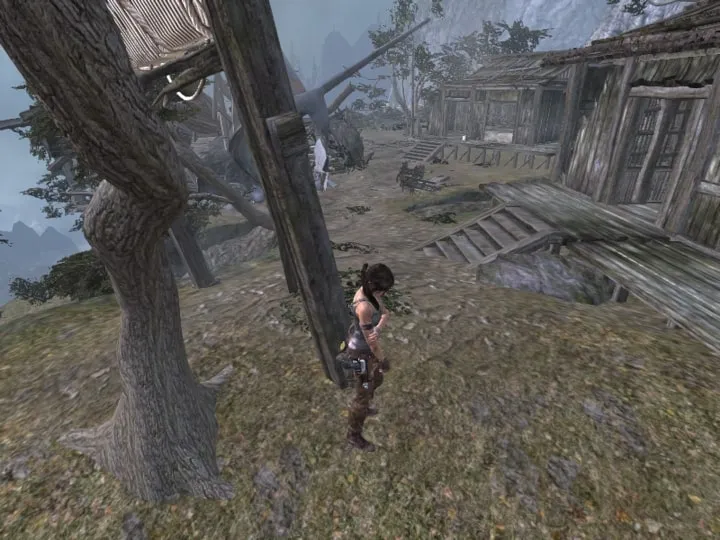
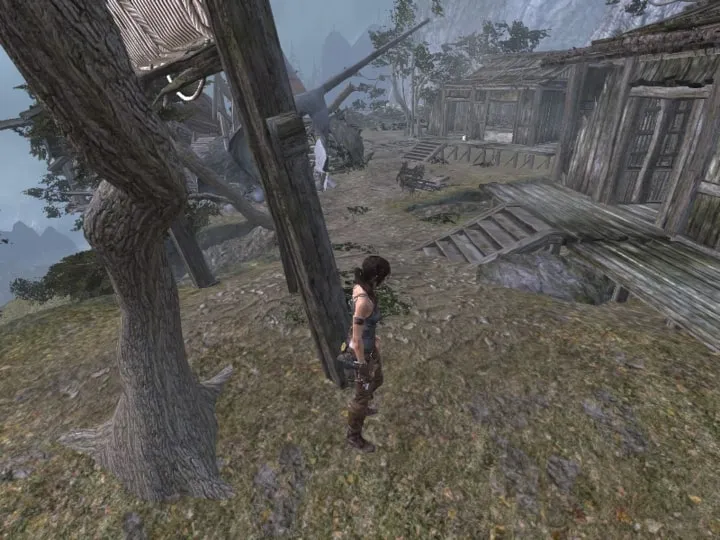
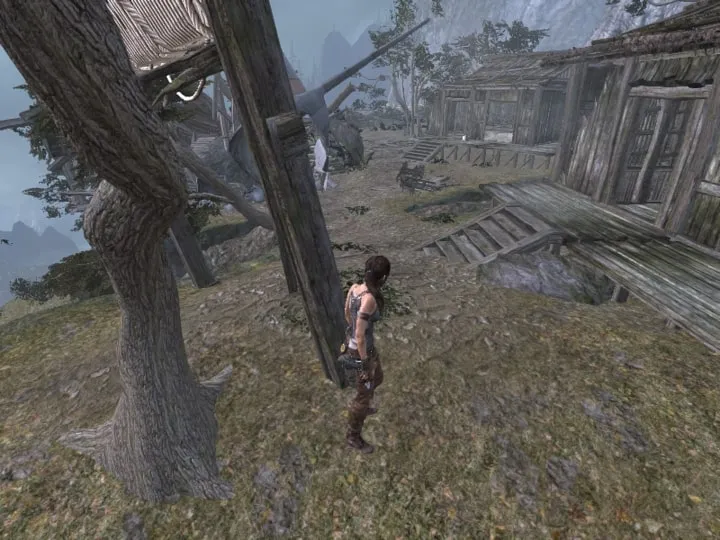
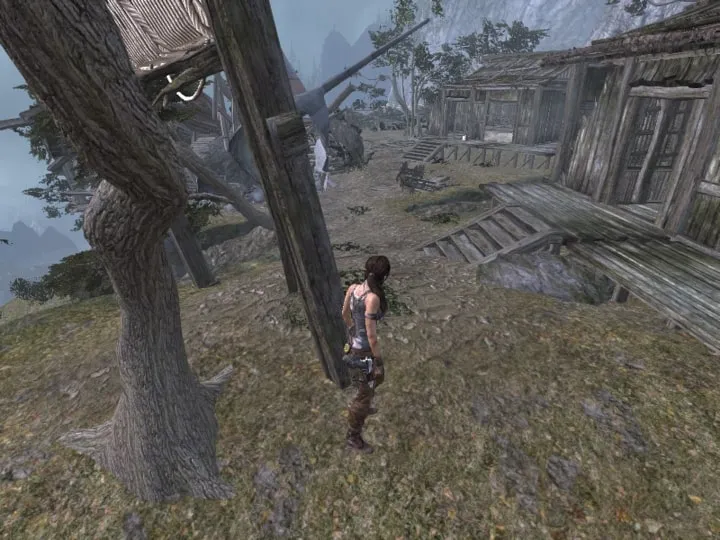
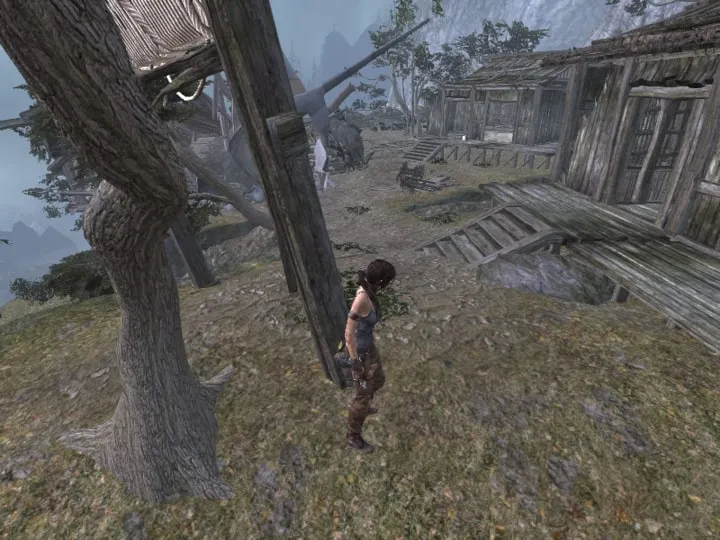
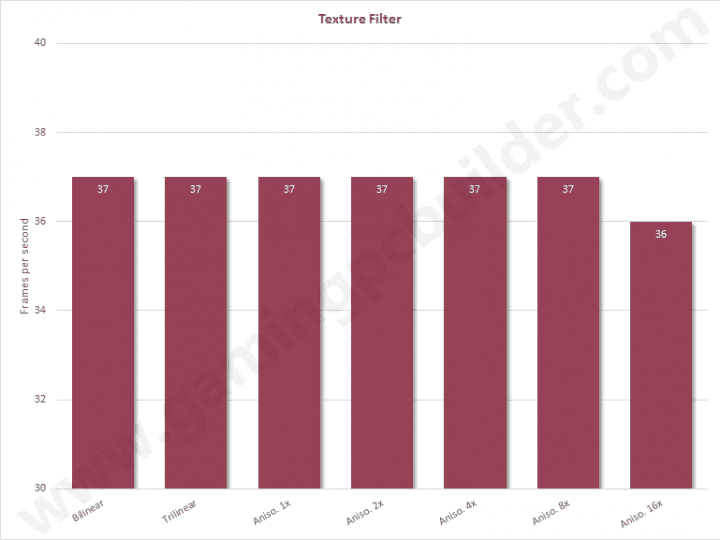
Texture Filtering makes the textures clearer. The higher the value, the farther the textures will clear up. The performance is the same across each setting until you set it to 16x where the performance dropped by 1, but even that is negligible. I recommend setting this at 8x.
Hair Quality
https://www.youtube.com/embed/JifRO2LHDpY
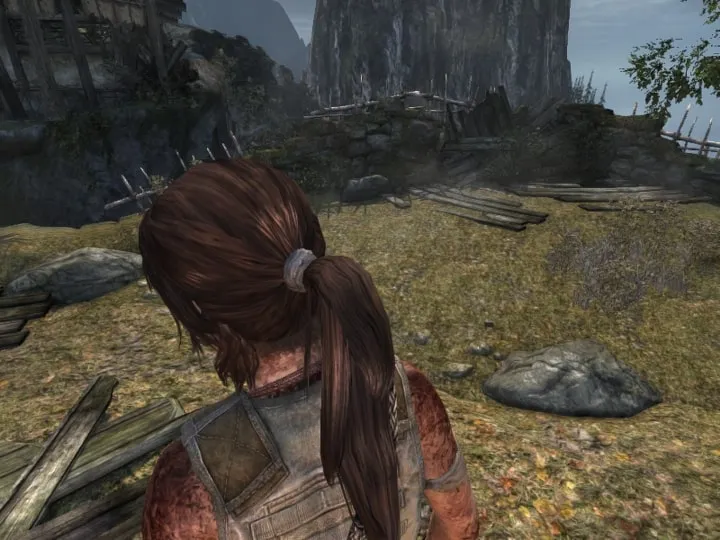
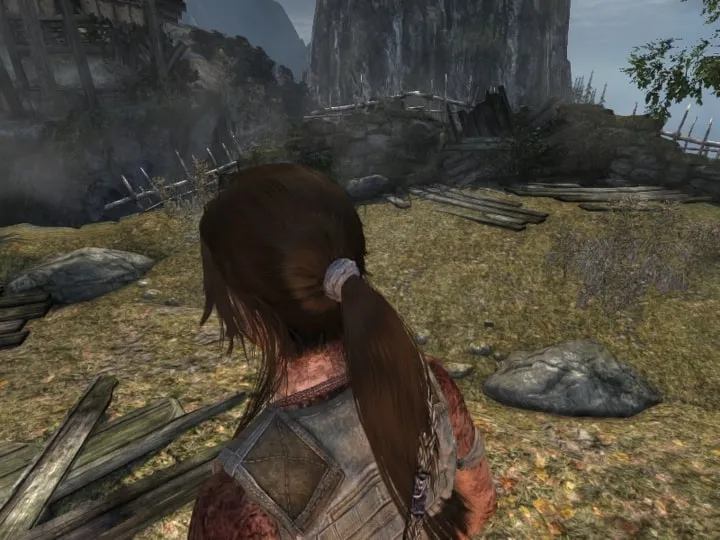
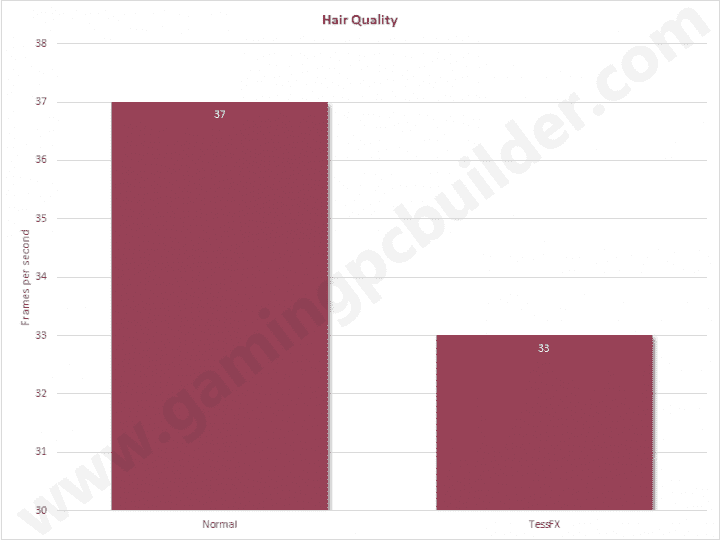
TressFX improves the look and the movement of hair but takes away some frames per second. For a mid-range setup, I recommend hair quality to be set on normal.
Anti-aliasing
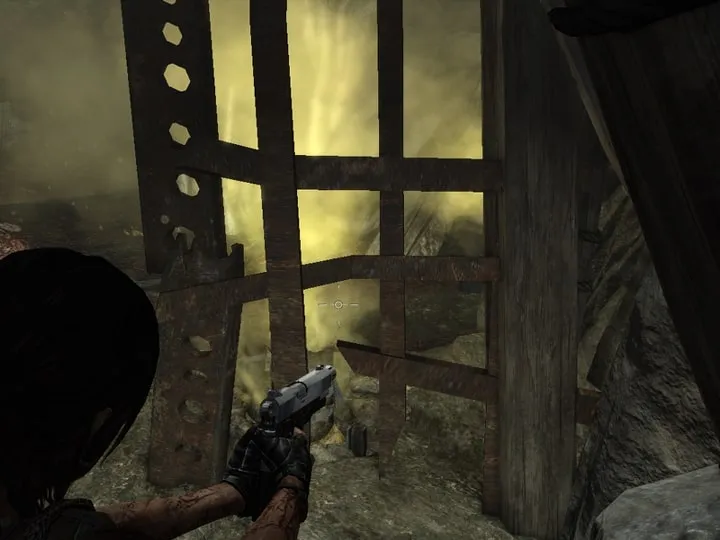
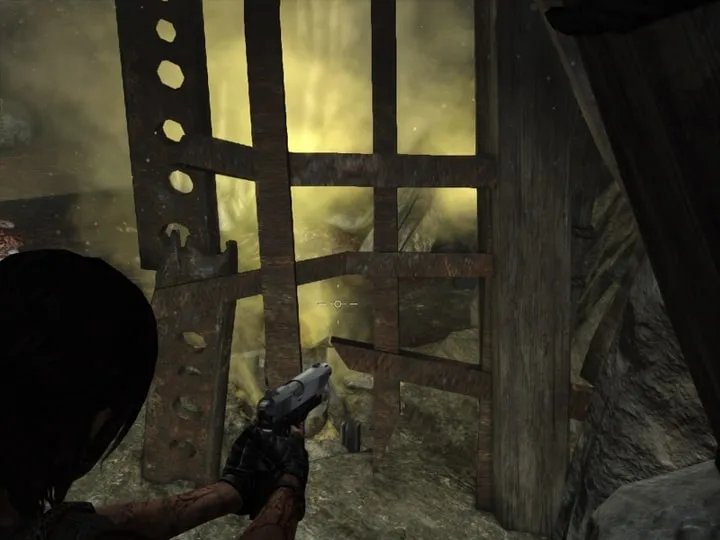
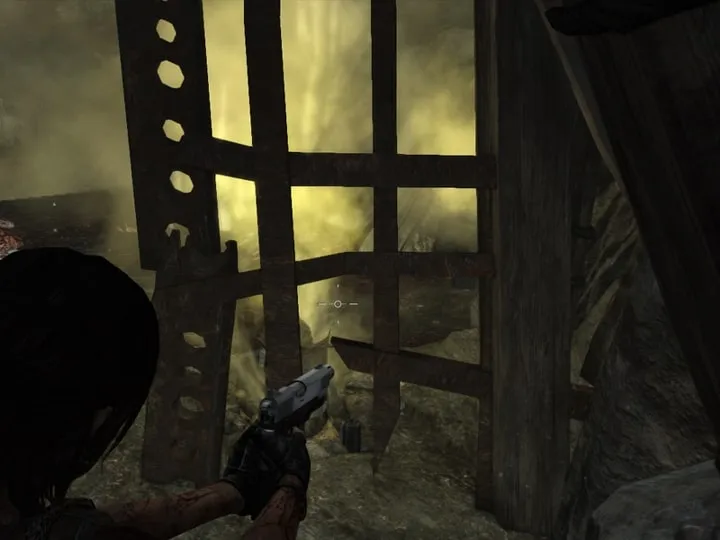
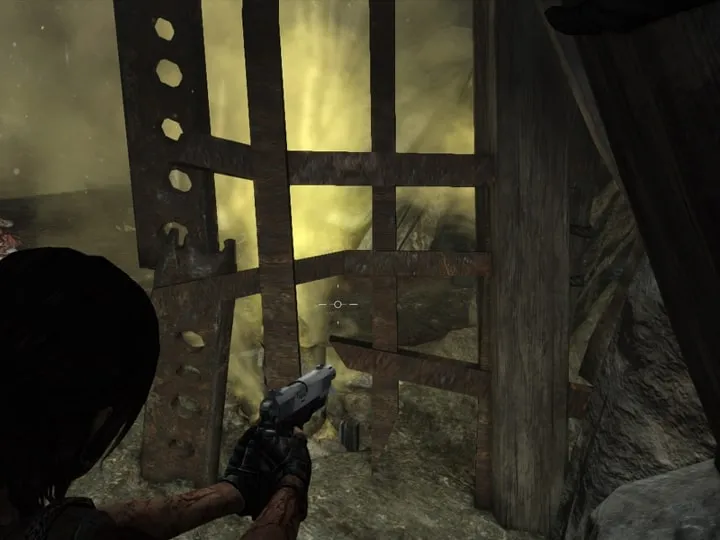
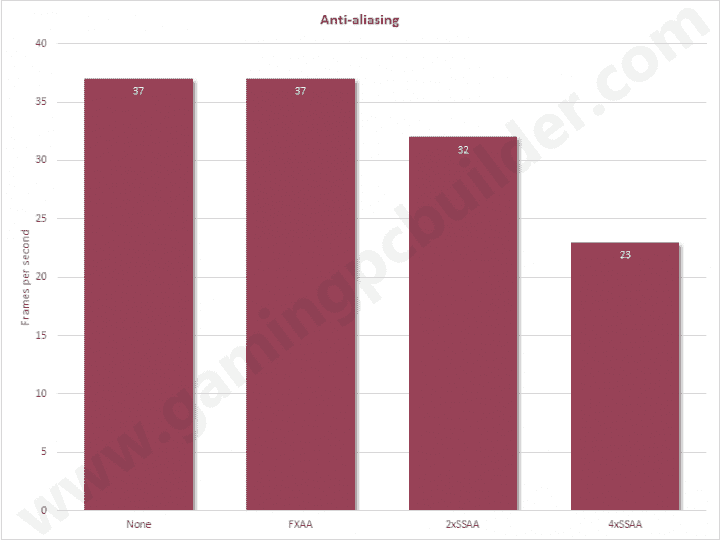
Turning on any anti-aliasing make the edges smoother. The higher the value the better but it will also take away some frames per second. FXAA improves quality without losing performance. I recommend FXAA to be used here.
Shadows
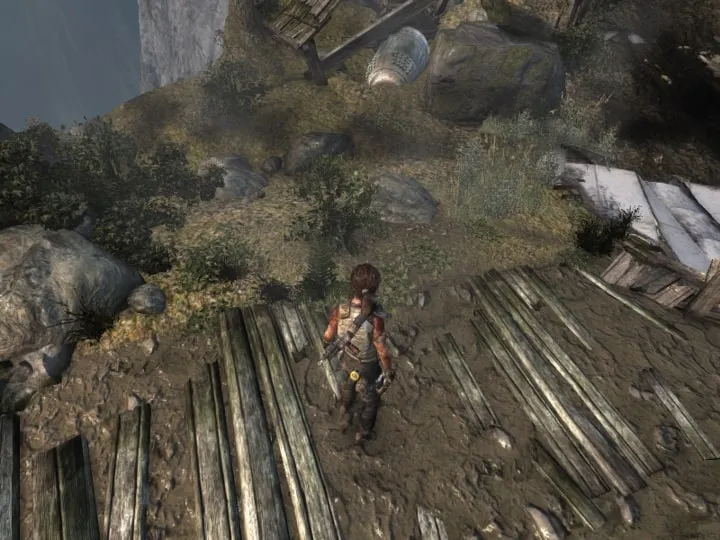
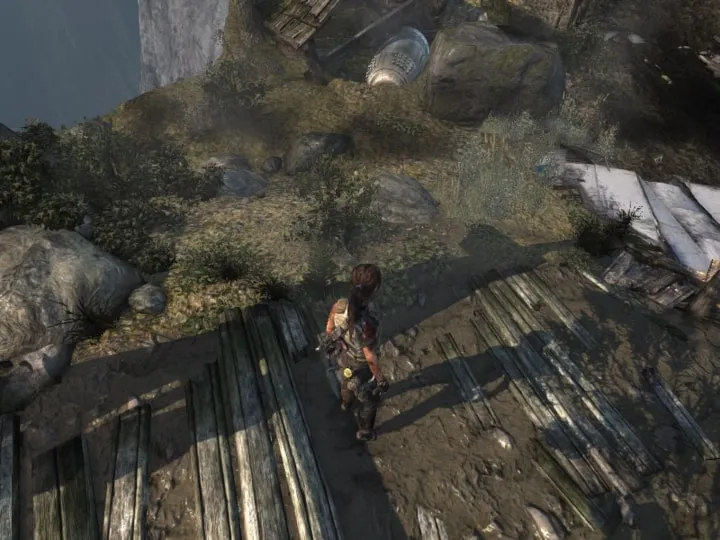
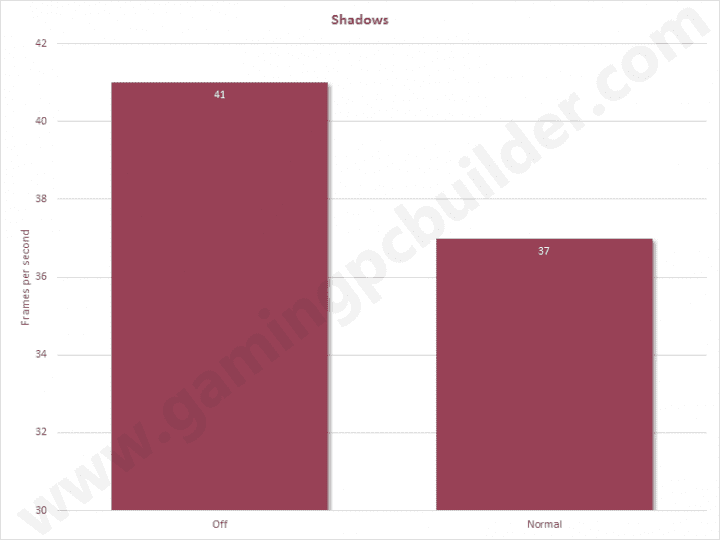
Turning off shadows will give you additional frames per second but will make the scenes unrealistic. I recommend setting this on normal.
Shadow Resolution
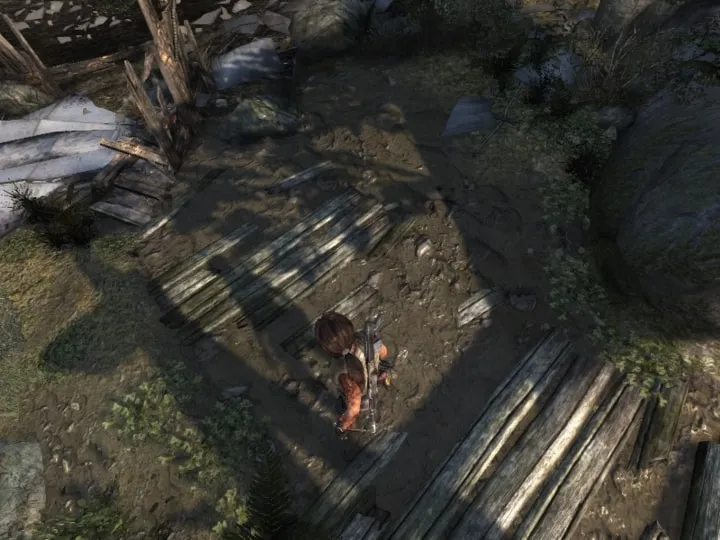
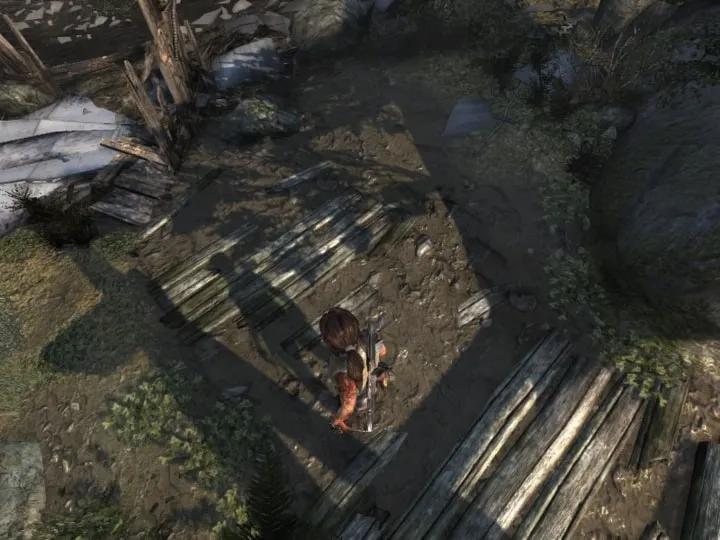
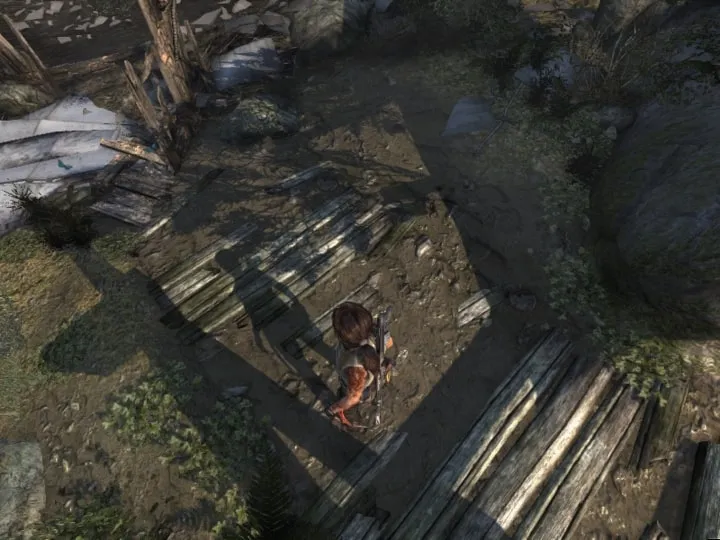
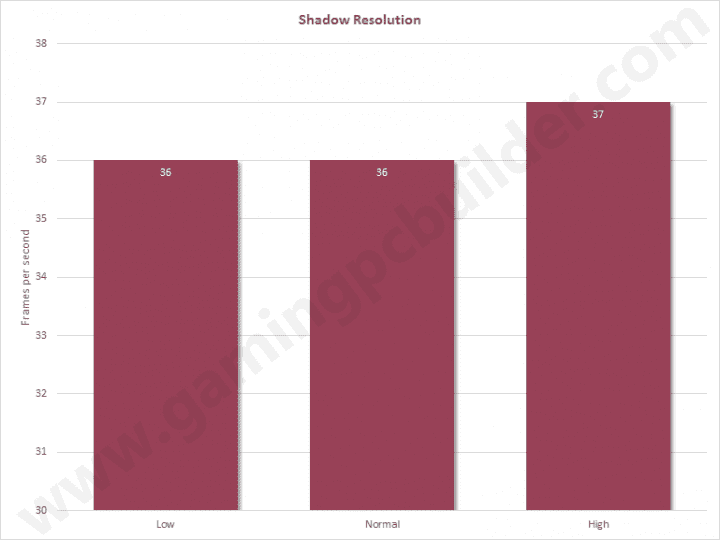
Shadow resolution setting improves the overall quality of shadows. At the low setting, shadows are blurry. Setting it to normal or high makes the shadows sharper. The quality difference between normal and high is indistinguishable but high has better performance. I recommend setting this on High.
Level of Detail
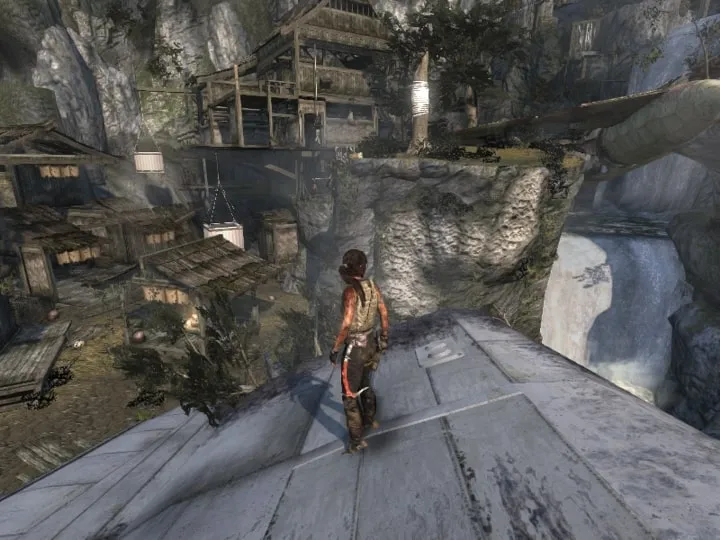
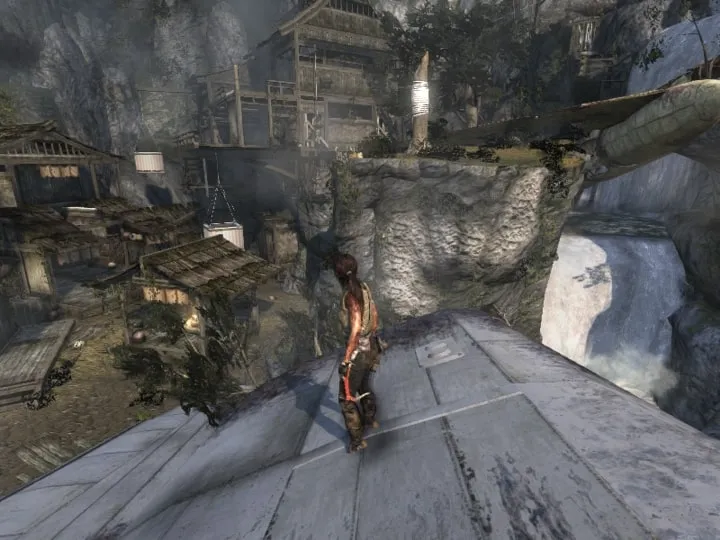
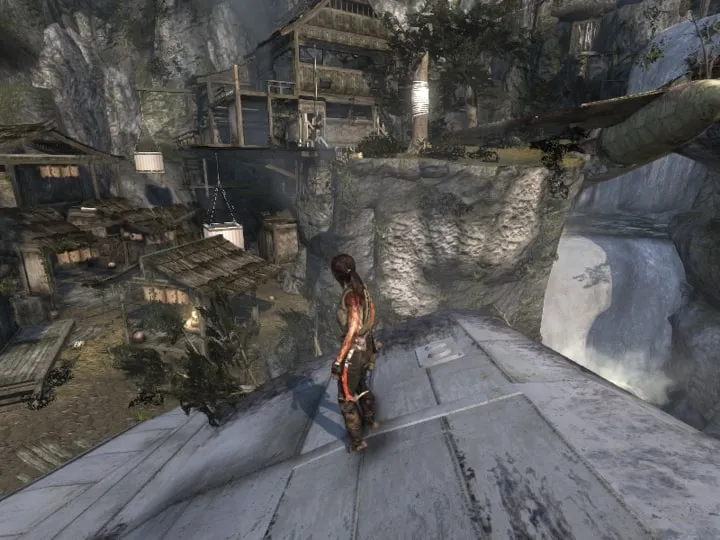
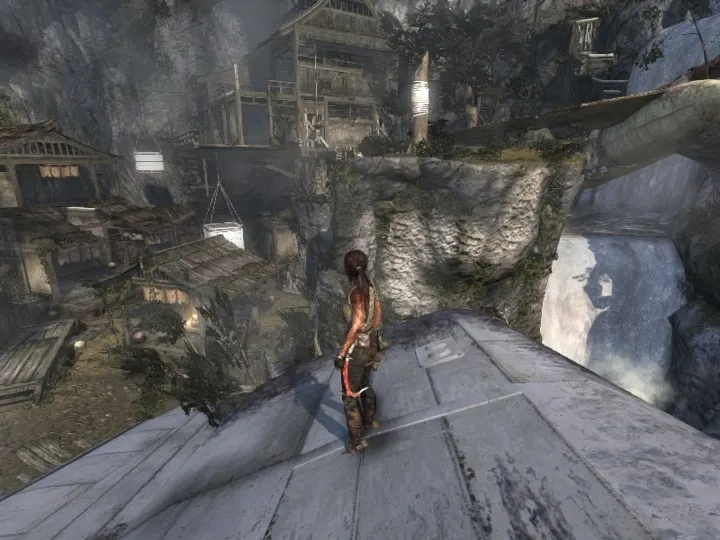
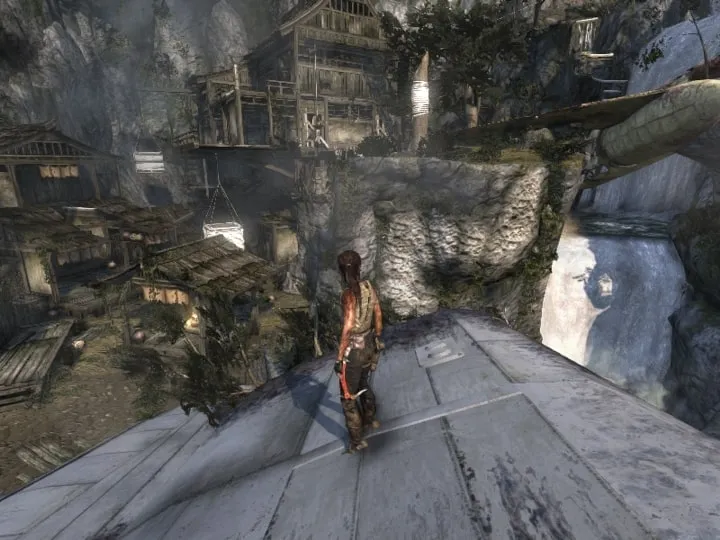
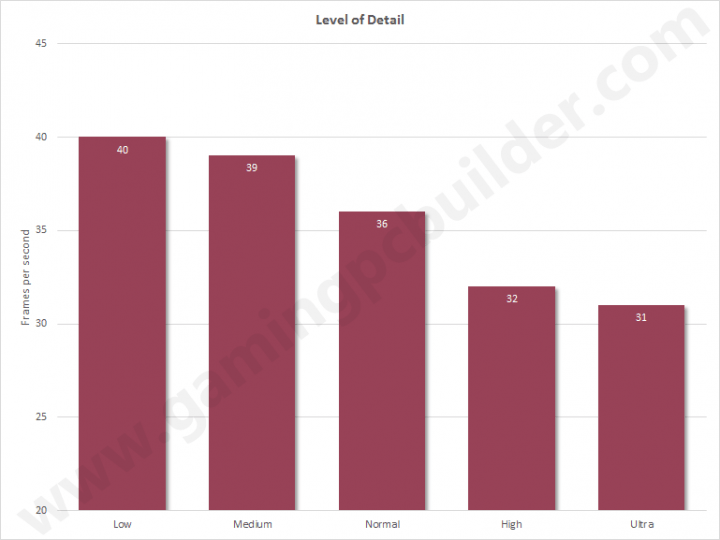
Level of Detail controls how objects and terrain appear. The higher the setting, the more detailed objects and terrain. I recommend Medium for this setting.
Reflections
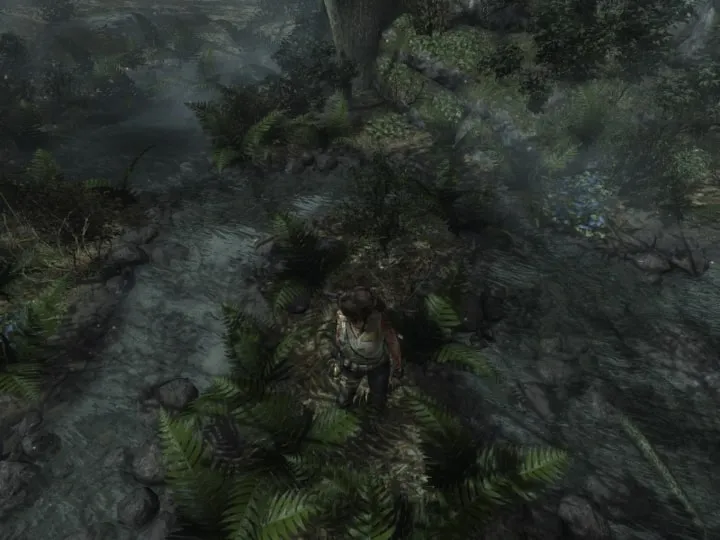
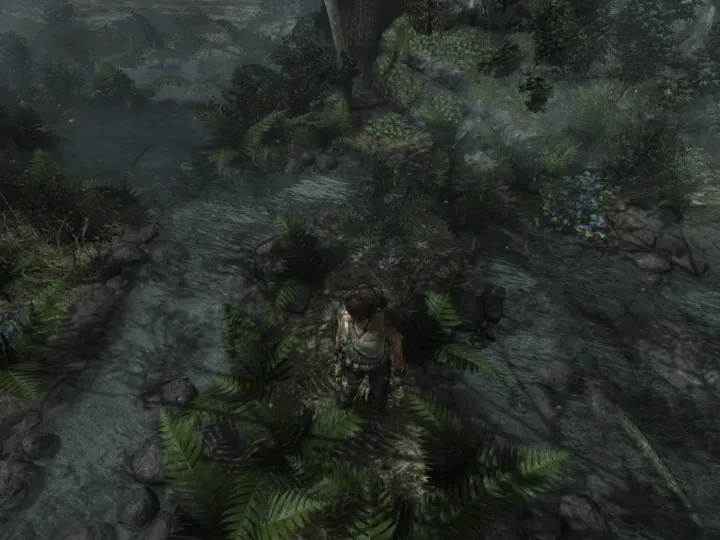
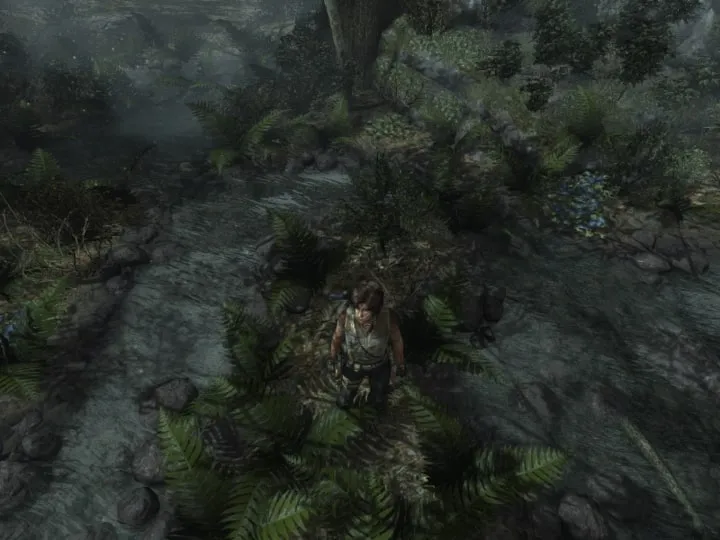
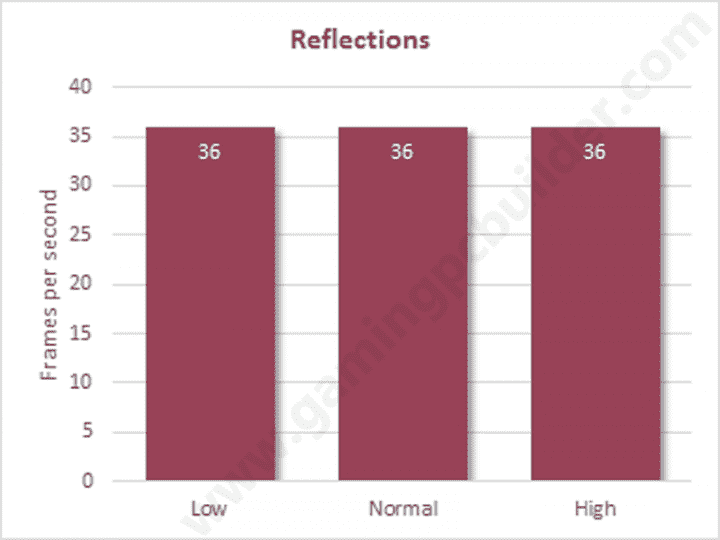
The reflections on water don't turn off and I couldn’t recognize any differences among values (Off, High, Normal), and performance is all the same. Since this setting doesn't make any changes, we can turn this off.
Depth of Field
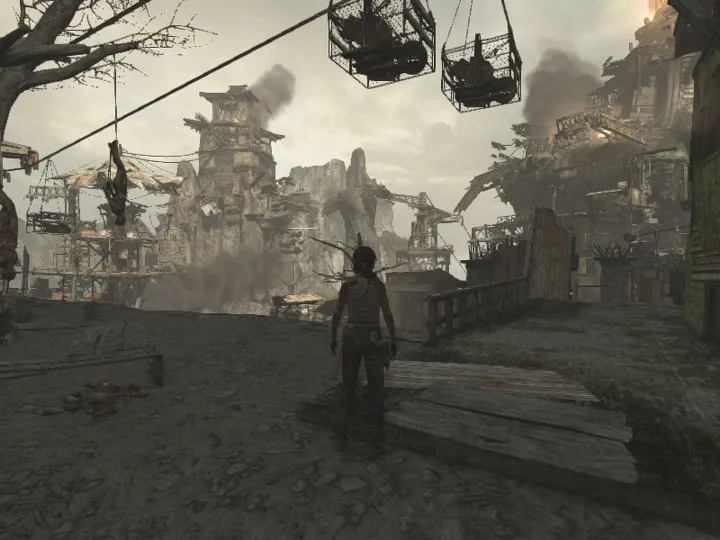
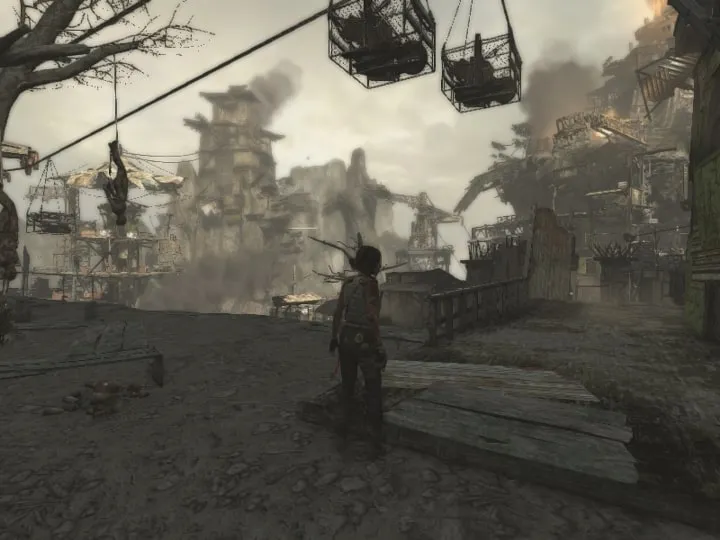
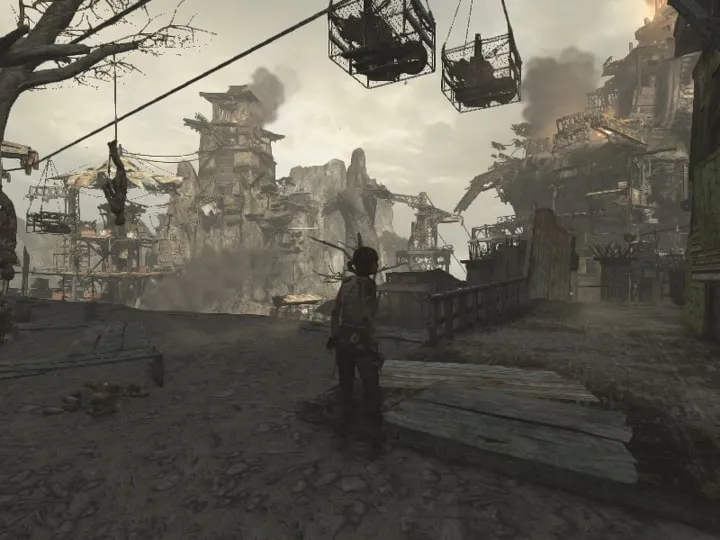
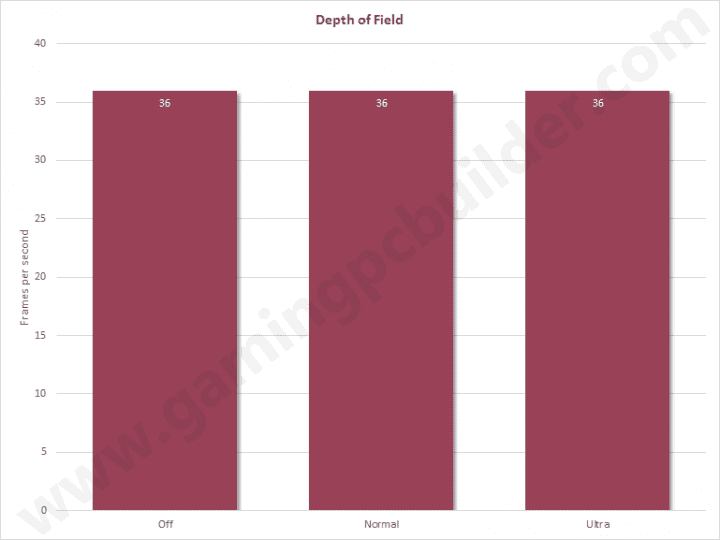
Depth of Field makes distant objects blurry and fuzzy, but only on Normal. Turning it to High turns it off. We can turn this off. It's a personal preference – some like the blurry effect, others don't.
Screen Space Ambient Occlusion
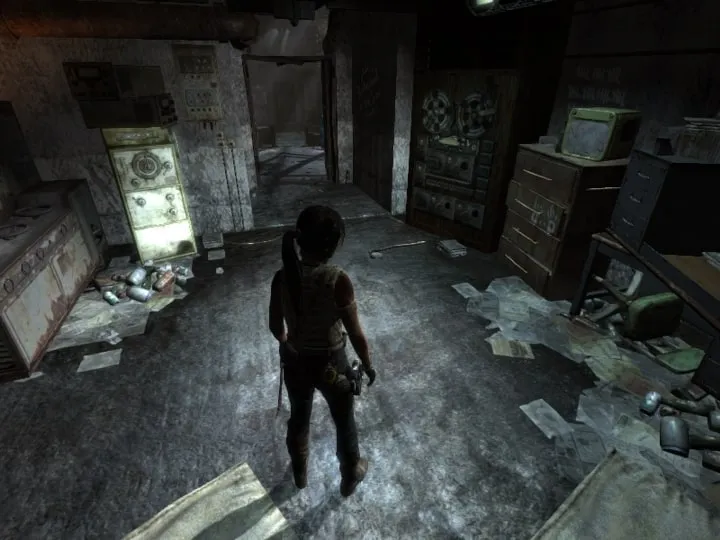
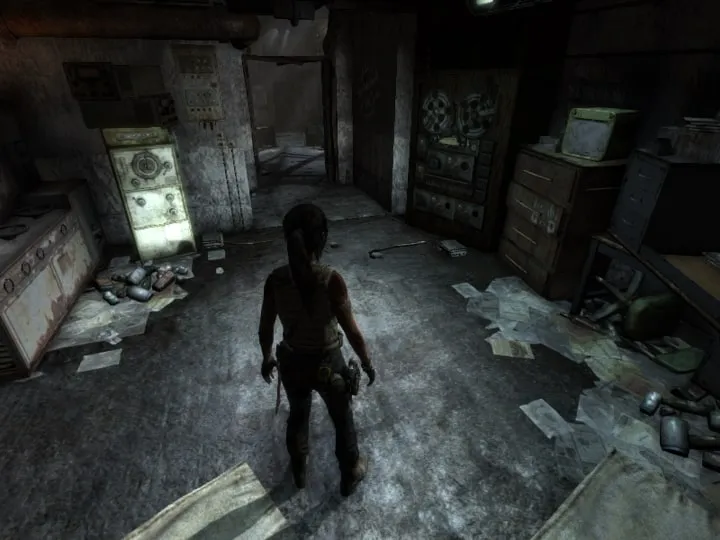
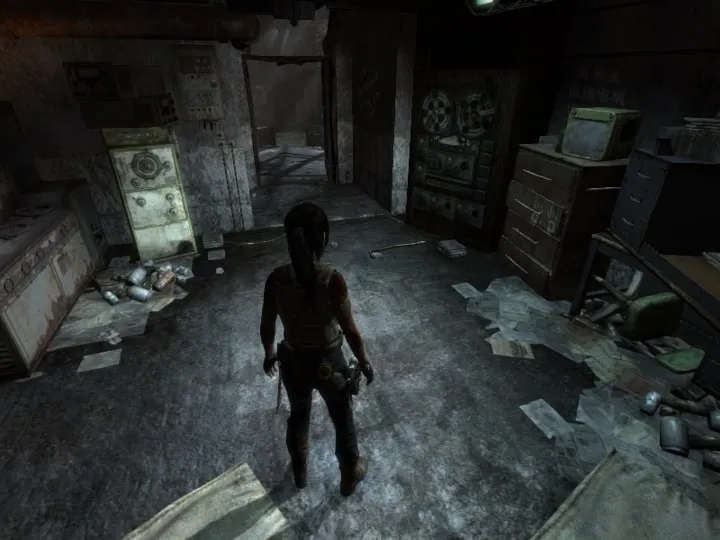
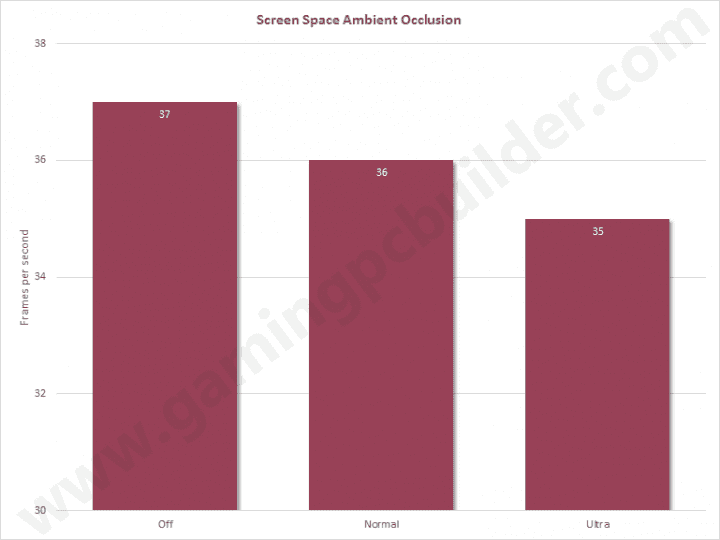
This setting adds shadows to objects. Performance hits are minimal but I recommend setting this on Normal.
Post Processing
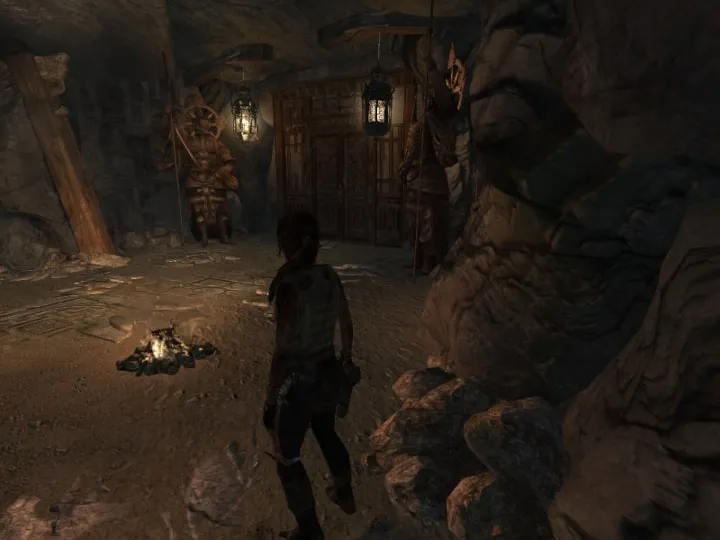
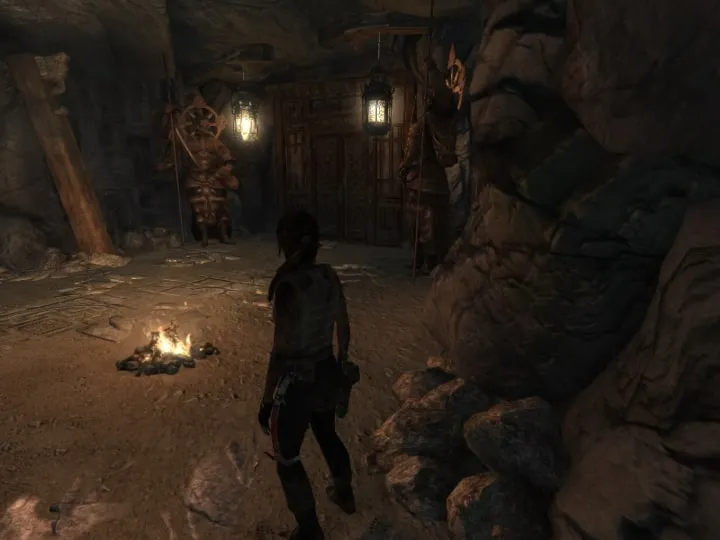
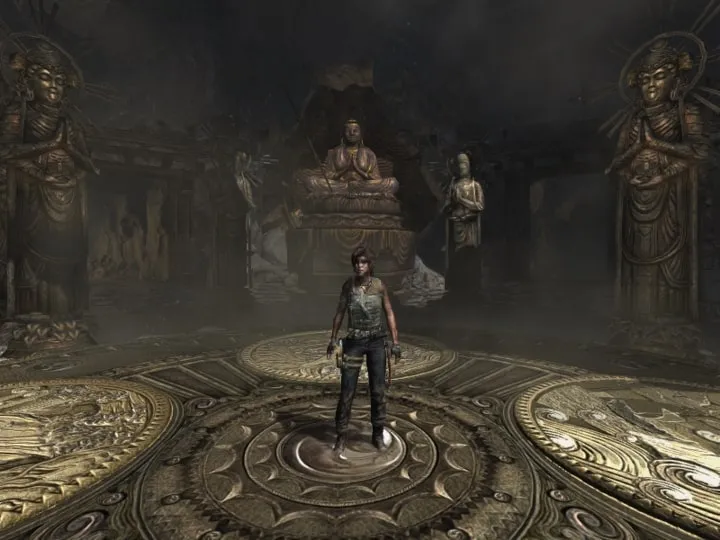
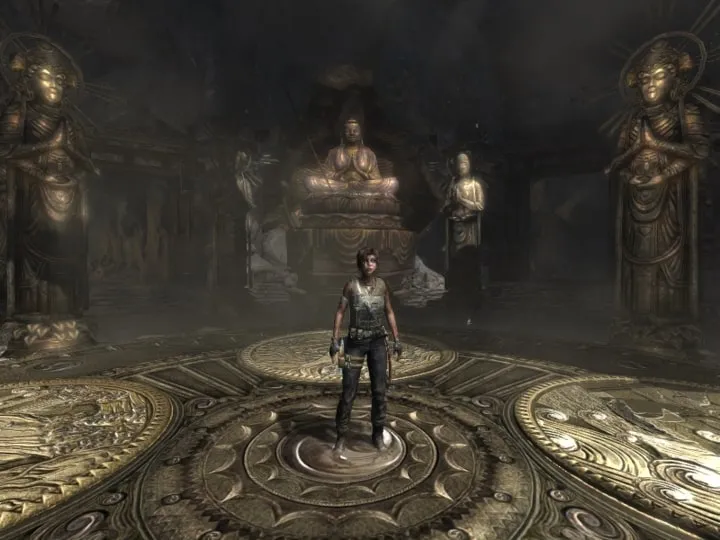
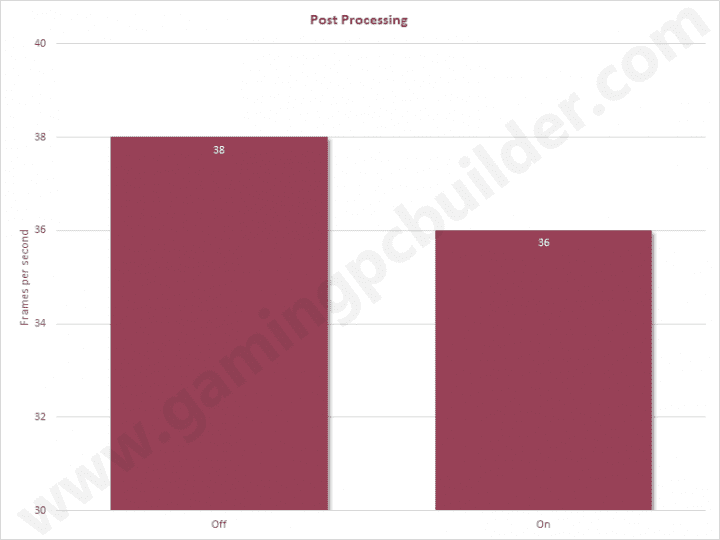
Post Processing adds additional lighting effects. Lamps and fire produce more light, thus create more shadows. The performance hit is minimal and I recommend turning this on.
Tessellation
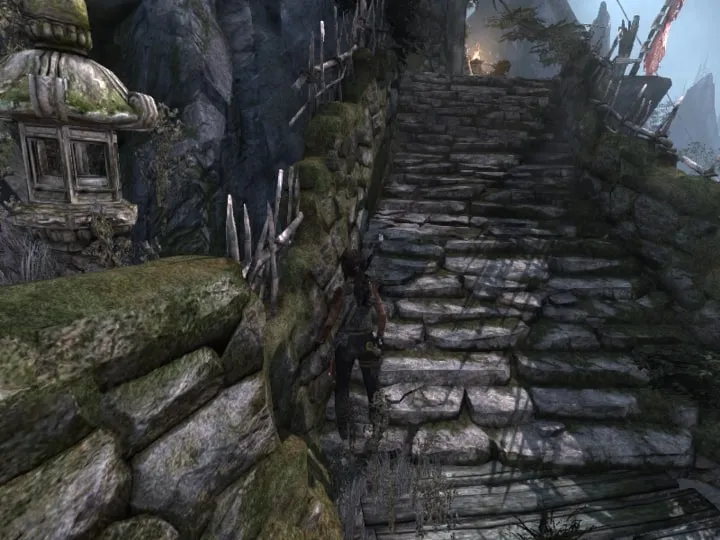
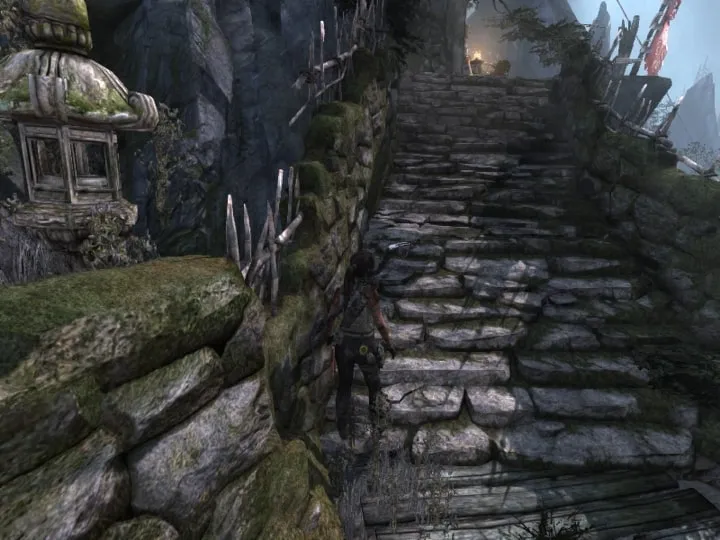
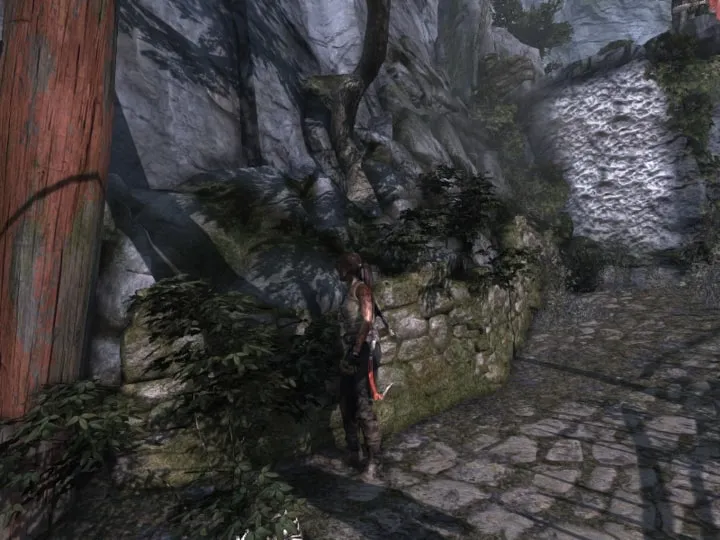
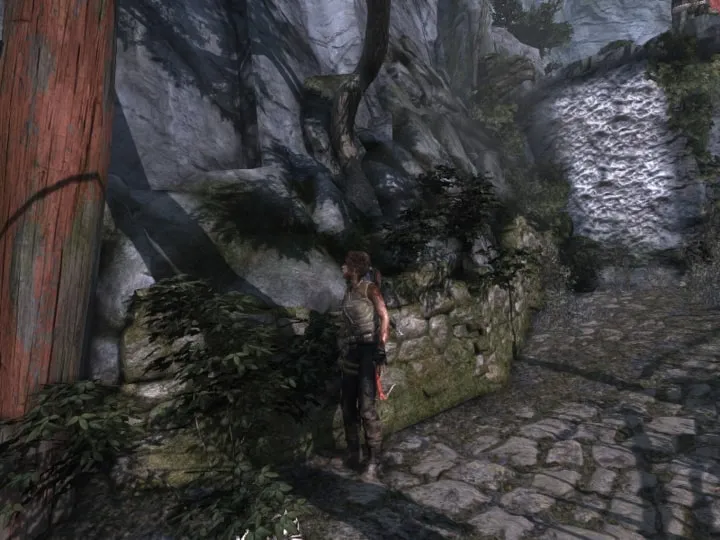
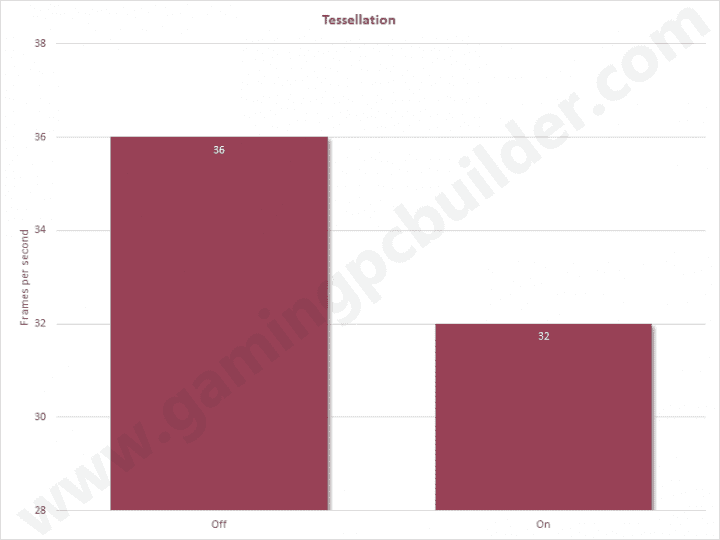
Tessellation is more noticeable on rocks. The performance hit is a little high and I recommend turning this off.
High Precision
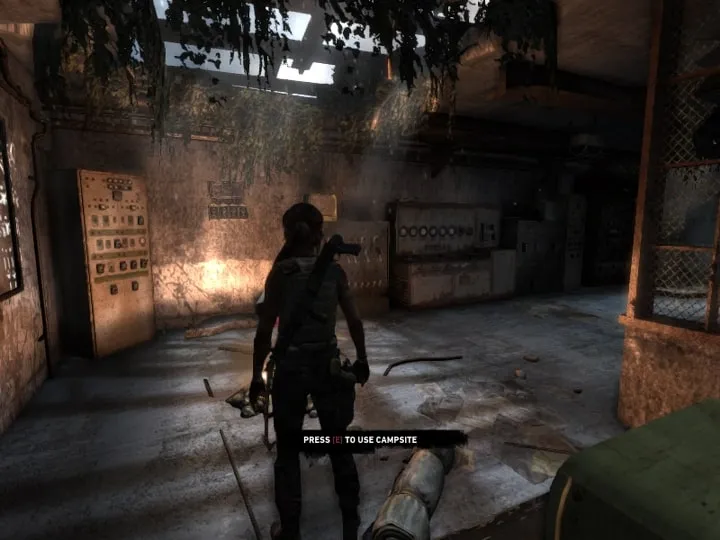
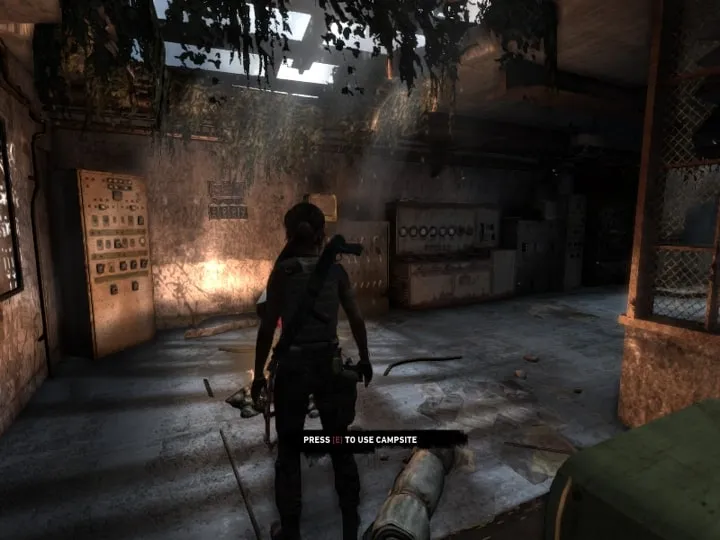
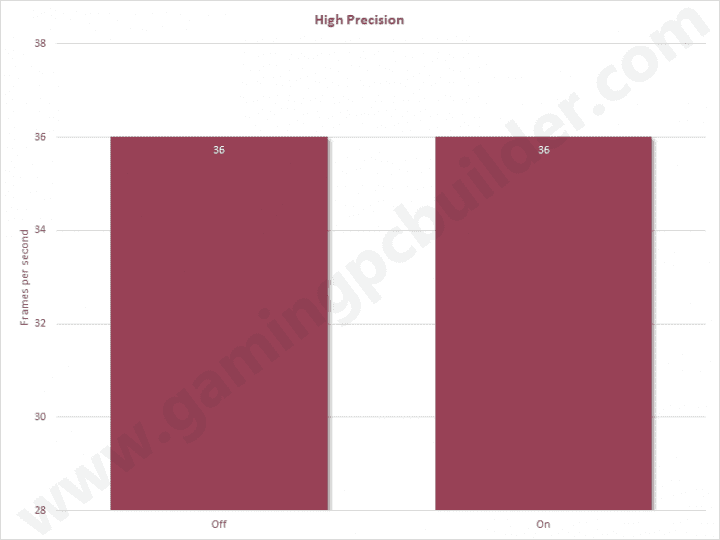
High Precision puts more pixels on a given space or object making the object more detailed, but in this case, we didn't see any visual difference and the performance is all the same.
Presets
Based on quality/performance observation, I formulated our Custom preset to get the best visual quality possible while still having enough frames per second to play the game well.
| Low | Normal | High | Ultra | Ultimate | Custom | |
|---|---|---|---|---|---|---|
| Texture Quality | Low | Normal | High | Ultra | Ultra | Ultra |
| Texture Filter | Bilinear | Anisotropic 4x | Anisotropic 8x | Anisotropic 16x | Anisotropic 16x | Anisotropic 8x |
| Hair Quality | Normal | Normal | Normal | Normal | TressFX | Normal |
| Anti-Aliasing | Off | FXAA | FXAA | FXAA | FXAA | FXAA |
| Shadows | Off | Normal | Normal | Normal | Normal | Normal |
| Shadow Resolution | Low | Normal | High | High | High | High |
| Level of Detail | Low | Normal | High | Ultra | Ultra | Medium |
| Reflections | Off | Normal | High | High | High | Off |
| Depth of Field | Off | Normal | Normal | Ultra | Ultra | Off |
| SSAO | Off | Normal | Normal | Ultra | Ultra | Normal |
| Post Processing | Off | On | On | On | On | On |
| Tessellation | Off | Off | Off | On | On | Off |
| High Precision | Off | Off | Off | On | On | Off |
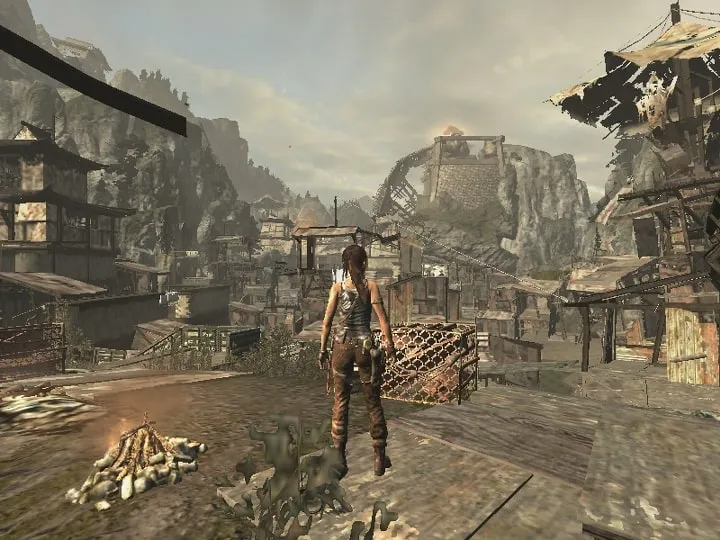
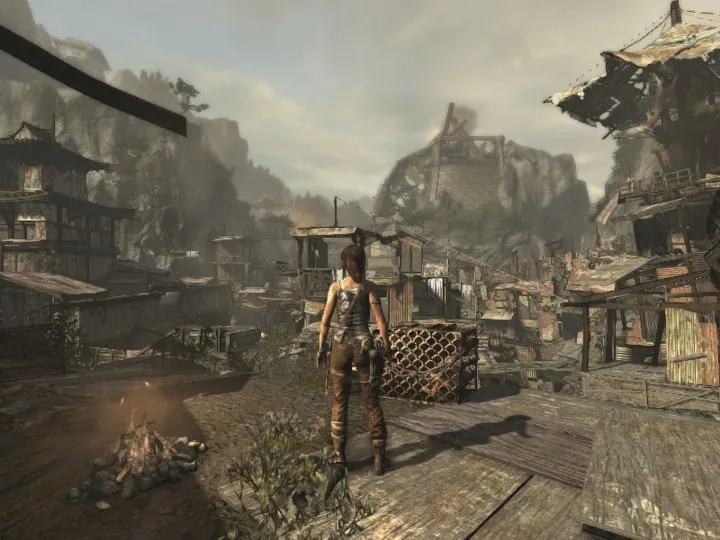
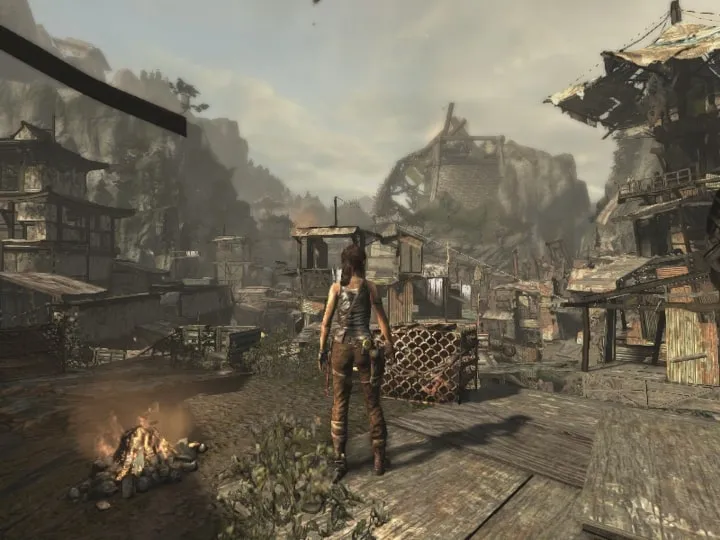
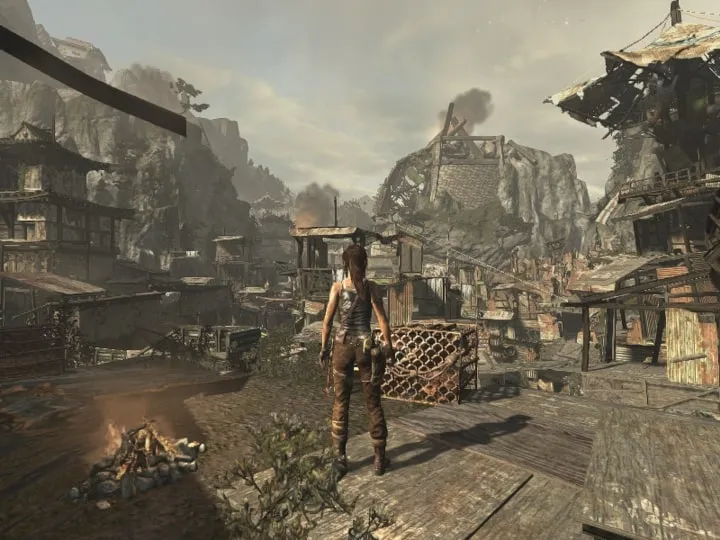
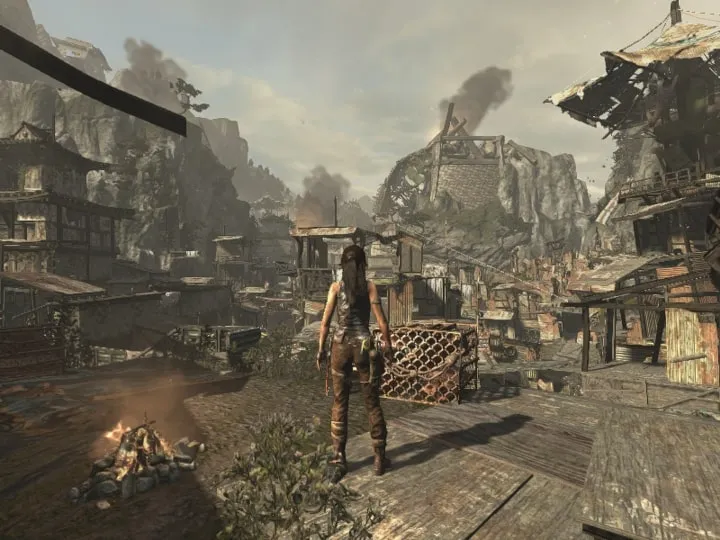
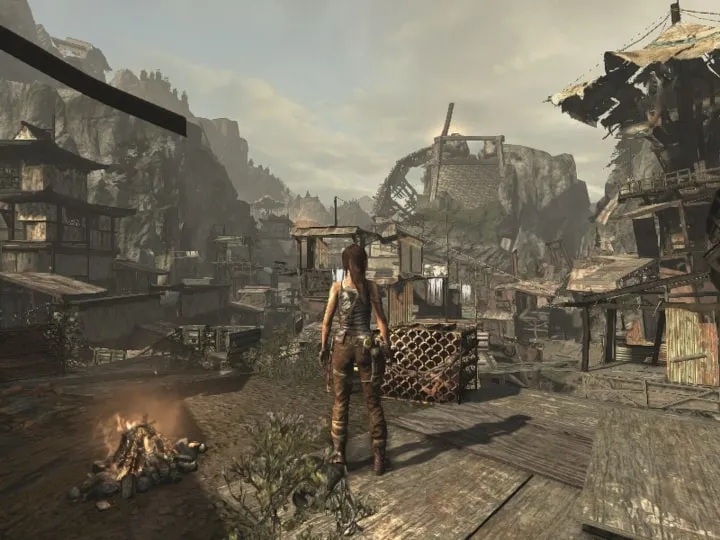
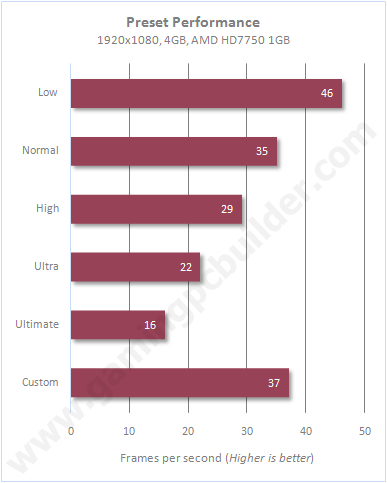
Our Custom preset looked like another preset with visual quality comparable to the Ultra preset. It offers less smoke and less detail on objects, but the performance is way better than Ultra and a little better than the Normal preset. We improved performance without losing much visual quality. Knowing which settings to turn on and off is really helpful, especially for those who don’t have monster gaming rigs.
Graphics Card Performance
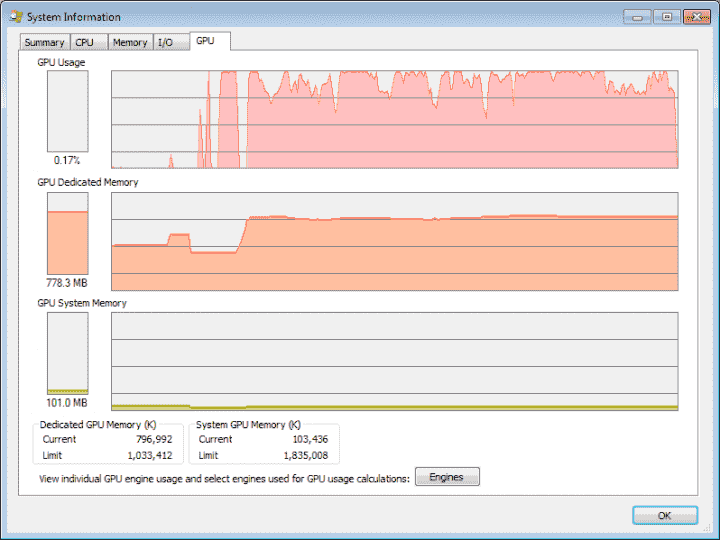
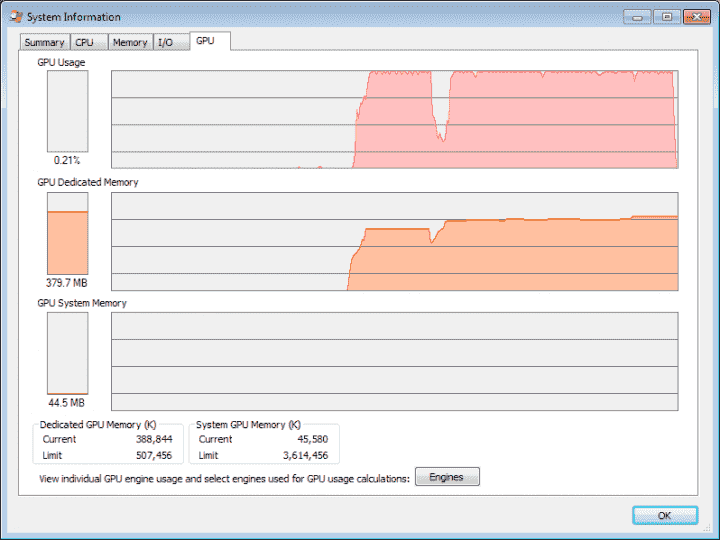
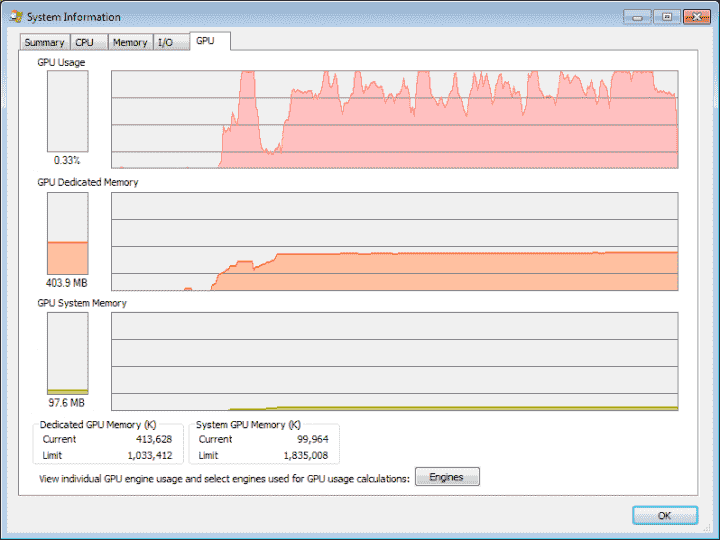
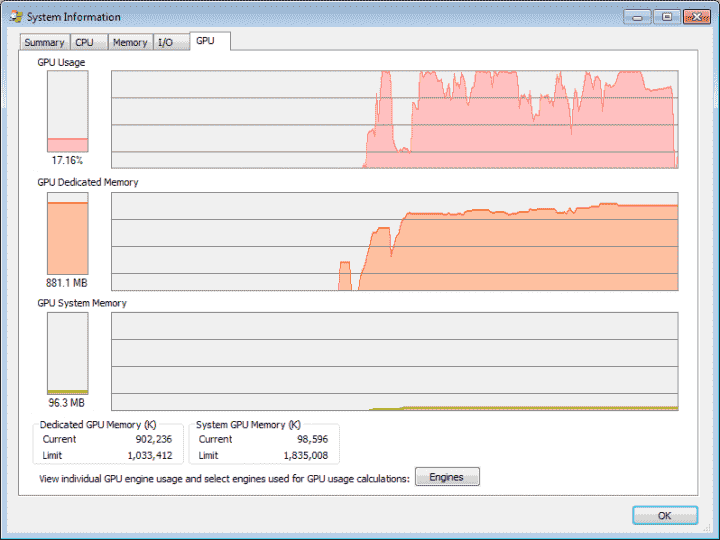
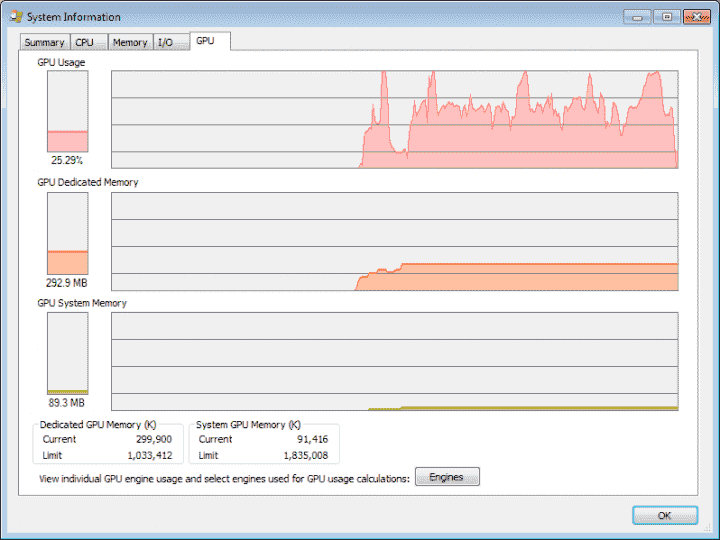
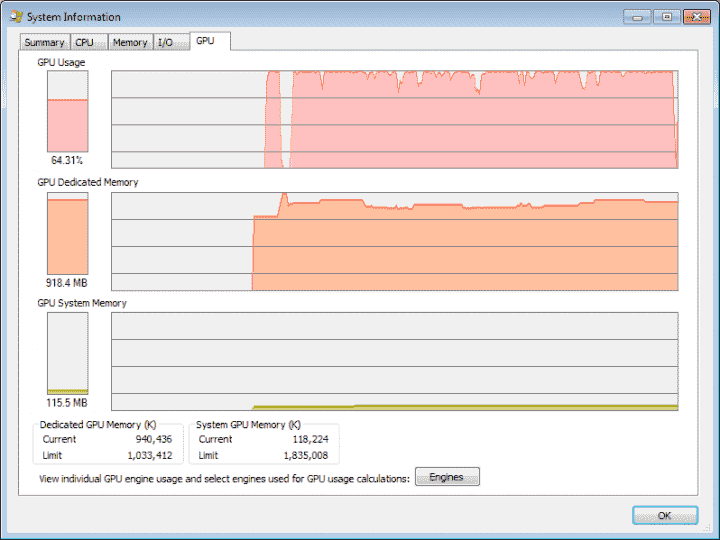
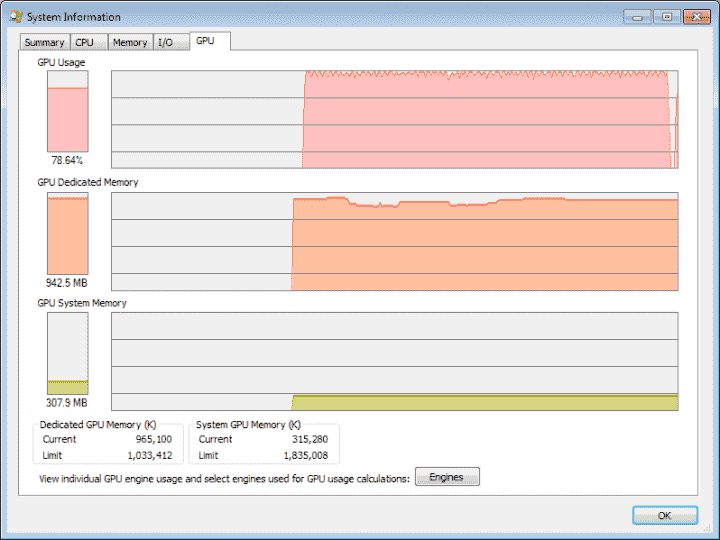
Beginning at Low Preset, the GPU usage and memory begin to rise as you switch to a more demanding preset. Ultra and ultimate preset will use 100% of your GPU's processing power and you will need more than 1GB of video memory.
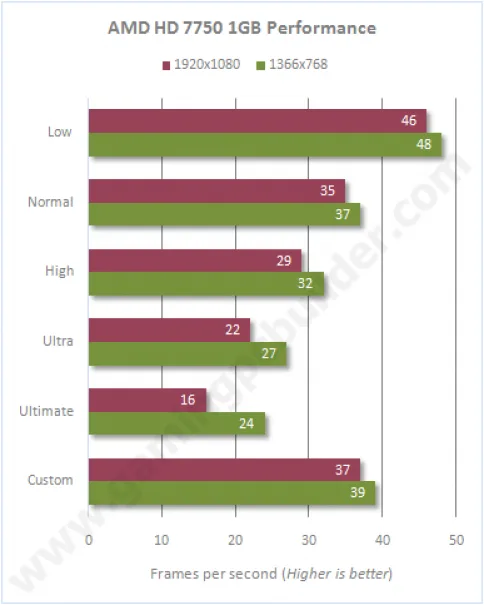
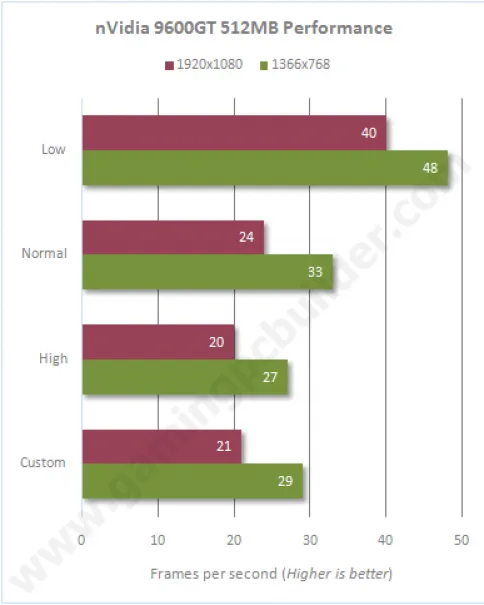
You can play the game up to high preset on AMD 7750 and only with normal preset at 1366x768 on Nvidia 9600GT. Also notice that you don’t have access to ultra and ultimate preset if you are using Nvidia 9600GT since it is not a DX11 capable video card.
CPU Performance
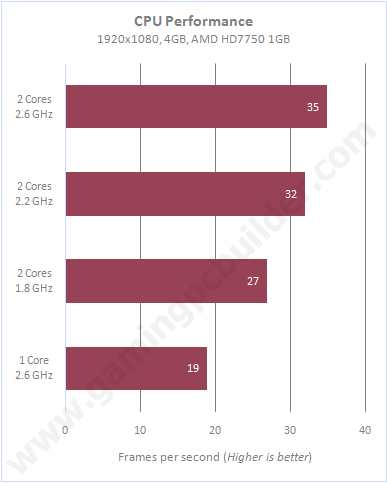 The game doesn’t utilize 100% of the CPU, but having a lower clock speed than the minimum, which is 2.1GHz, will not give you a satisfying experience. Also, having only 1 core of the CPU, even at 2.6GHz, will make the game too slow to play.
Memory Performance
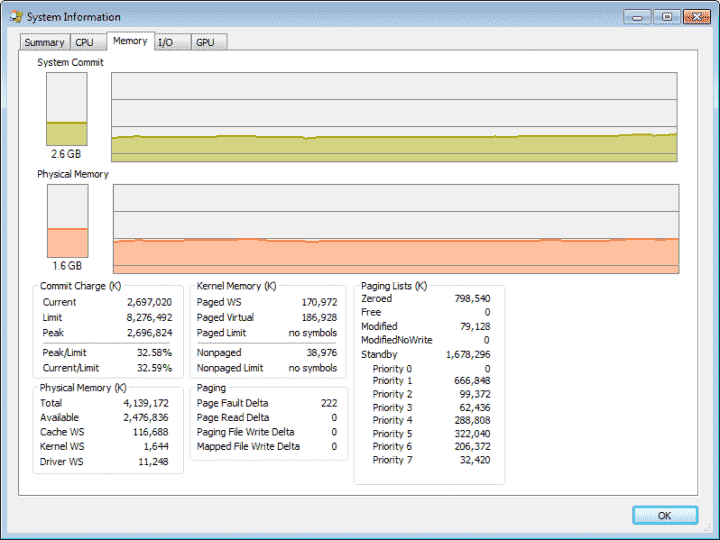
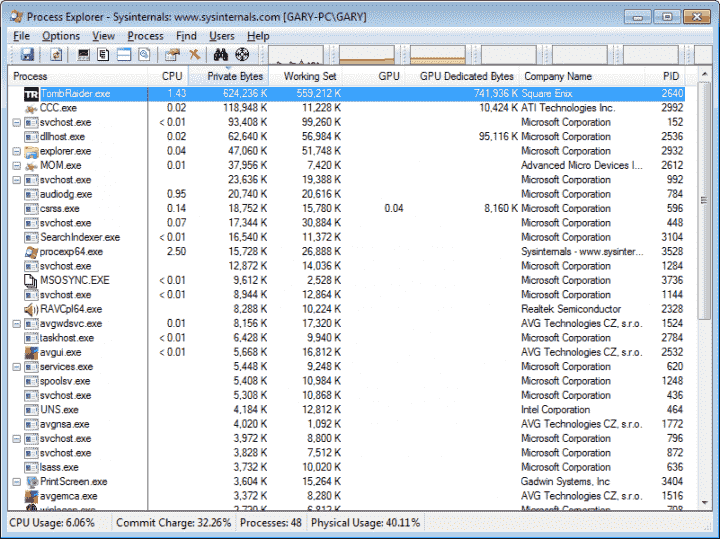
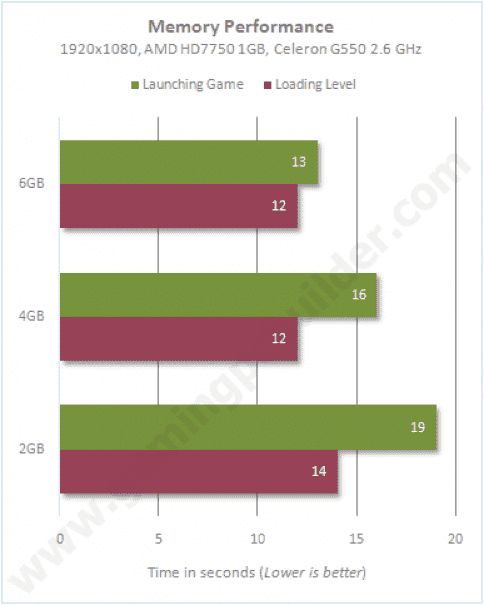
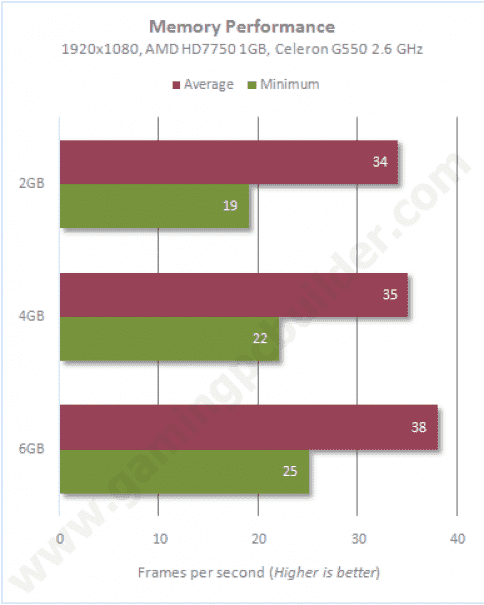
Having more system memory will improve the overall performance of the game – higher frames per second, faster game launching, and faster loading level.
Summary
The game looks really good and alive even at the Normal preset. The developers provided us with detailed and customizable settings to cover almost every type of gaming PC. The HD 7750 performed very well with normal and custom preset at 1920x1080 resolution while the Nvidia 9600 GT performed well with low preset. Low budget processors are also capable of playing the game even at lower clocks. What delighted the most is its memory performance. Performance in frames per second, on loading and launch time, gets better with bigger system memory.
Overall, Tomb Raider doesn’t need a monster setup to play and enjoy the game. It is truly a wonderful game from the story, gameplay, presentation, and graphics. If the game is really a great game, bad graphics won’t make it a bad game.
Comments (2)
- JustinI like the valuable information you provide in your articles. I'll bookmark your blog and check again here frequently. I am quite sure I'll learn plenty of new stuff right here! Best of luck for the next!
- KunalYou are great buddy. many many thanks for the info. hope to see more magic from you. thanks a lot
Comments are closed.