
In Windows Settings
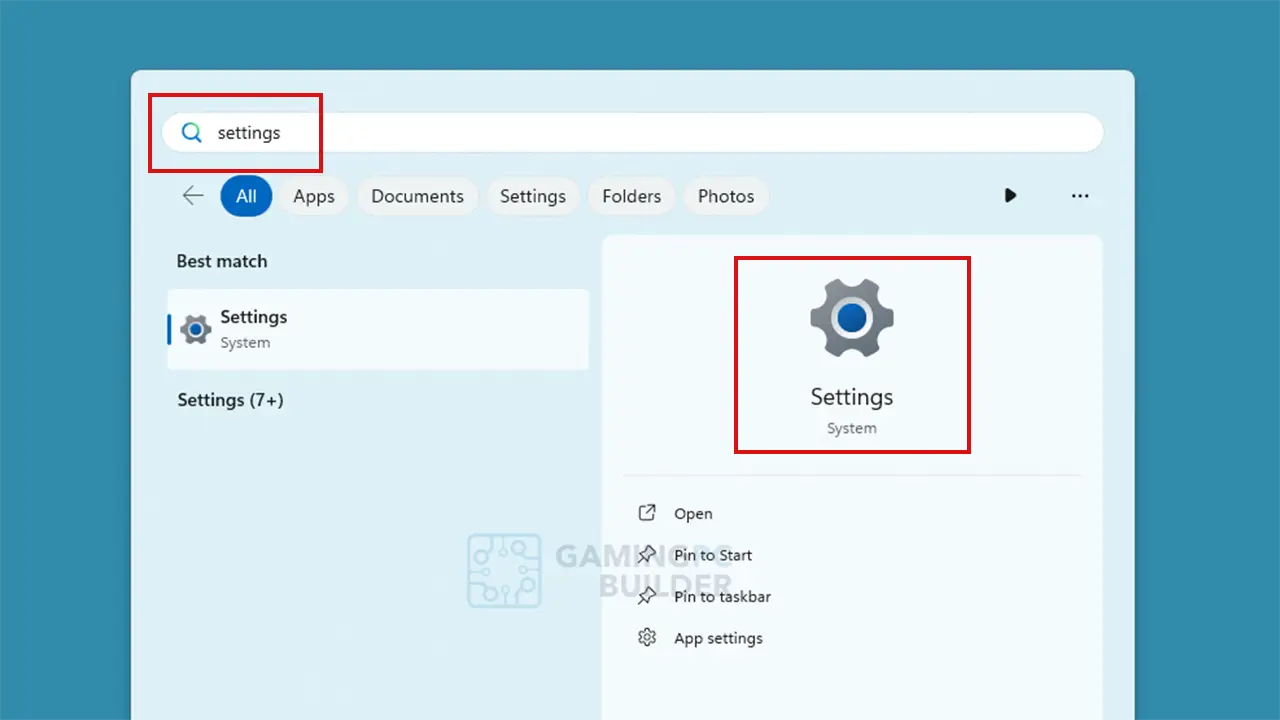
1. Go to Windows Settings by pressing the Win key + I, or click the start button then type “settings” in search and click settings.
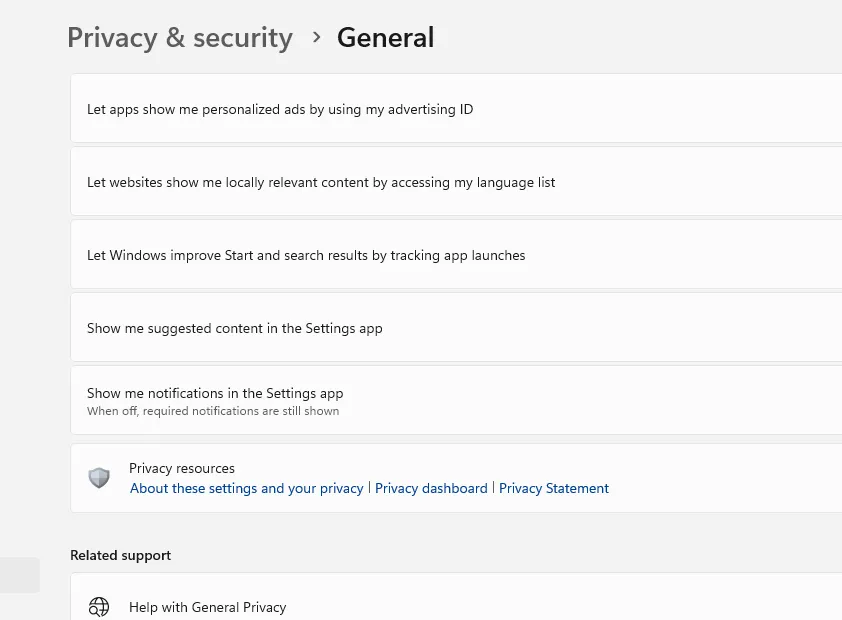
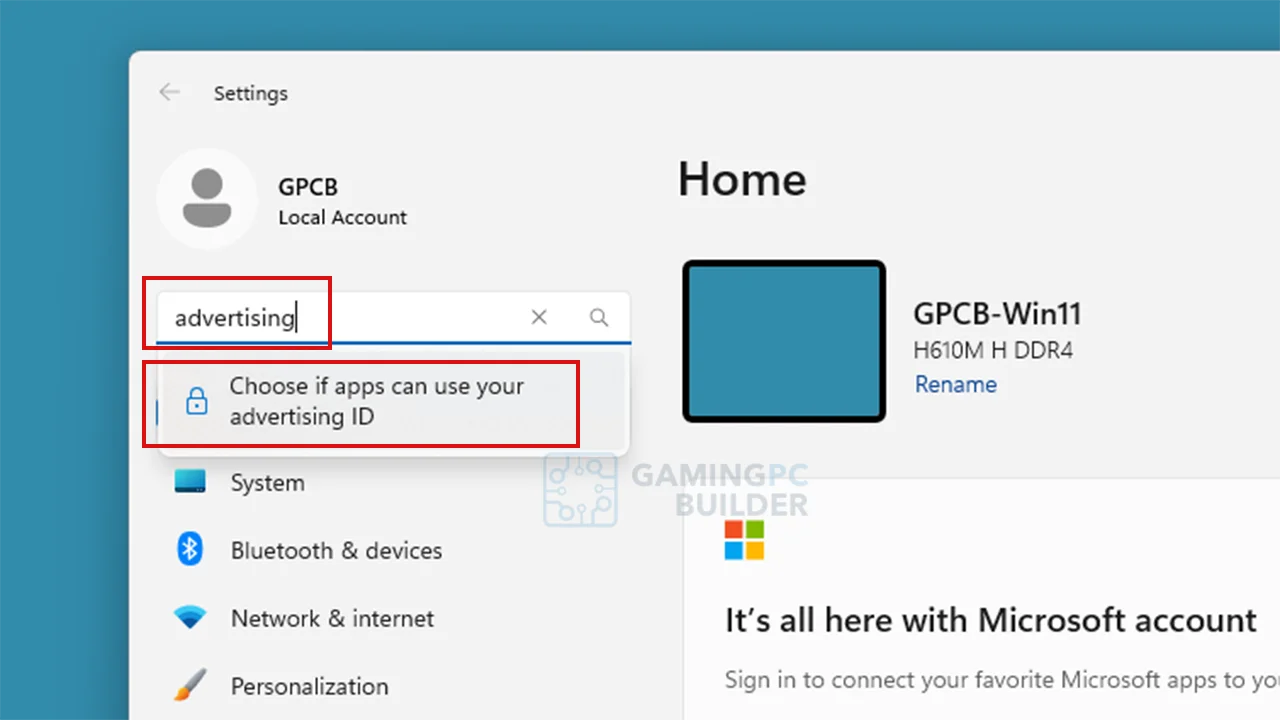
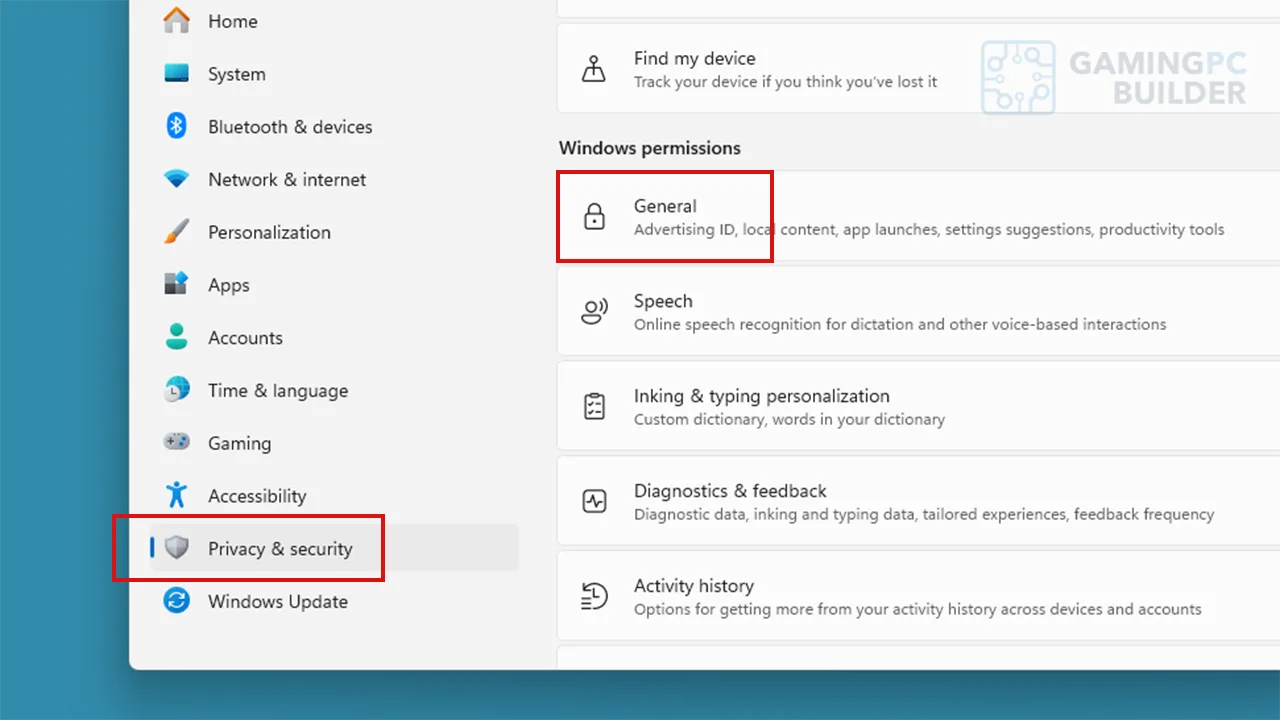
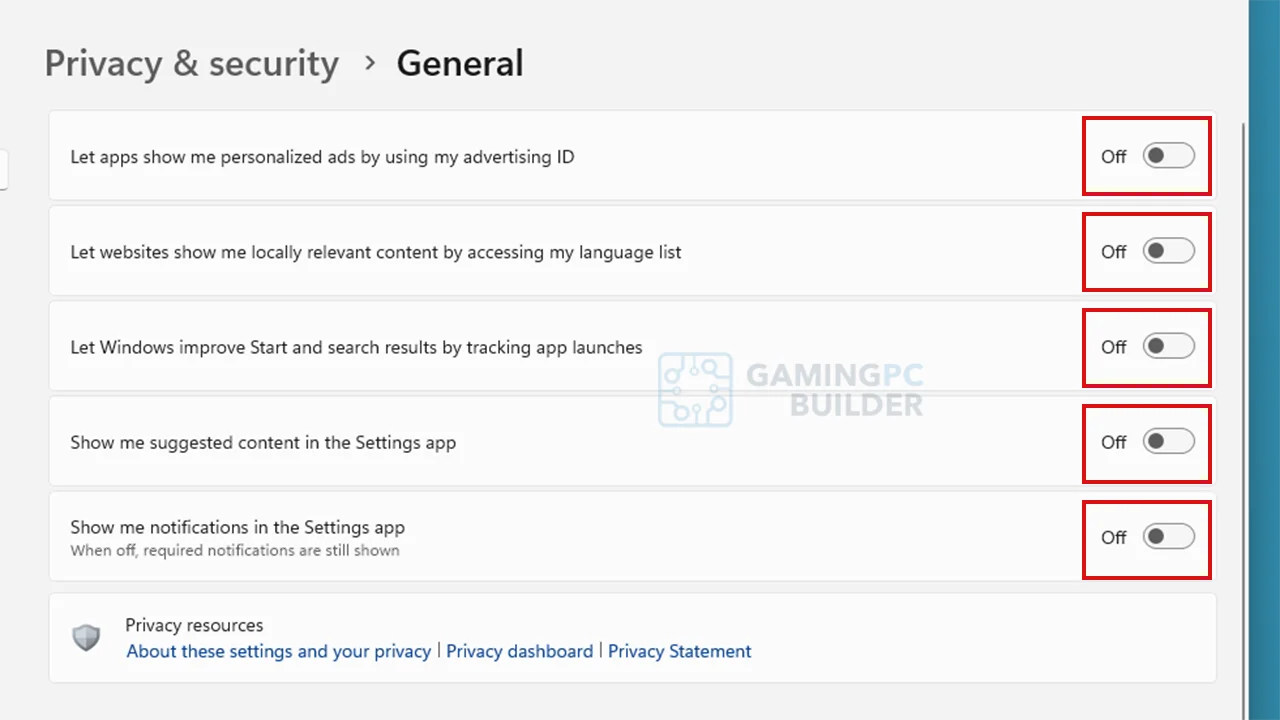
2. In Settings window, search advertising and click “Choose if apps can use your advertising ID” setting (Or go to Privacy & security tab then General settings) then turn off all of the settings.
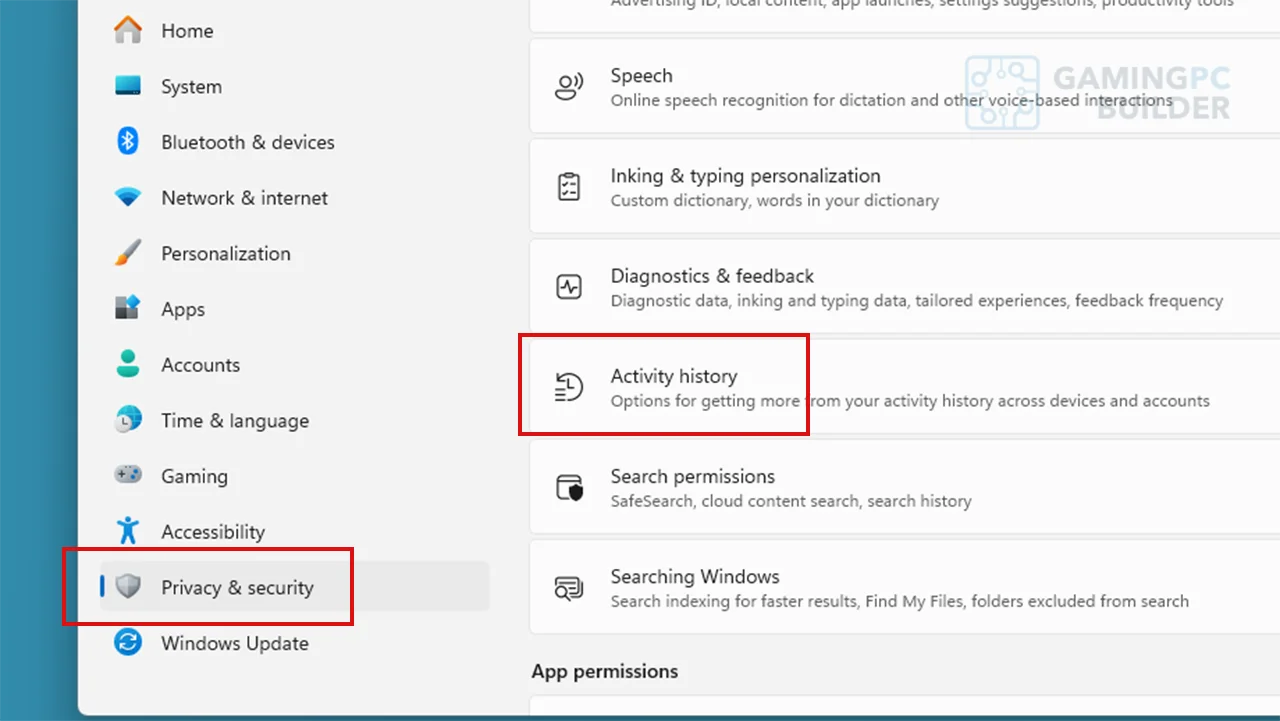
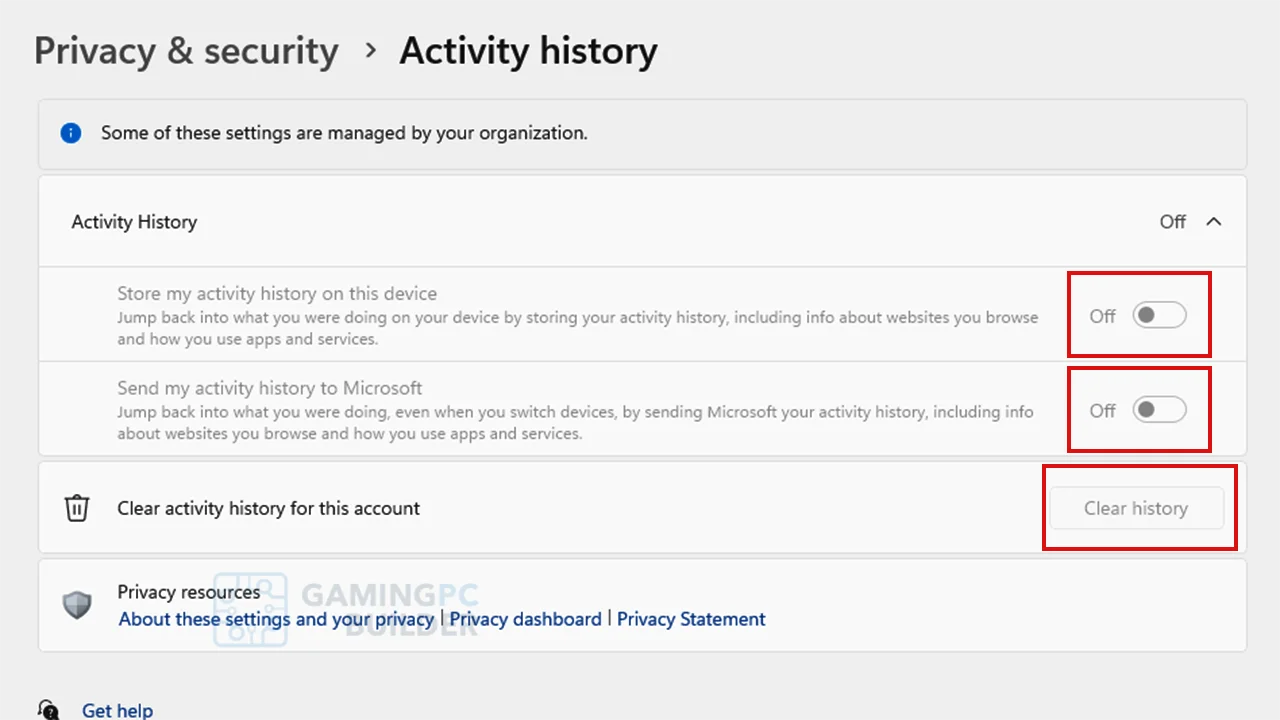
3. Go back to Privacy & Security tab, click “Activity history”, then turn off all of the settings and click the Clear history button.
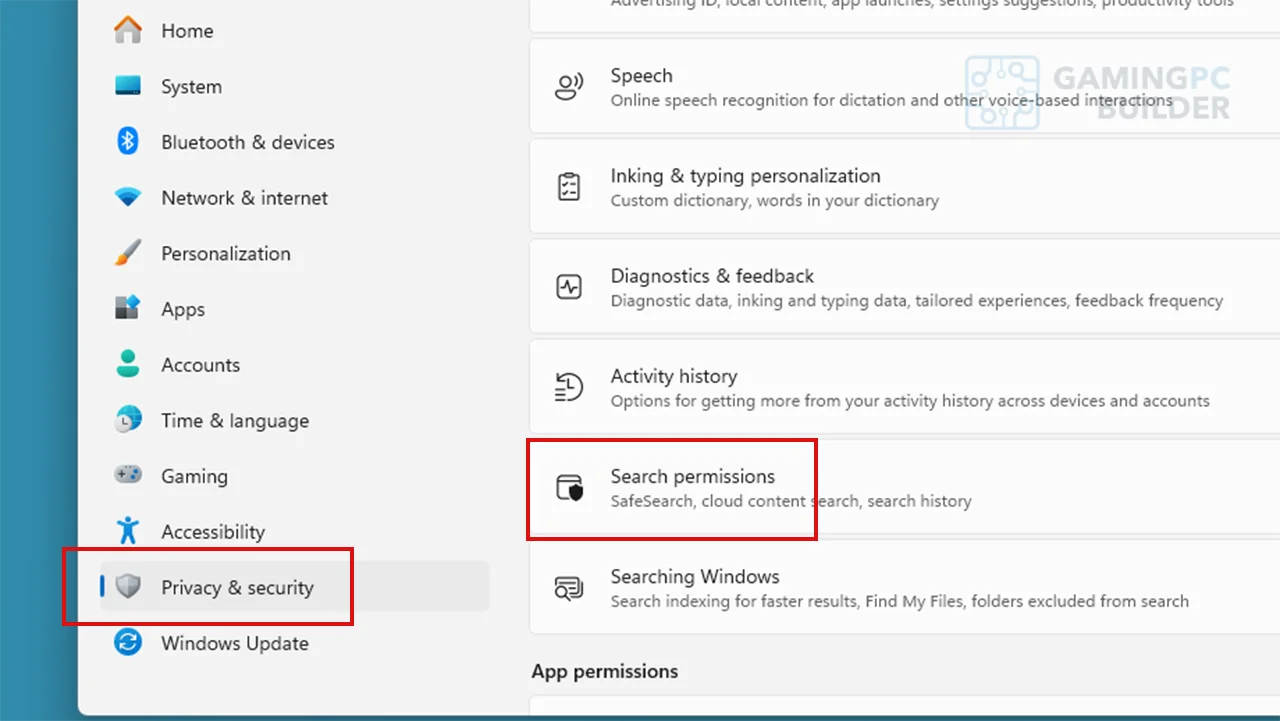
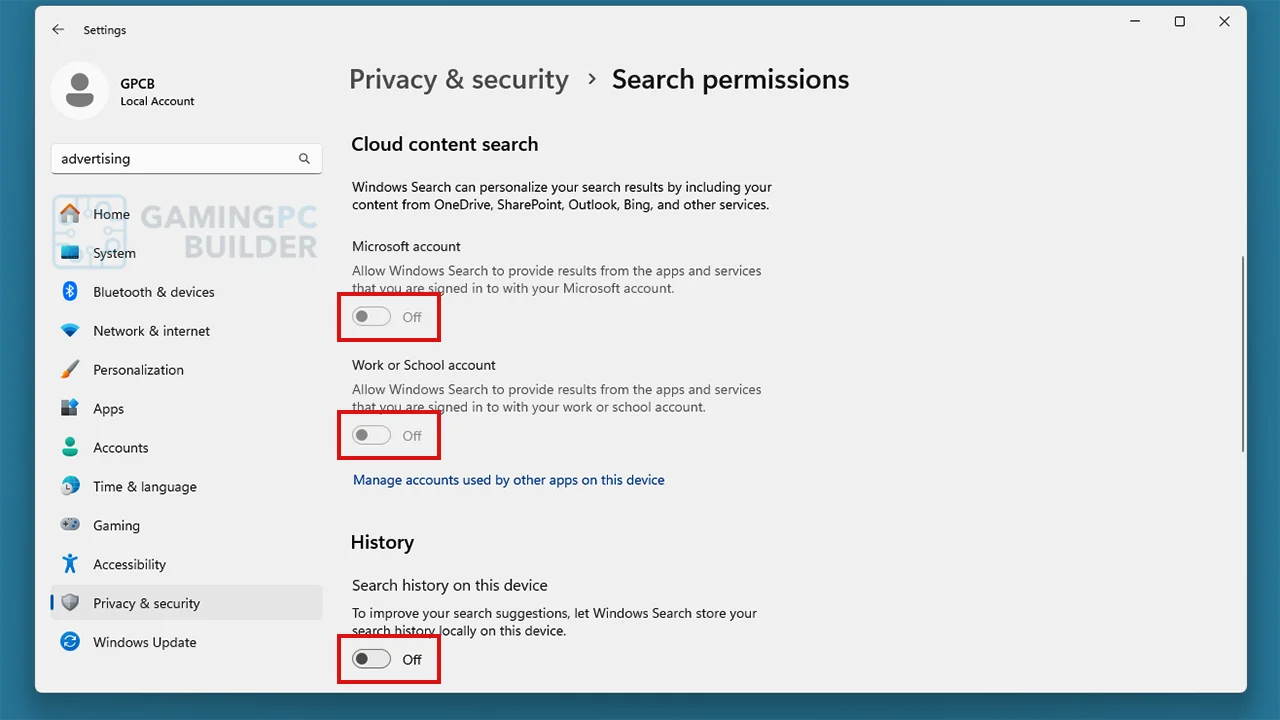
4. Go back to Privacy & Security tab, click “Search Permissions” then turn off Cloud content search, History and Show search highlight settings.
Using Registry Editor
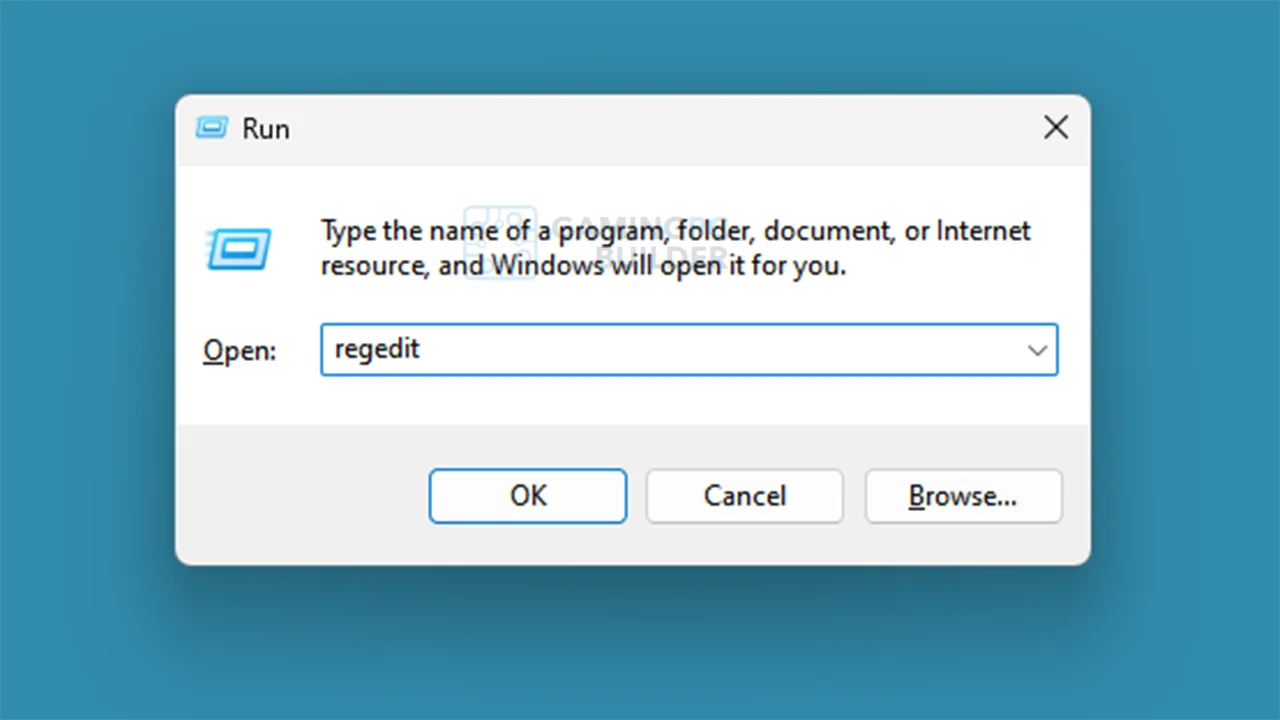
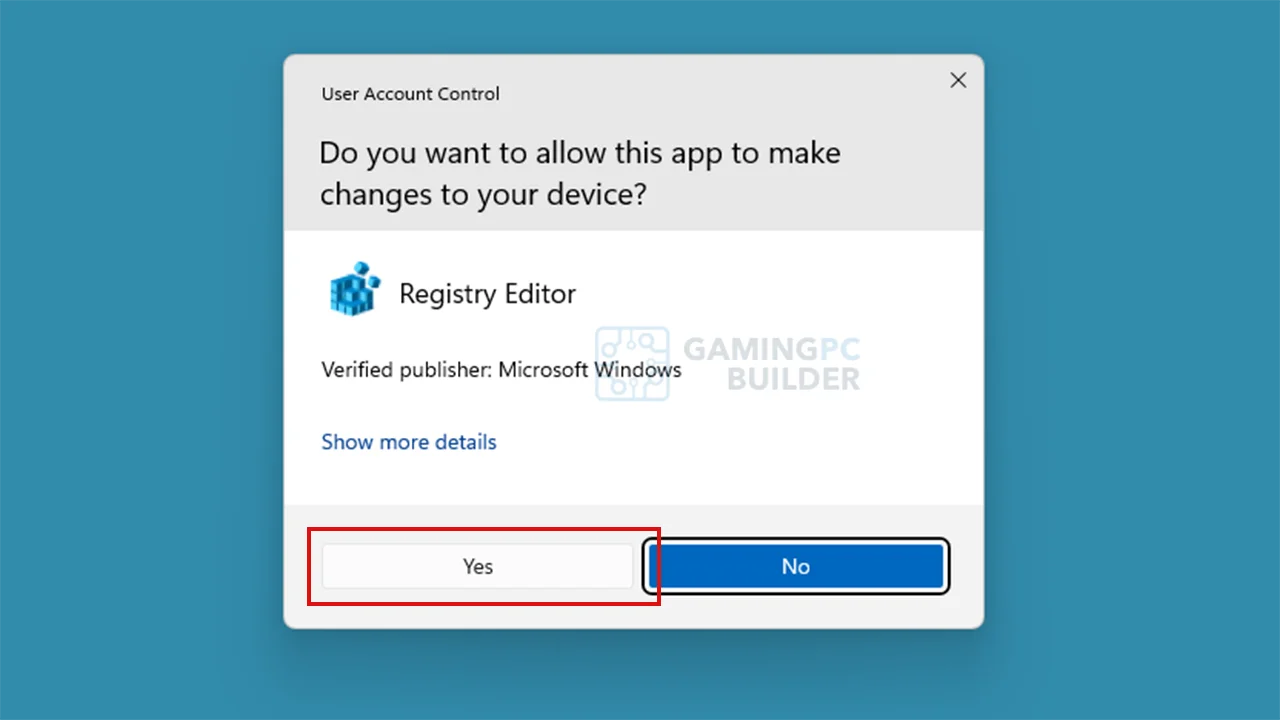
1. Press Win key +R then type "regedit", then click Yes in the pop-up window.
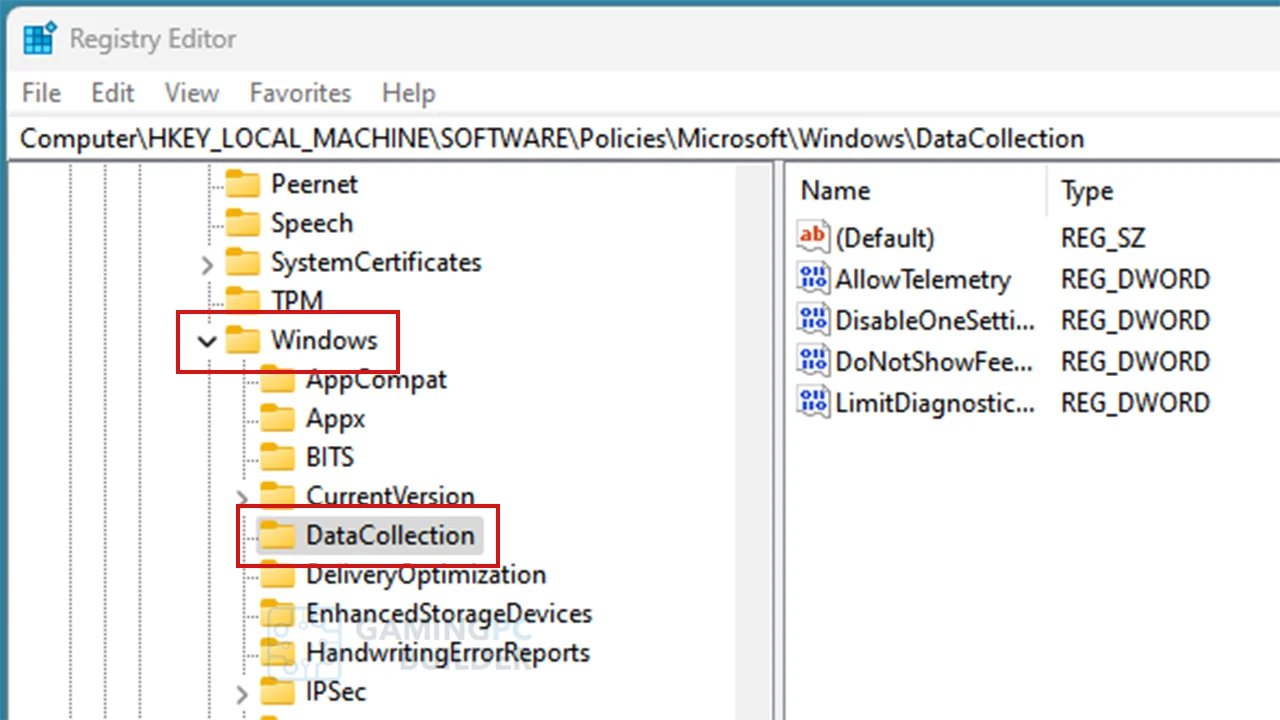
2. Go to Computer\HKEY_LOCAL_MACHINE\SOFTWARE\Policies\Microsoft\Windows\DataCollection.
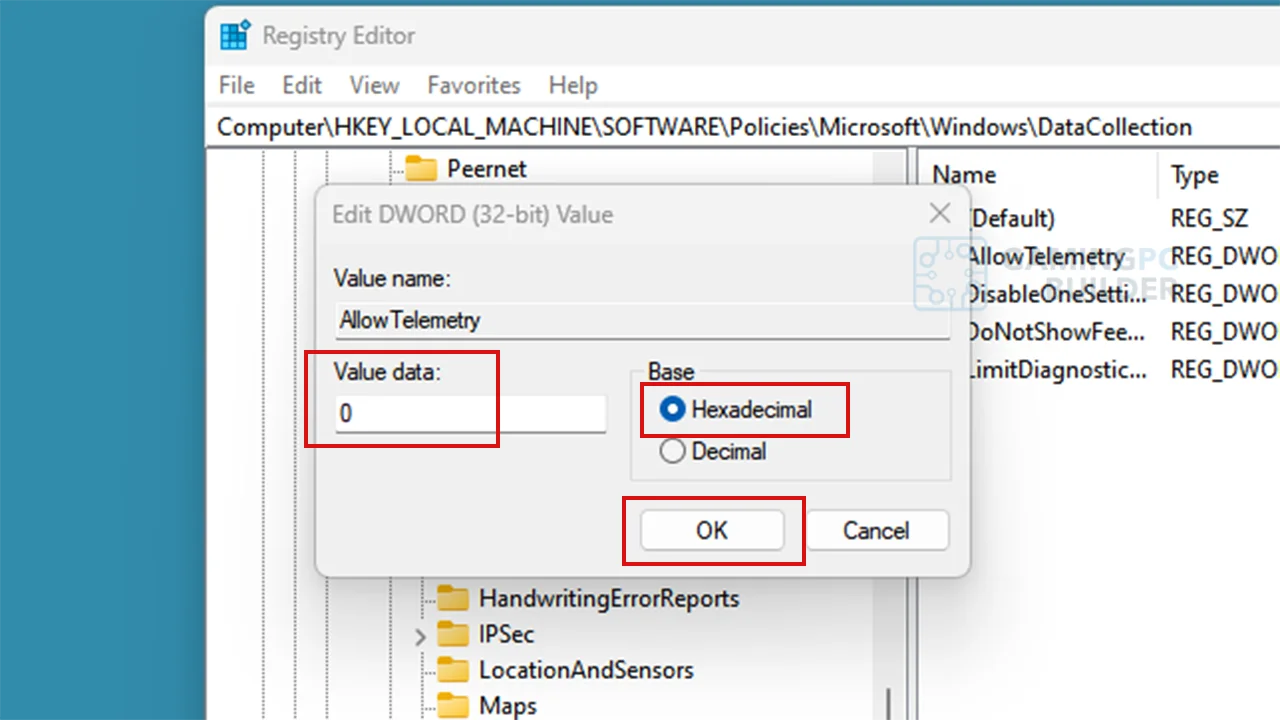
3. Double-click "AllowTelemetry" and set the Value data to 0, select Hexadecimal and click OK.
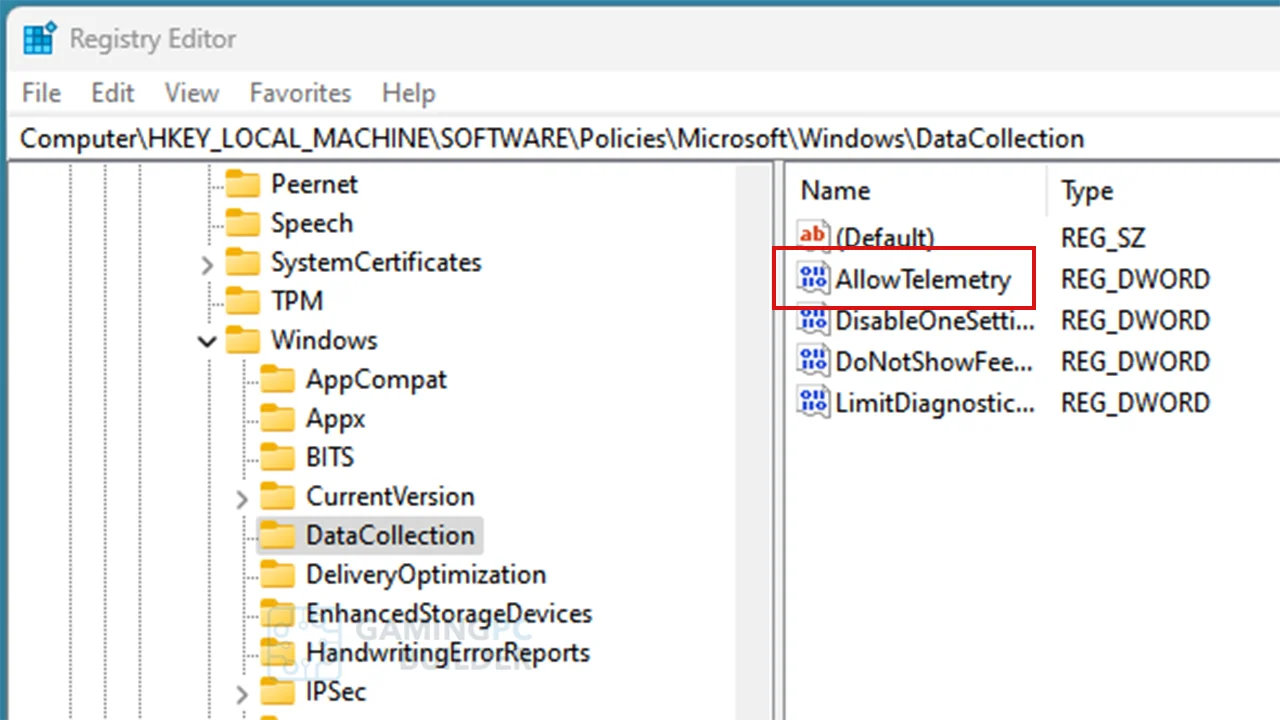
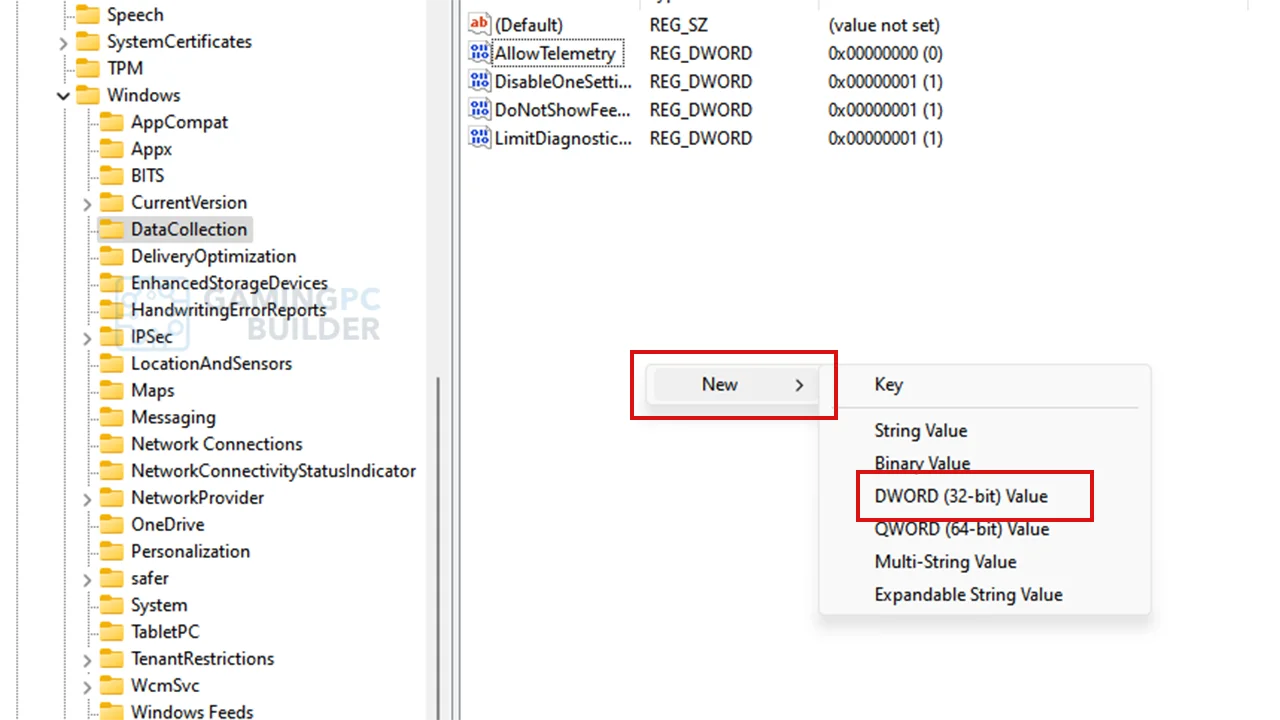
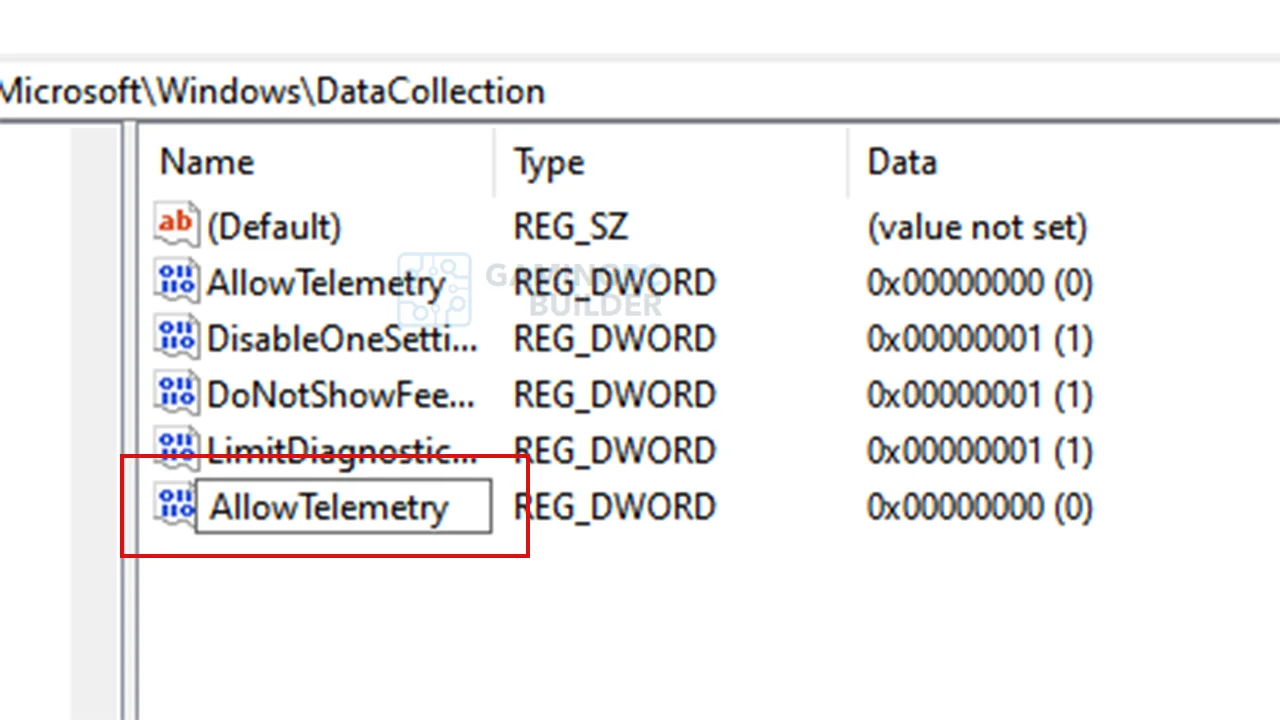
4. If there’s no AllowTelemetry option, right-click on the blank space and click New, click DWORD (32-bit) Value, name it as "AllowTelemetry", the do step 3.
5. Got to Computer\HKEY_CURRENT_USER\Software\Policies\Microsoft\Windows\Explorer.
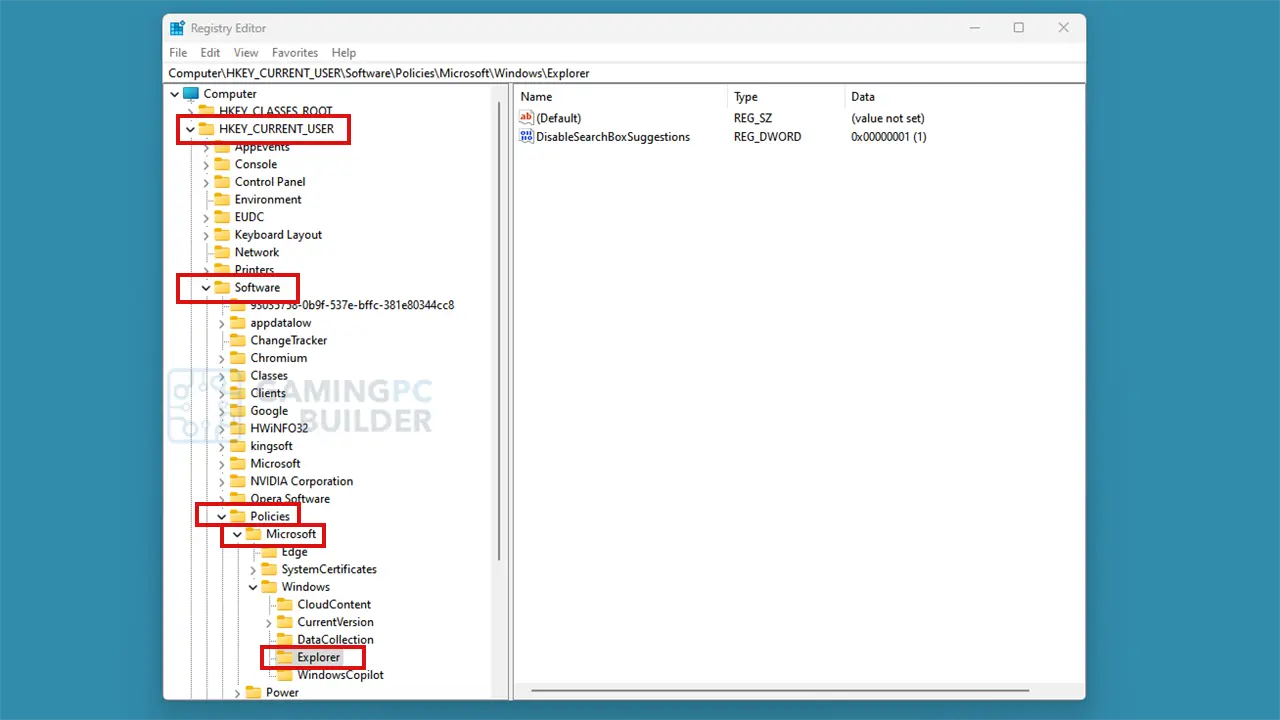
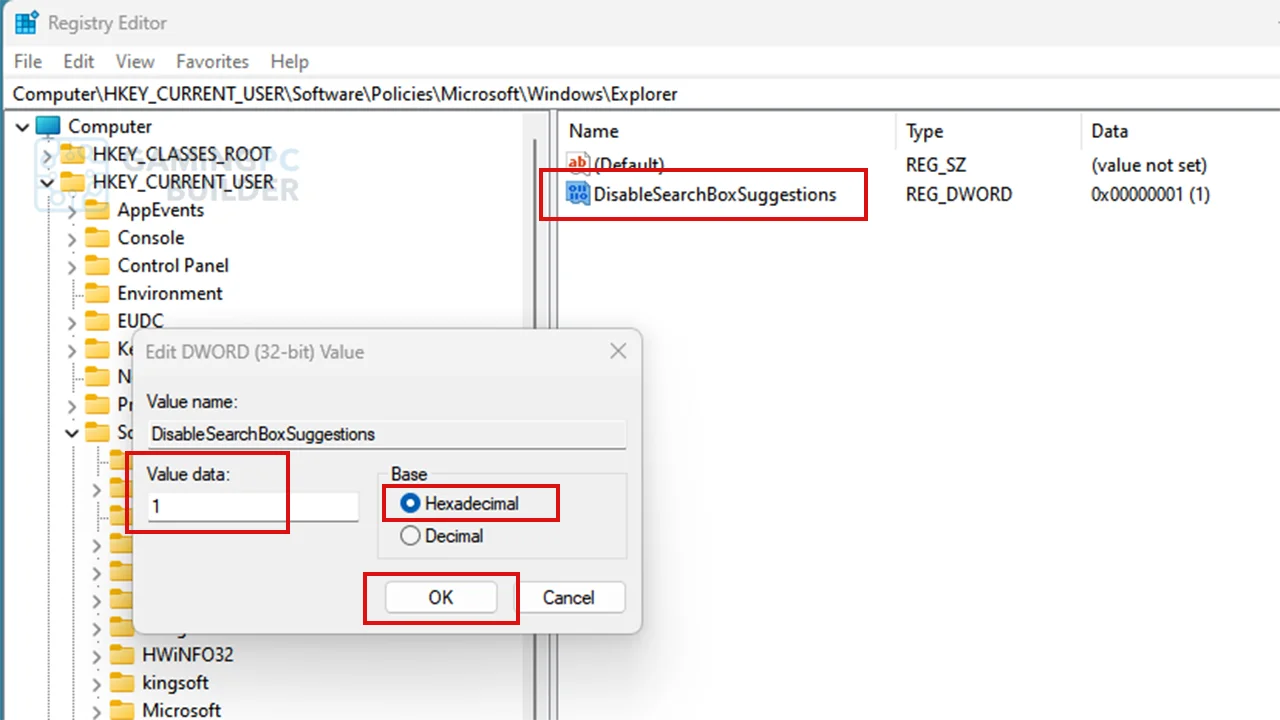
6. Double-click on "DisableSearchBoxSuggestions" and set the Value data to 1, select Hexadecimal and click OK.
7. If DisableSearchBoxSuggestions does not exist, right-click on the blank space and click New, click DWORD (32-bit) Value, name it as DisableSearchBoxSuggestions (like step 4), then do step 6.
8. Close the Registry Editor and restart your computer.
Using Group Policies
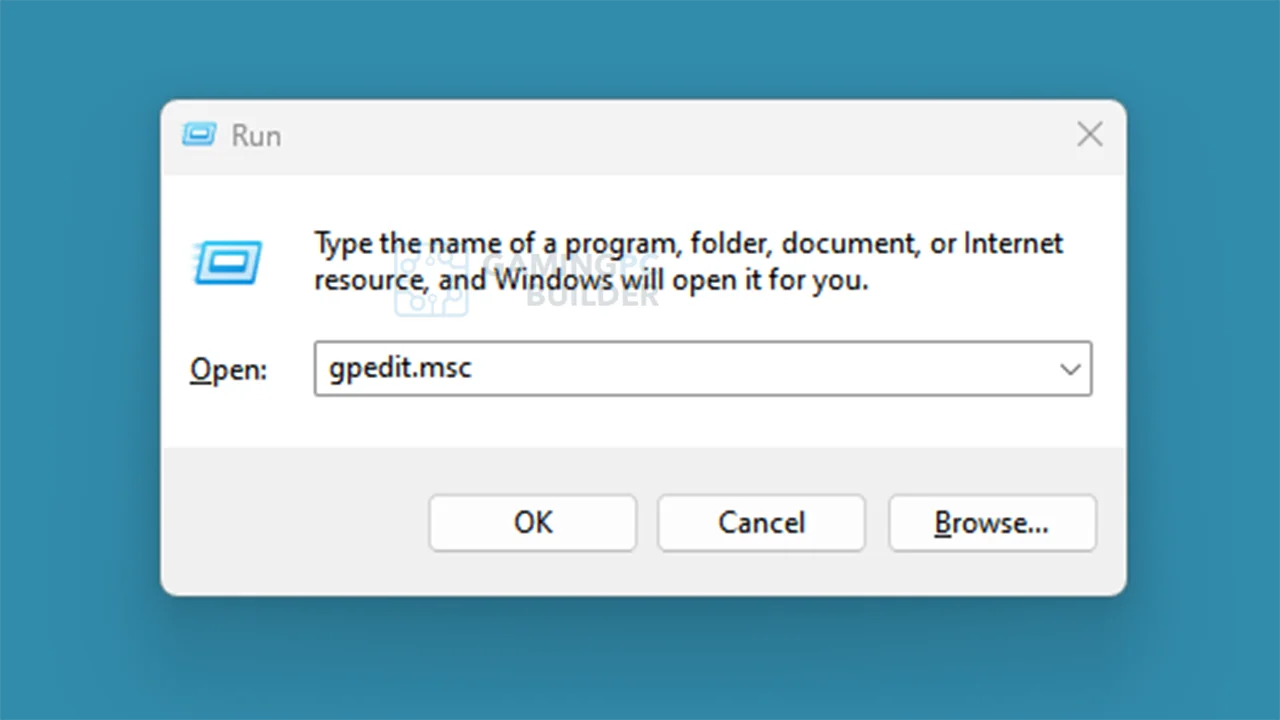
1. Press Win key +R, then type "gpedit.msc".
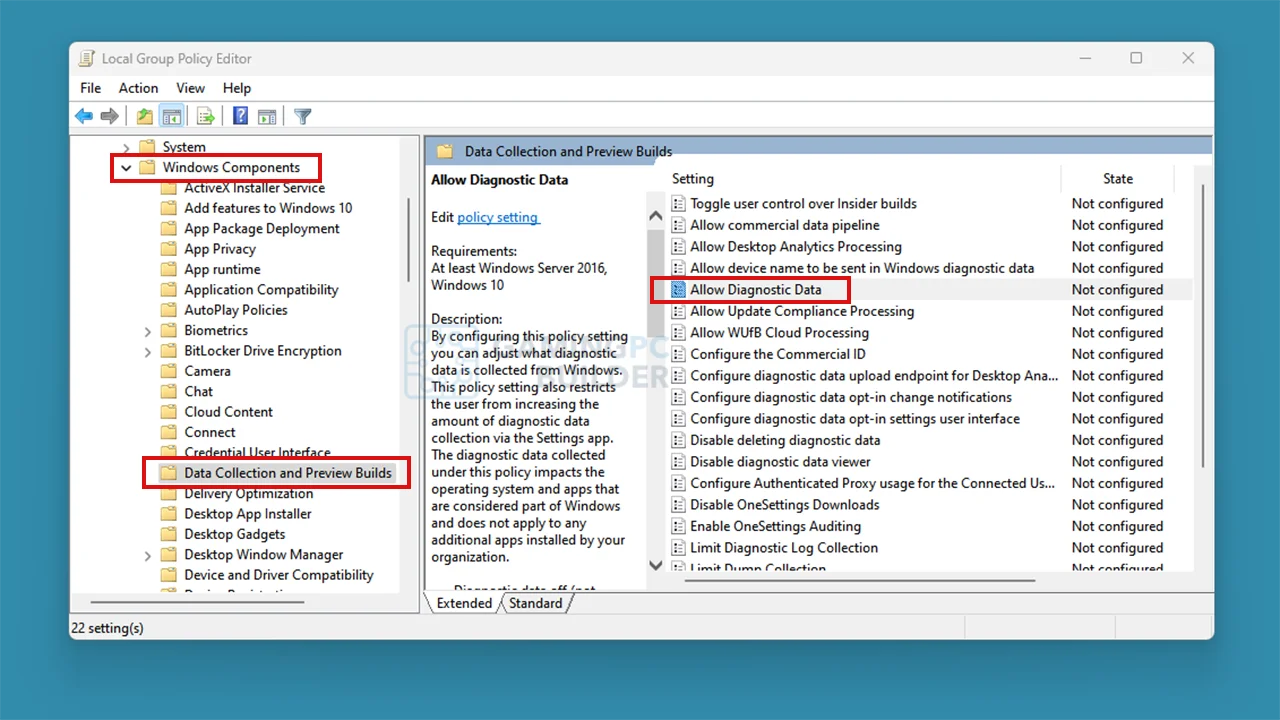
2. Got to Computer Configuration\Administrative Templates\Windows Components\Data Collection and Preview Builds folder then double-click "Allow Diagnostic Data".
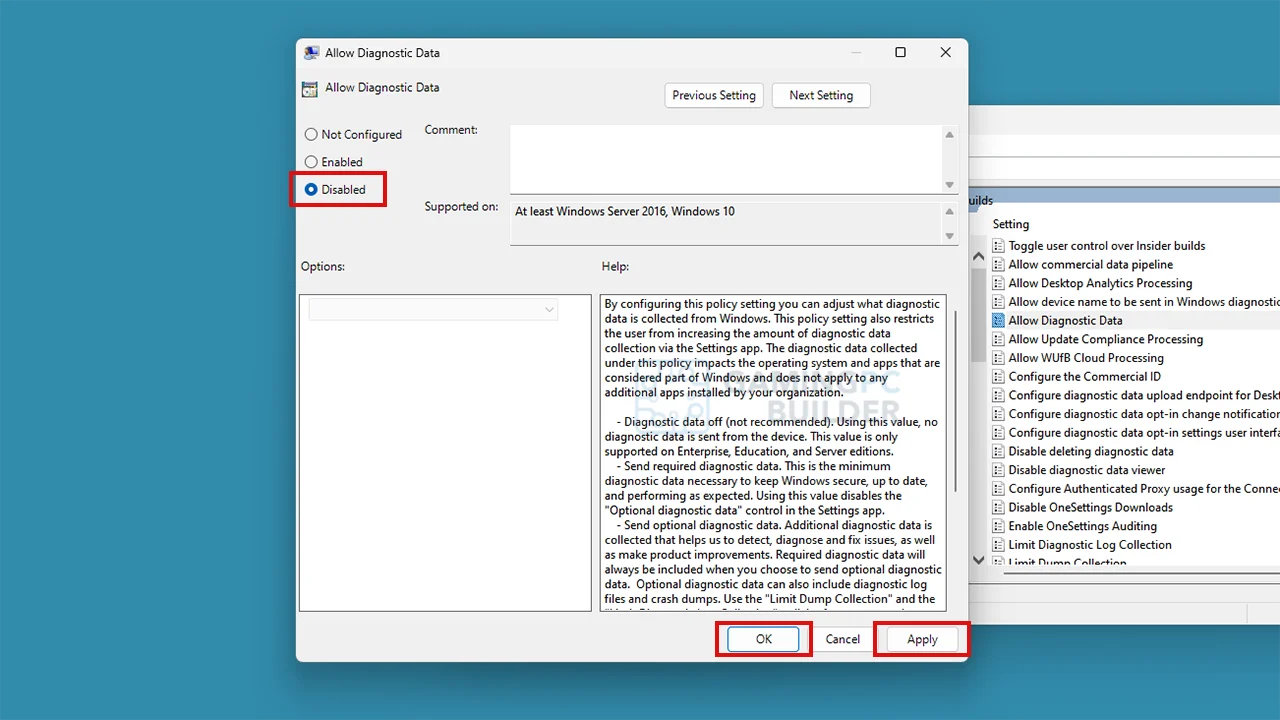
3. Click the Disabled option, click Apply and click OK.
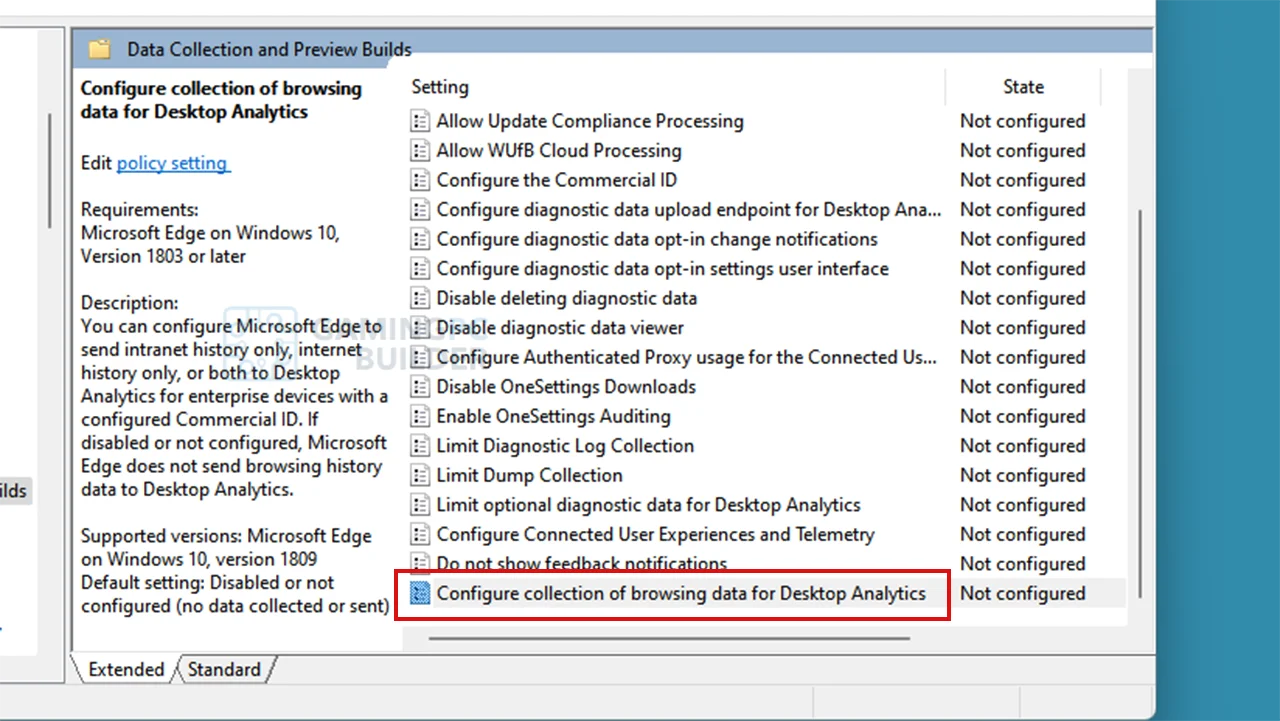
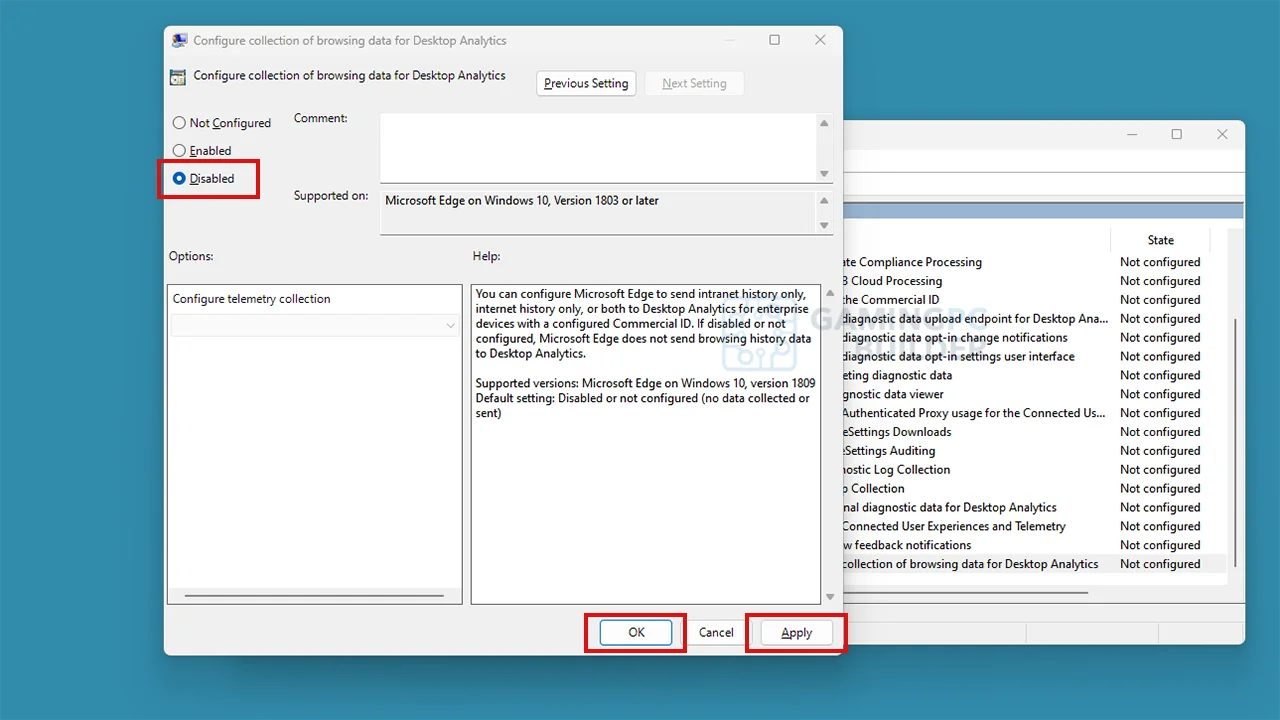
4. Look for "Configure collection of browsing data for Desktop Analytics" option. Double-click it.
5. Click the Disabled option, click Apply and click OK.
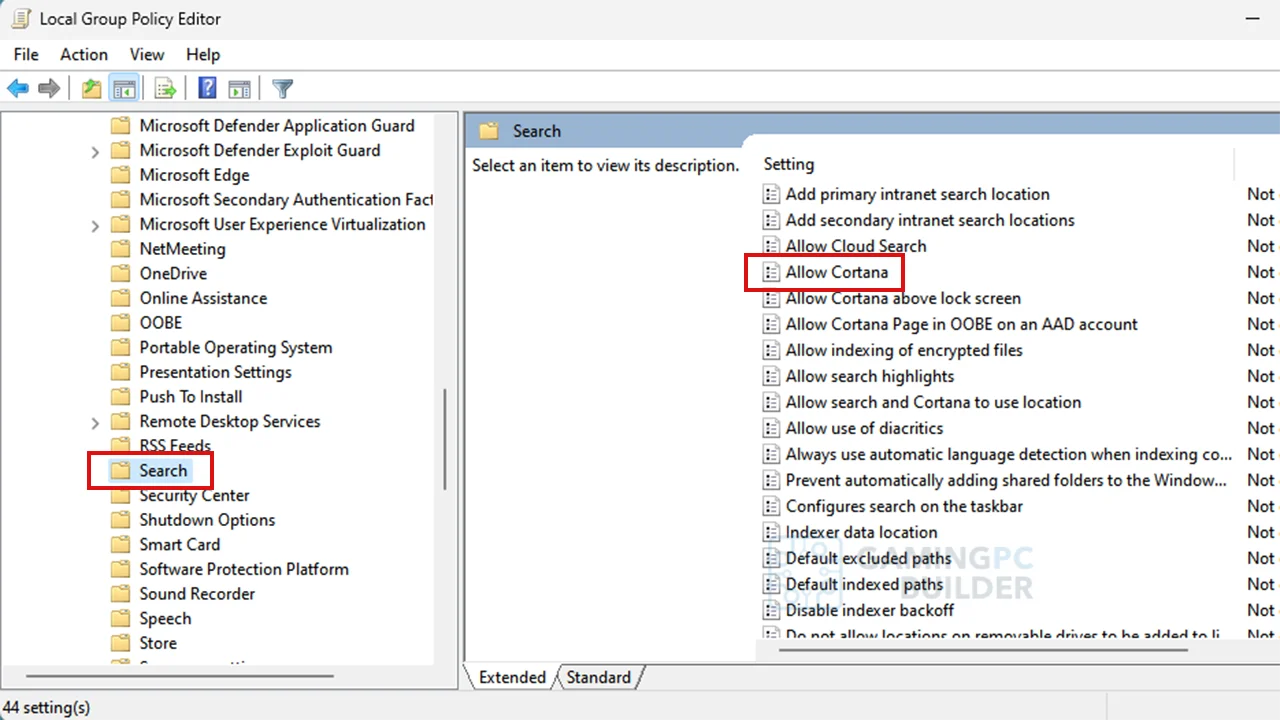
6. Got to Computer Configuration\Administrative Templates\Windows Components\Search and look for "Allow Cortana" and double-click it.
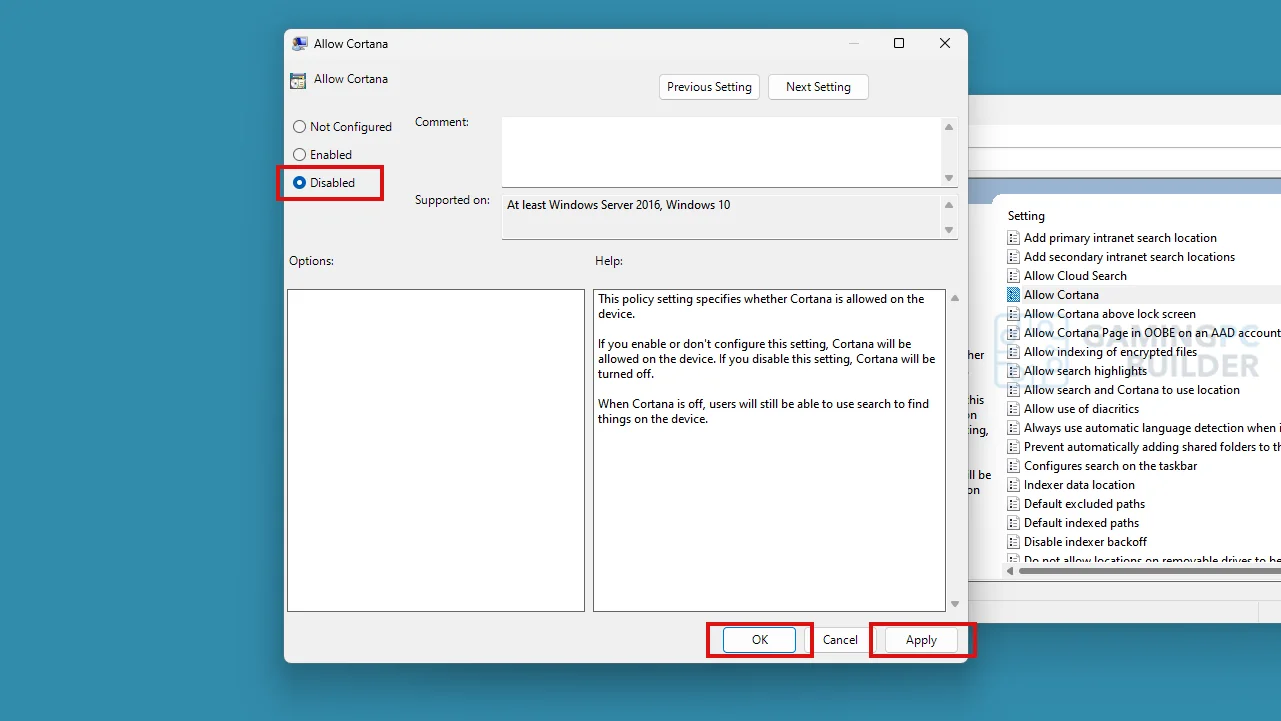
7. Click the Disabled option, click Apply and click OK.
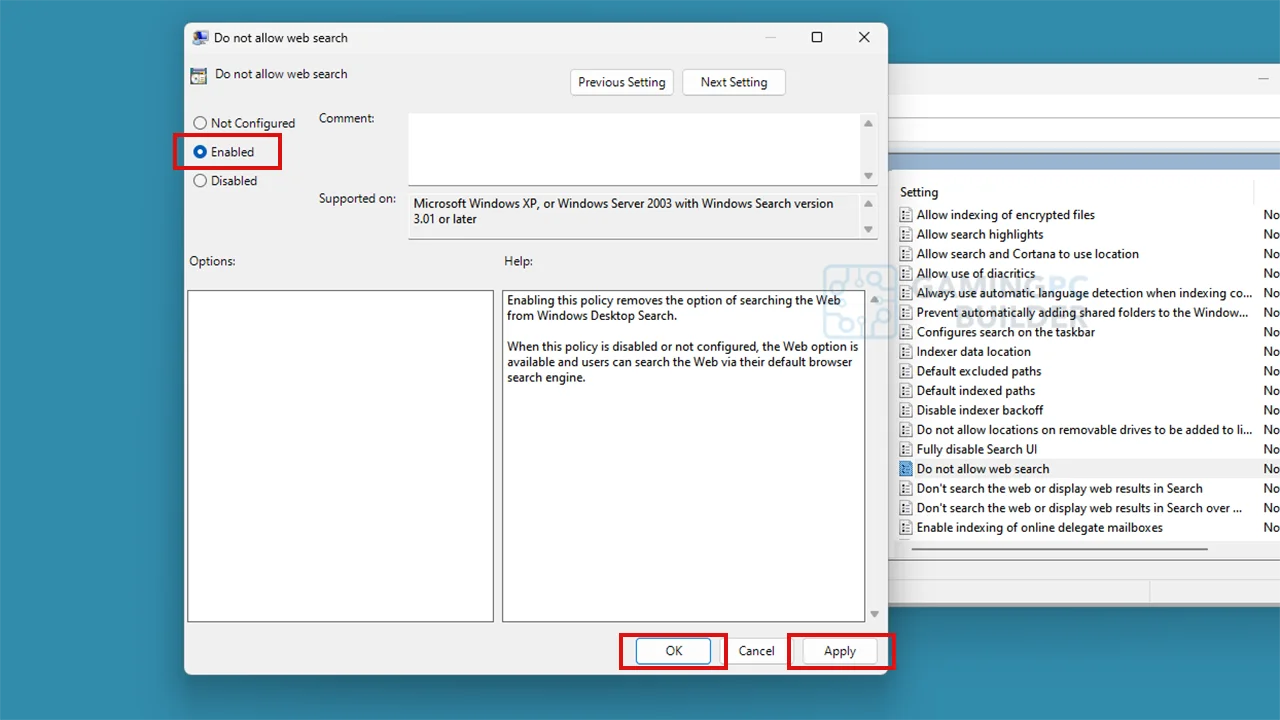
8. Also in Search folder, look for Do not allow web search then double-click it.
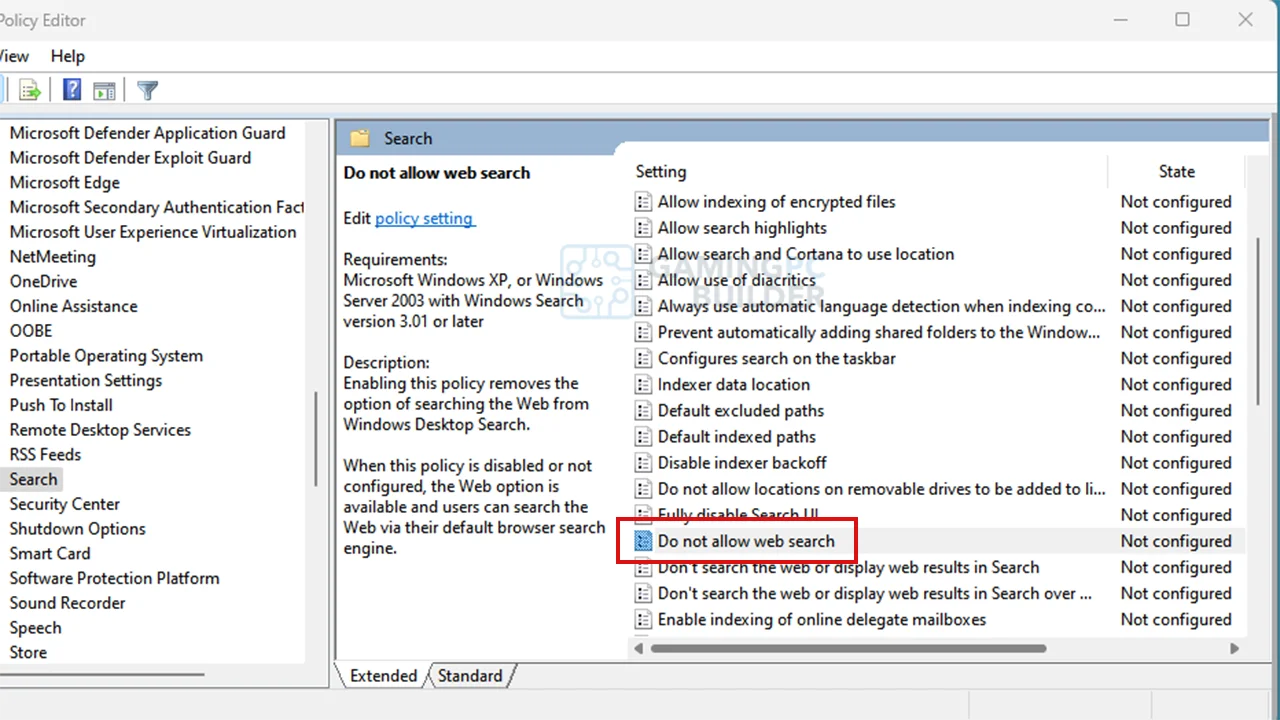
9. Click the Enabled option, click Apply and click OK, then close the Group Policy Editor and finally restart your computer.
In Services
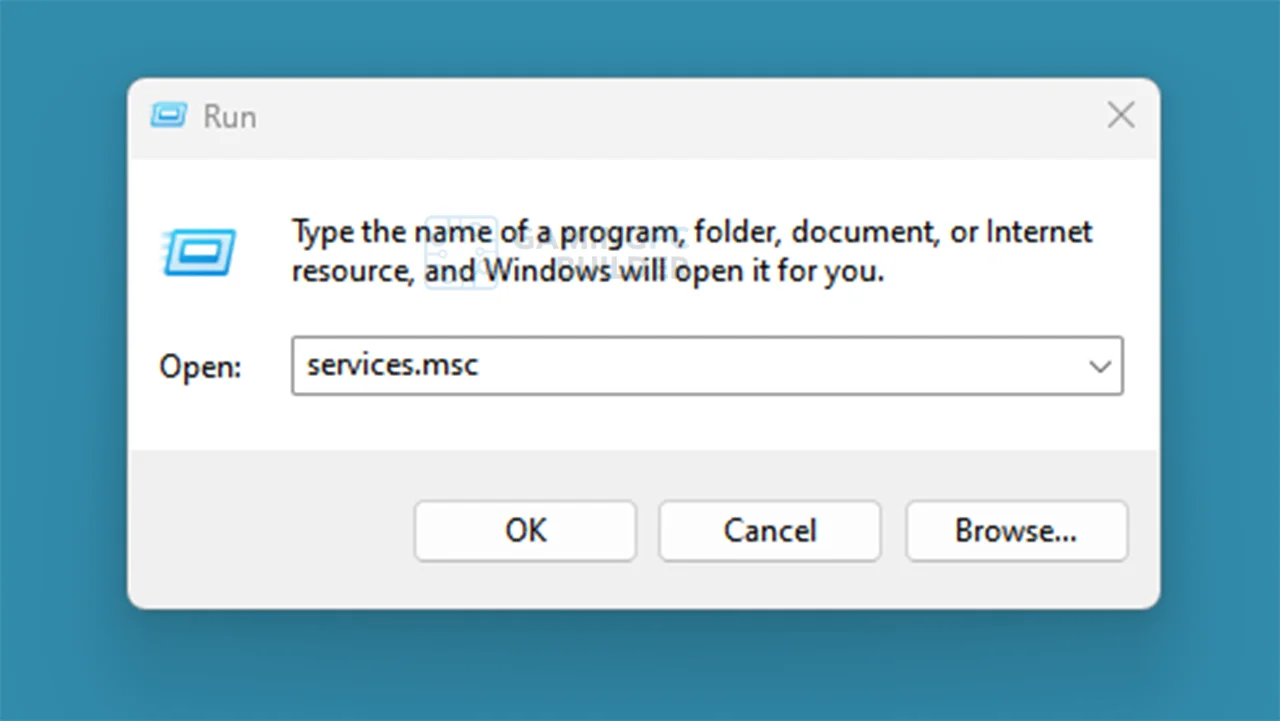
1. Press Win key +R then type "services.msc".
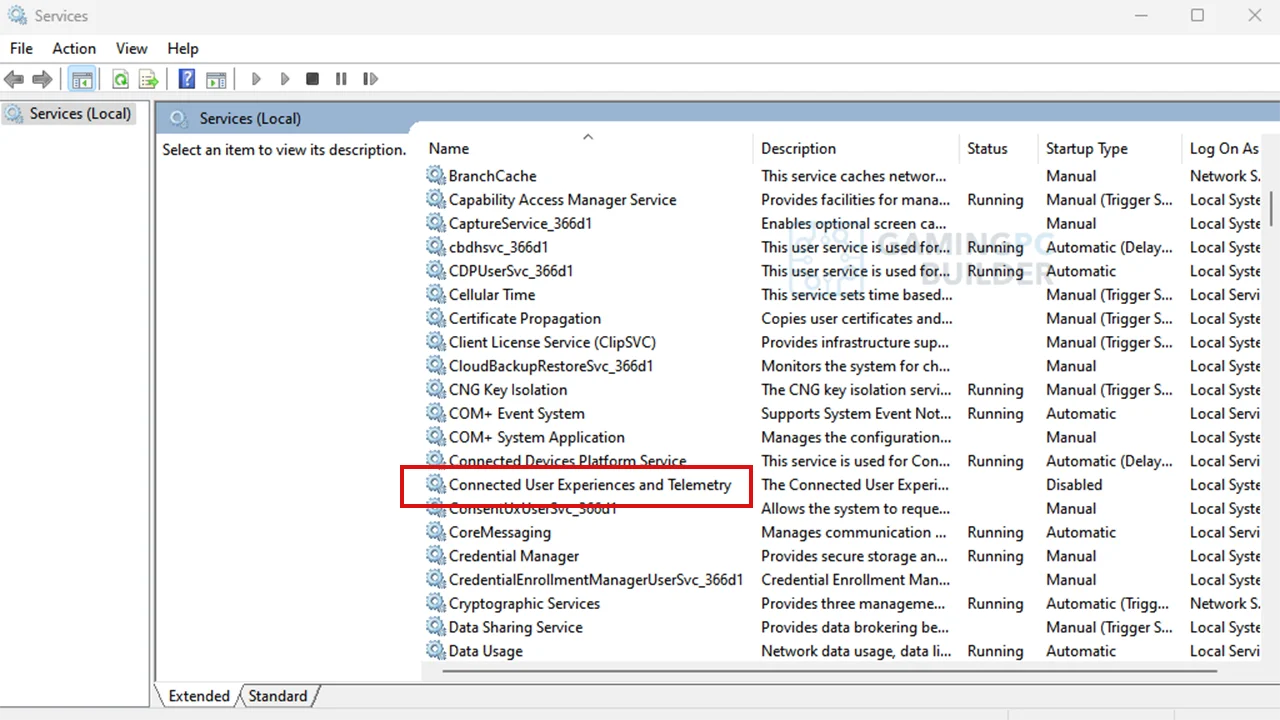
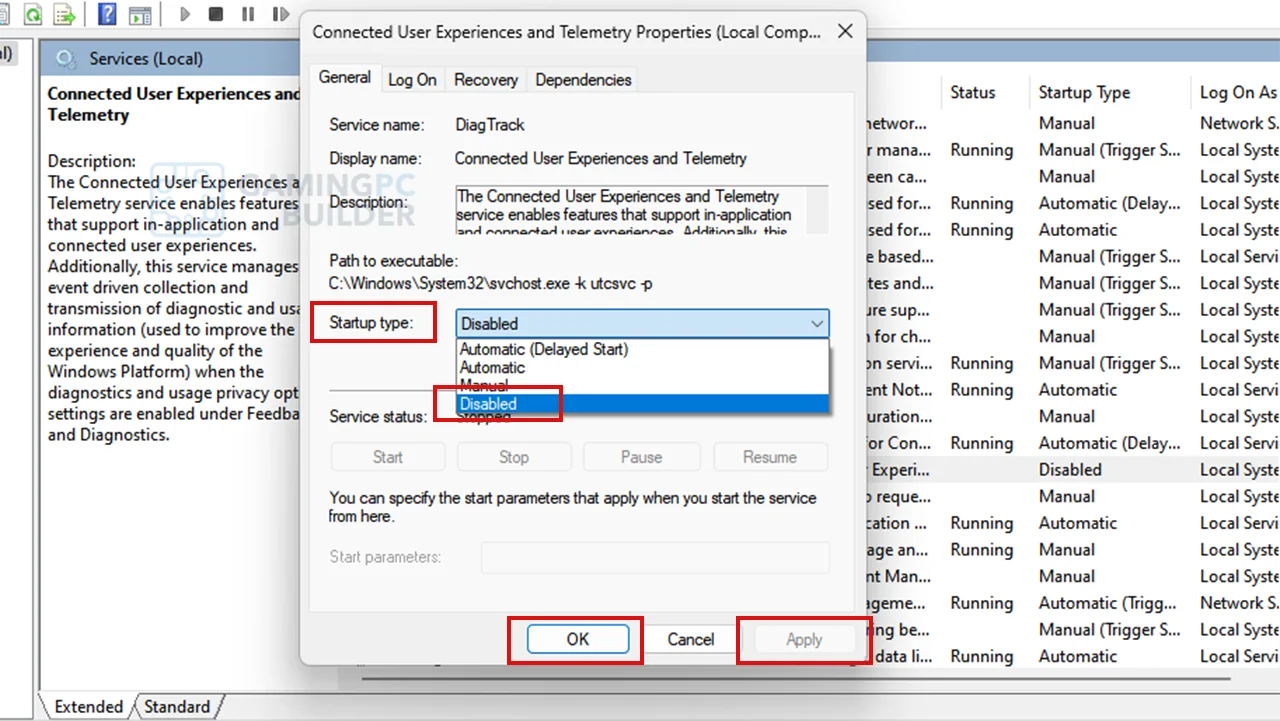
2. Look for "Connected User Experiences and Telemetry", double-click it, then set the Startup type to Disabled, click Apply and OK, then restart your computer.