

Customize Video Settings
These setting is good for medium to high end systems.
Off - Anti-Aliasing Low - Ambient Occlusion, Impact Marks Medium - Model Detail, Effects Detail, Ragdoll High - Sun Shadow Maximum / Enabled - Anisotropic Filtering, Volumetric Lighting, Dynamic Spot Shadows
Texture Streaming Budget depends on your graphics cards video memory.
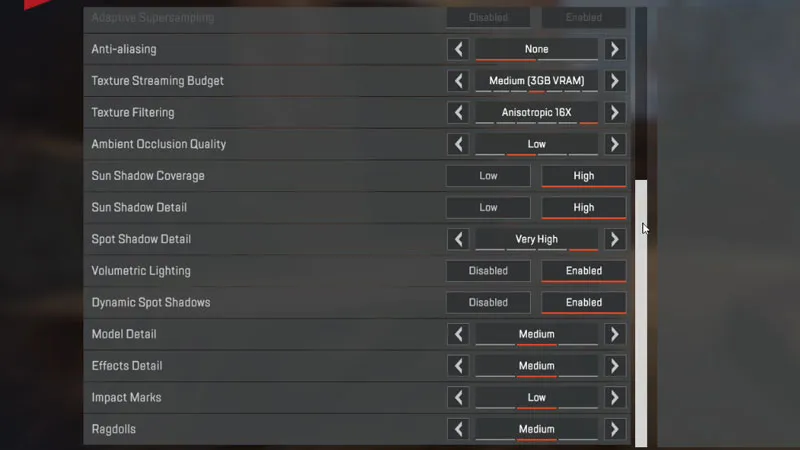
If you have low end system, turn off and set everything to Low.
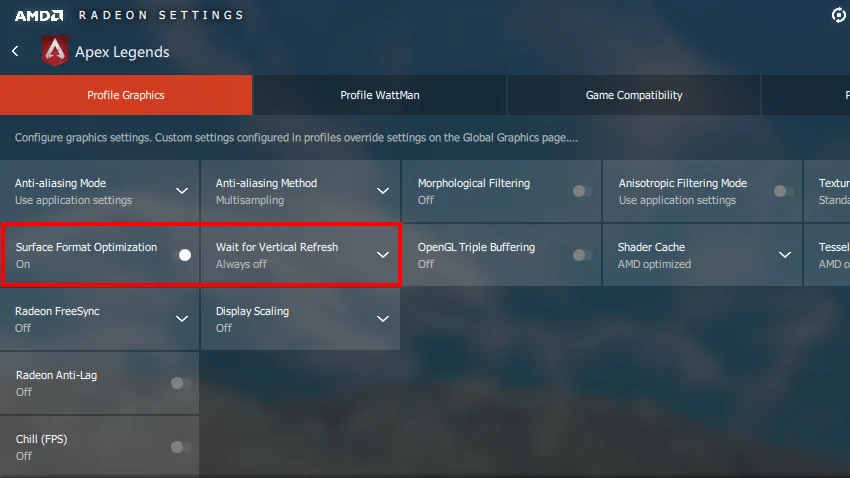
Turn Off Vsync
Turn off Vsync in game and in driver control panel. Also turn on Surface Format Optimization if you have an AMD card.
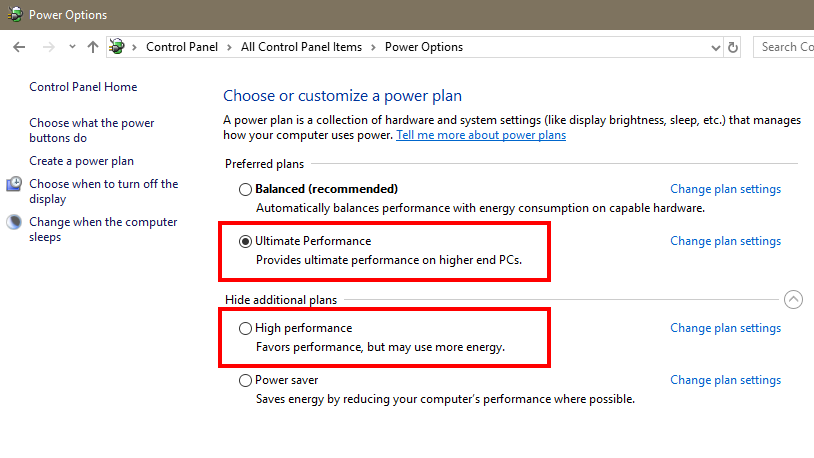
Change Windows Power Plan
Select High Performance or Ultimate Performance Power Plan in Windows Power Options
So far these are our improvements.
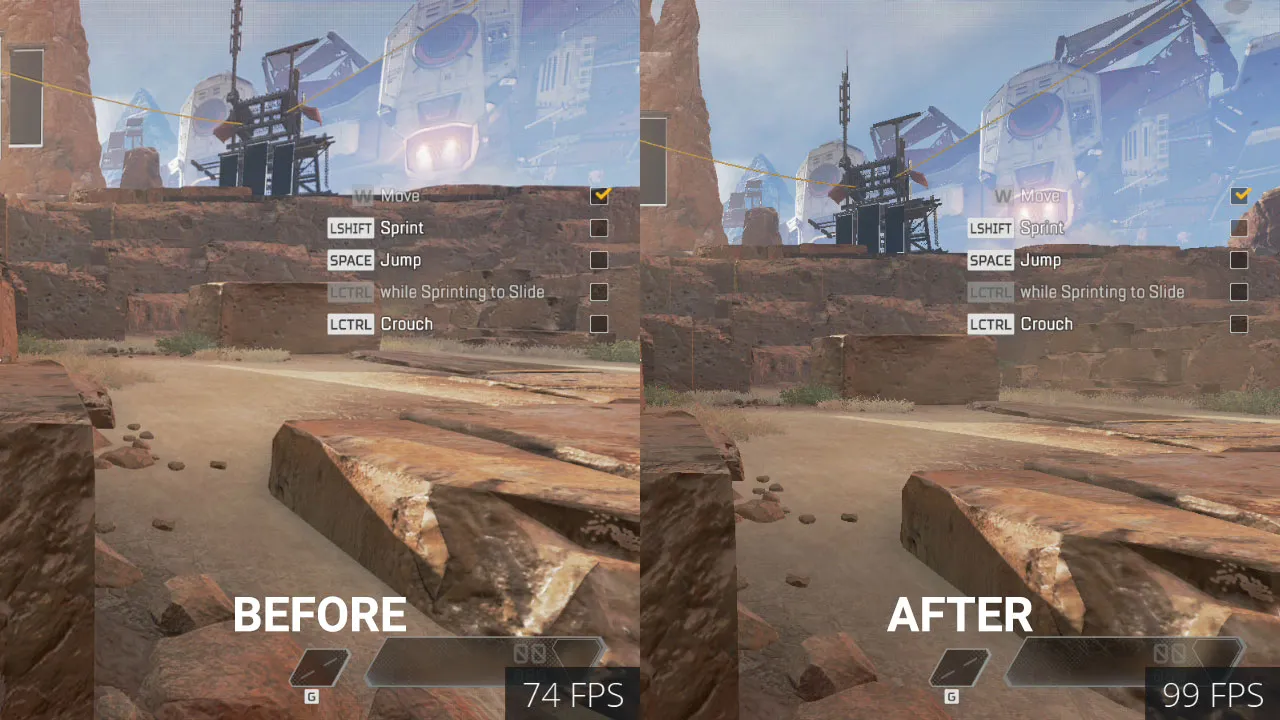
The performance improved by up to 25 FPS without losing much of the image quality. Turning down all of the settings will give you more performance improvements at the expense of losing image quality, which put you at a disadvantage in some scenarios.
Remove FPS Cap
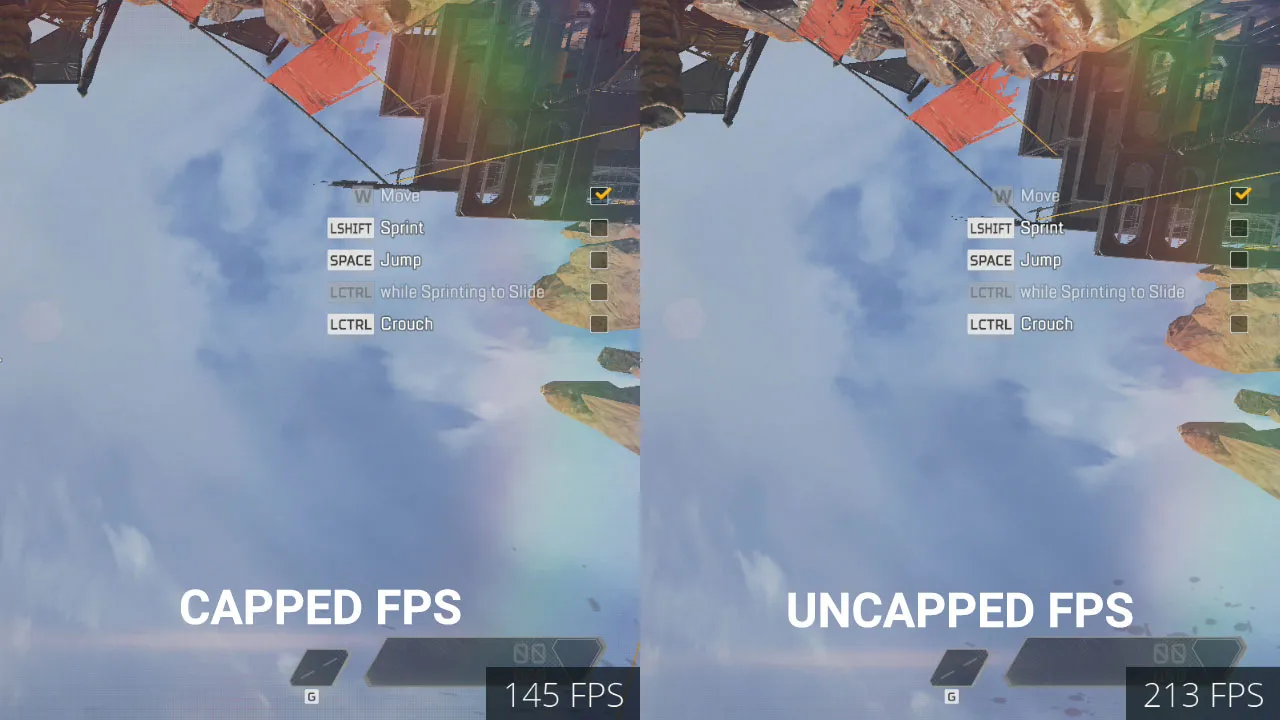
Apex Legends frames per second (FPS) is capped at 144. Unlocking FPS is recommend for high end systems that can maintain 200+ fps.
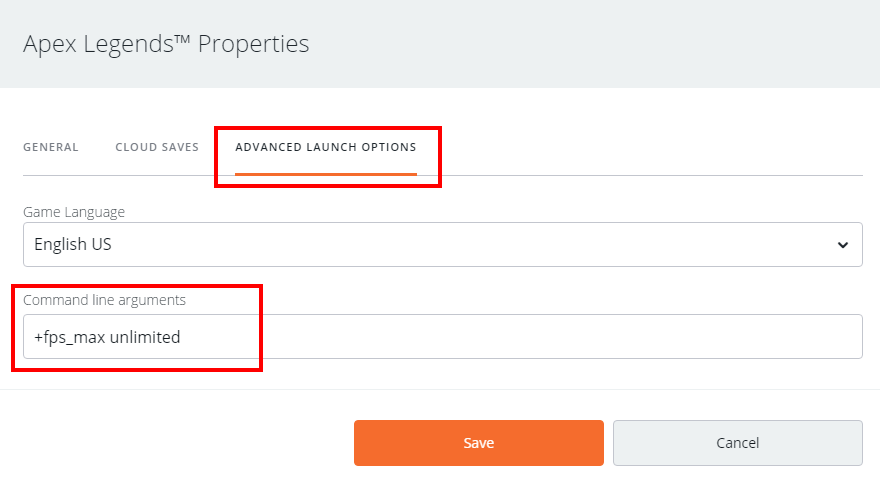
In your Game Library in EA Origin client, right-click on Apex Legends, click Game Properties and go to Advanced Launch Options, type in Command Line Arguments “+fps_max unlimited”.
Tell us how much FPS did you get in the comment section below.
Happy gaming!
Comments (1)
- 300
Comments are closed.