
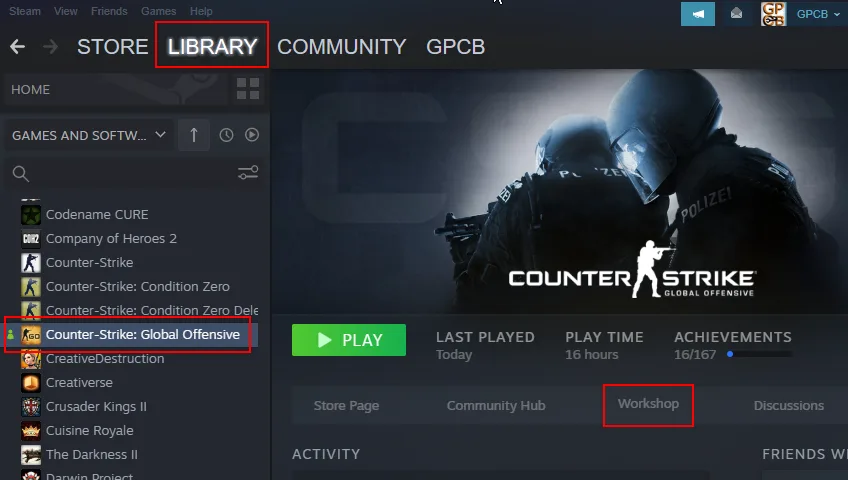
1. Go to your Steam Library, select CSGO, and click the Workshop button.
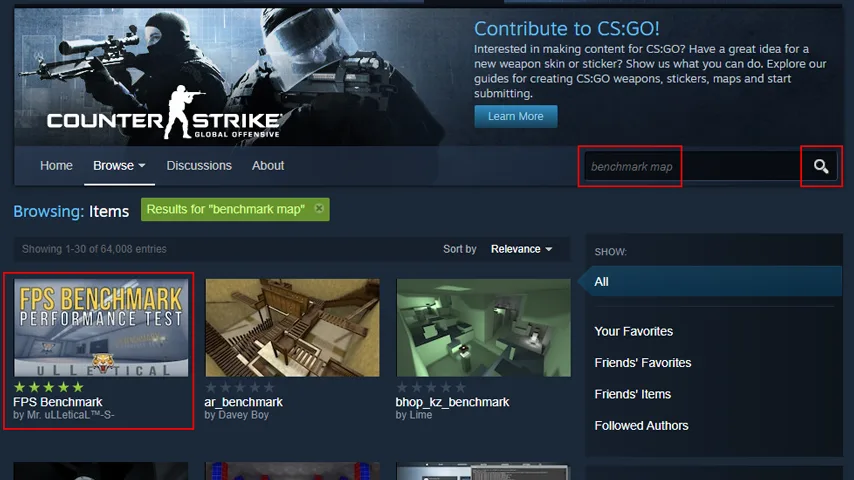
2. Search “benchmark map” and select the FPS Benchmark by Mr. uLLeticaL.
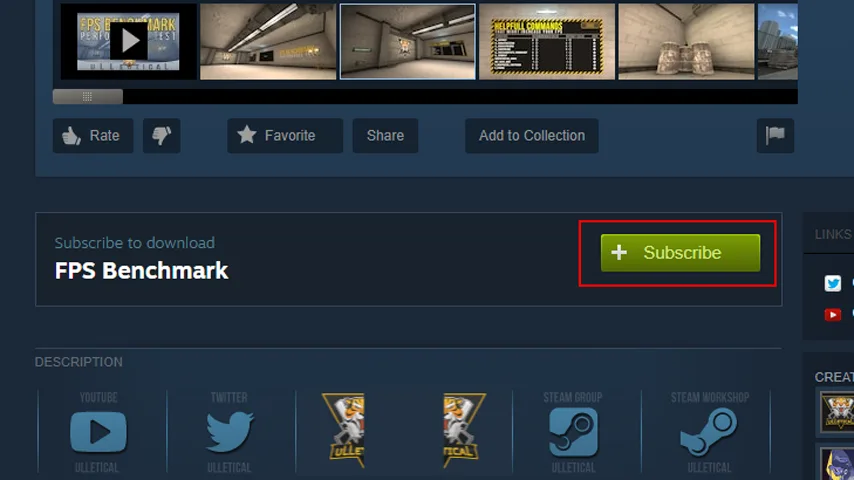
3. On FPS Benchmark page, click the Subscribe button.
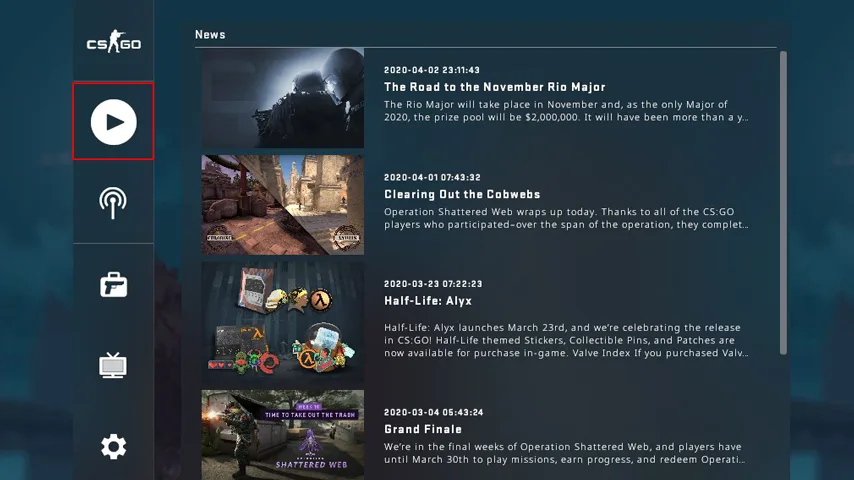
4. Launch CSGO and go to Play.
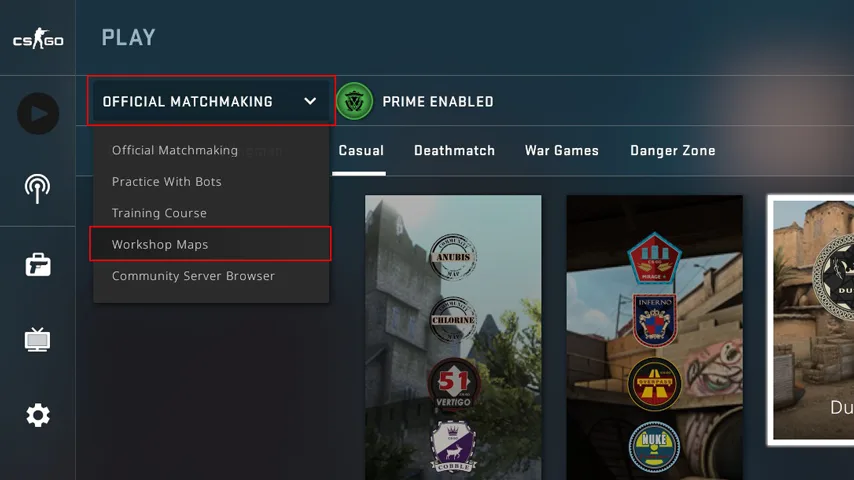
5. Click the Official Matchmaking drop-down list and select Workshop Maps.
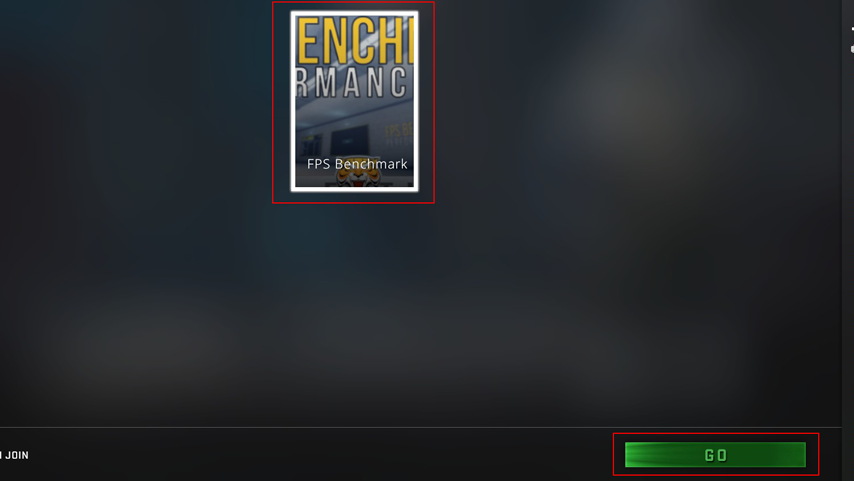
6. Select the FPS Benchmark map and click the GO button.
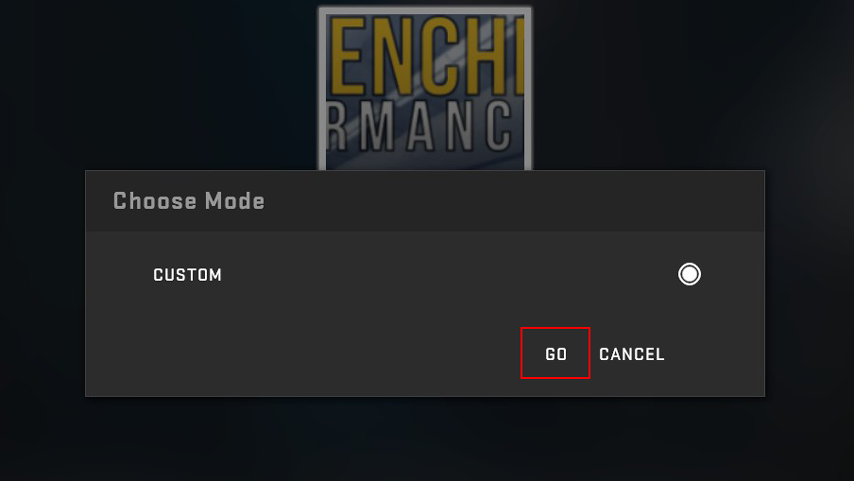
7. Choose Mode window will appear. Just click the GO button.
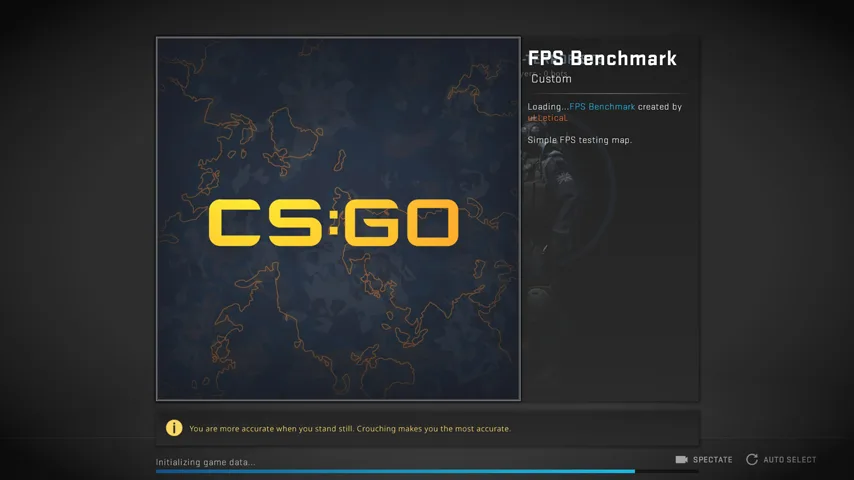
8. Wait for the map to load.
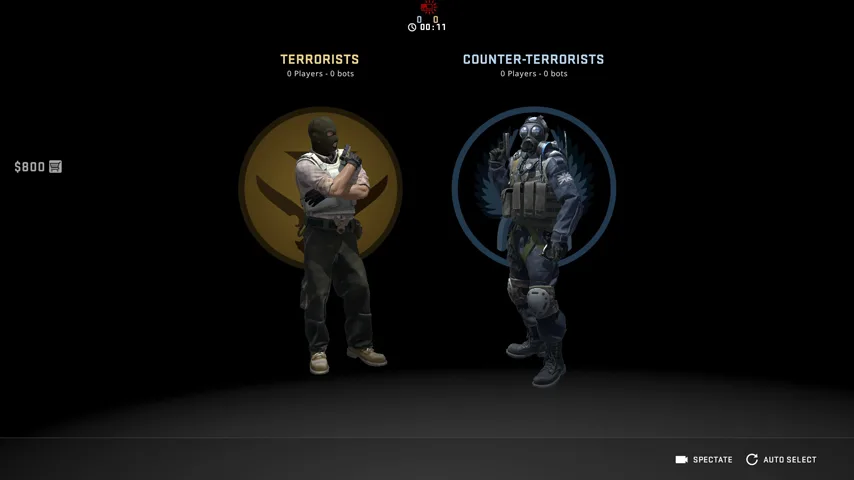
9. When loading is finished, select either terrorists or counter-terrorists.
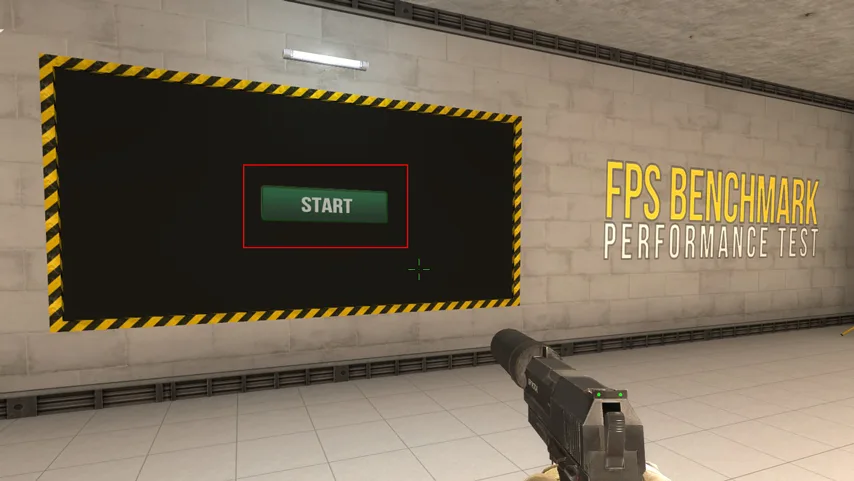
10. To start the benchmark, just shoot the Start button.
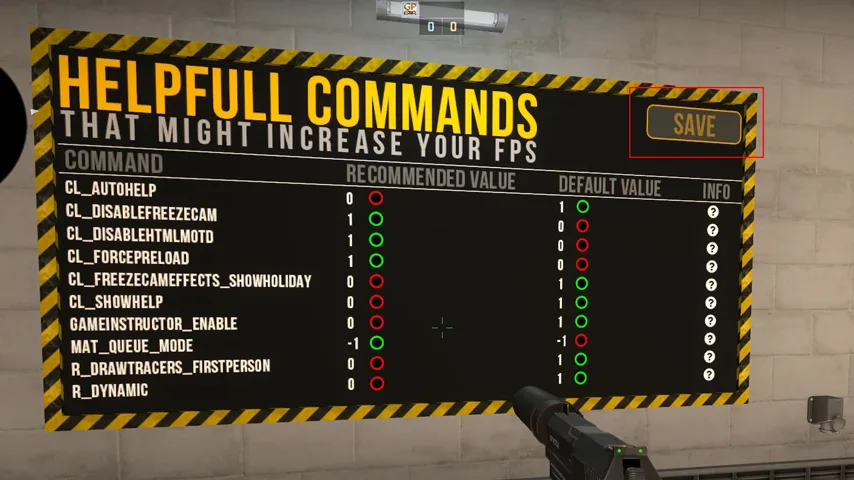
11. Helpful Commands are optional. Shoot the corresponding command you want to enable and shoot Save.
12. Benchmarking will now start.
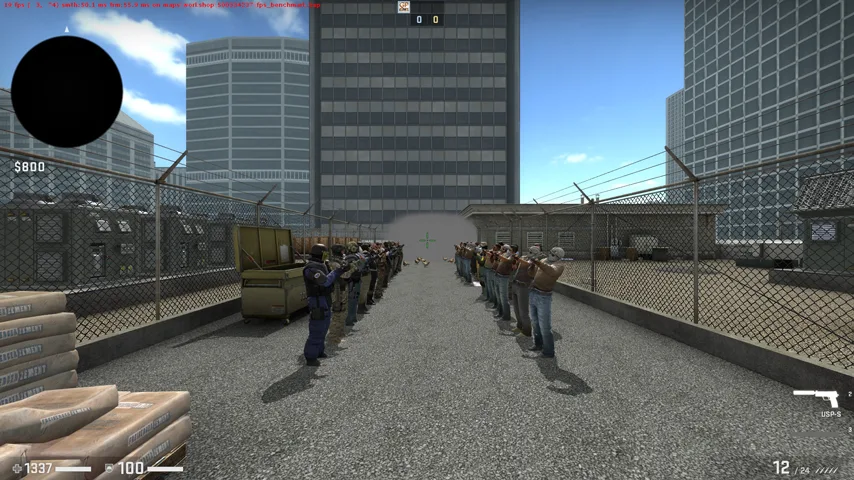
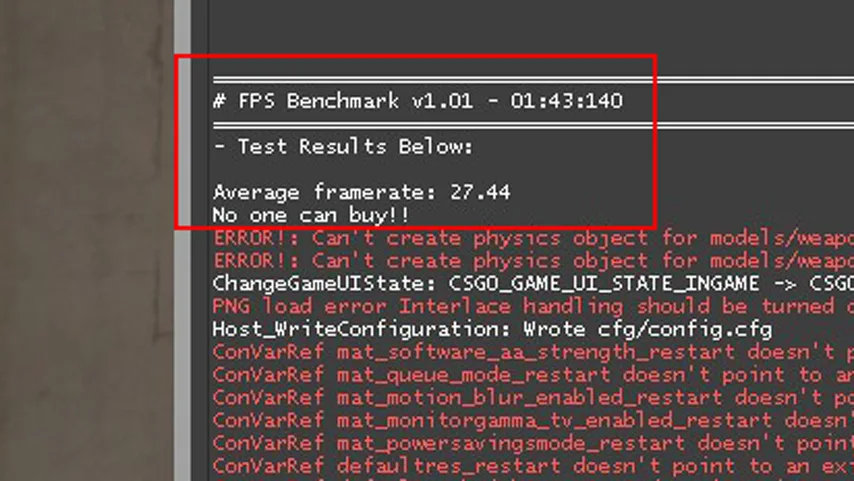
13. When the benchmarking ends, the console window will appear with the test results.
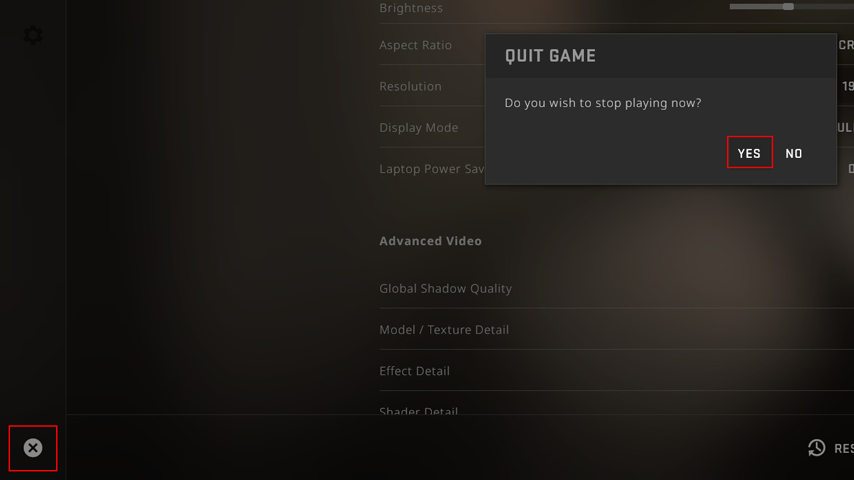
14. To exit the benchmarking map, close the console window, press ESC, then click the X button on the bottom left, and click Yes on the Quit Game pop-up window.
Comments (5)
- name338no thoughts head empty
- Thanks!
- bobyDoes not show consoke
- To open the console, you first need to enable it through the settings menu. You can do this by clicking Options in the top right corner of the screen from the main menu, selecting Game Settings, and choosing Enable Developer Console. Set it to “yes.” The default key binding for the console is the tilde key (~).
- This got my account vac banned
Comments are closed.